Floor plans in ChatGPT
Connect ChatGPT to FloorGen and it stops describing floor plans and starts drawing them: real walls, doors and rooms in a plan you can open, measure and change yourself. Free FloorGen account, your ChatGPT, one connector.
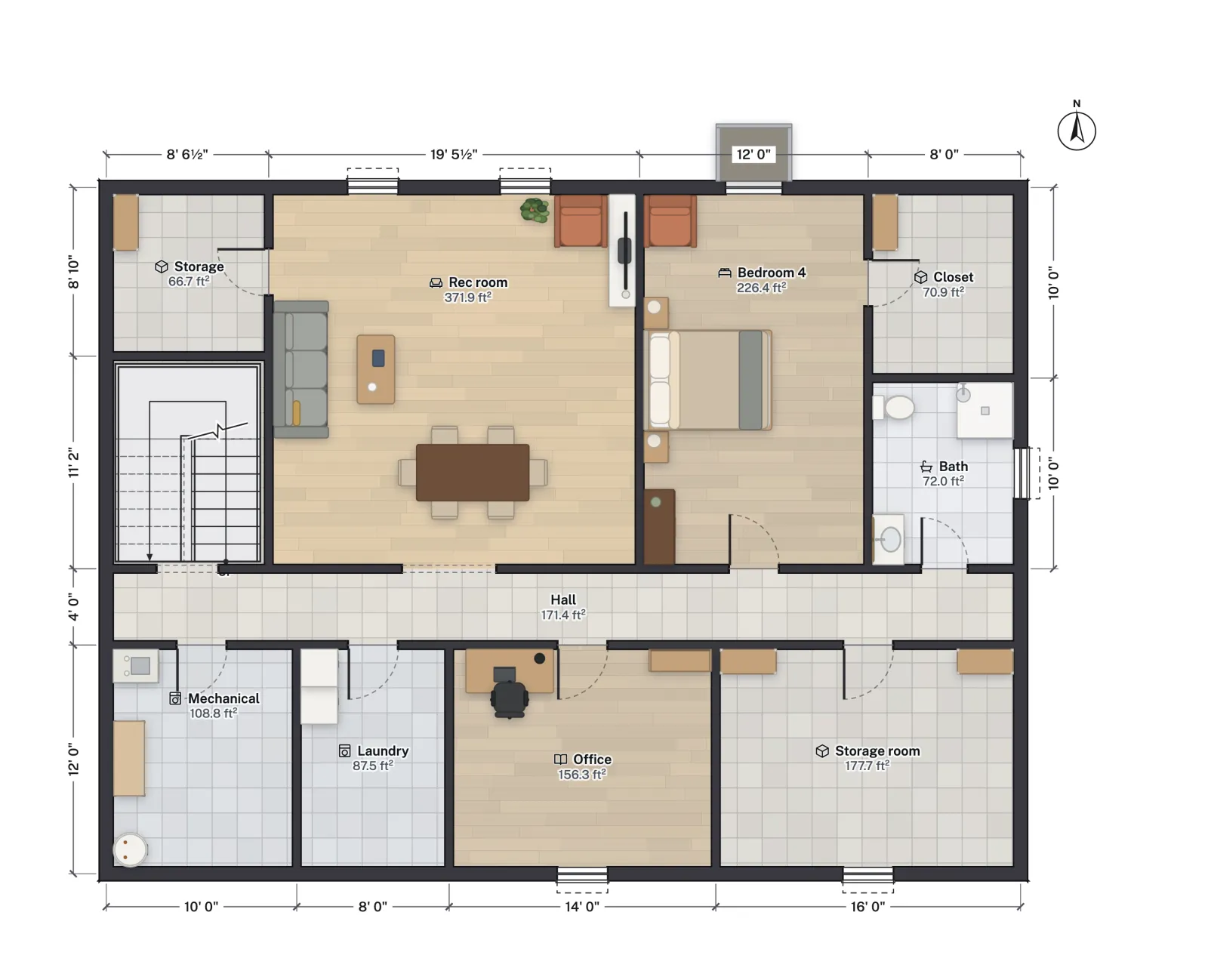
- Connection
- MCP connector, OAuth
- Tools
- 151
- Undo
- Every change
- FloorGen account
- Free
What ChatGPT can do once it is connected
- Read your plans: list your projects, describe one floor by floor, give each room's area, find "the door between the kitchen and the hall".
- Change them: draw rooms, move and resize walls, add doors and windows, place and arrange furniture from the 3,026-piece catalog, add a storey with a stair.
- Check them: run the same checks as the editor's Review panel under the plan's code profile, and the stair, clearance and furniture audits.
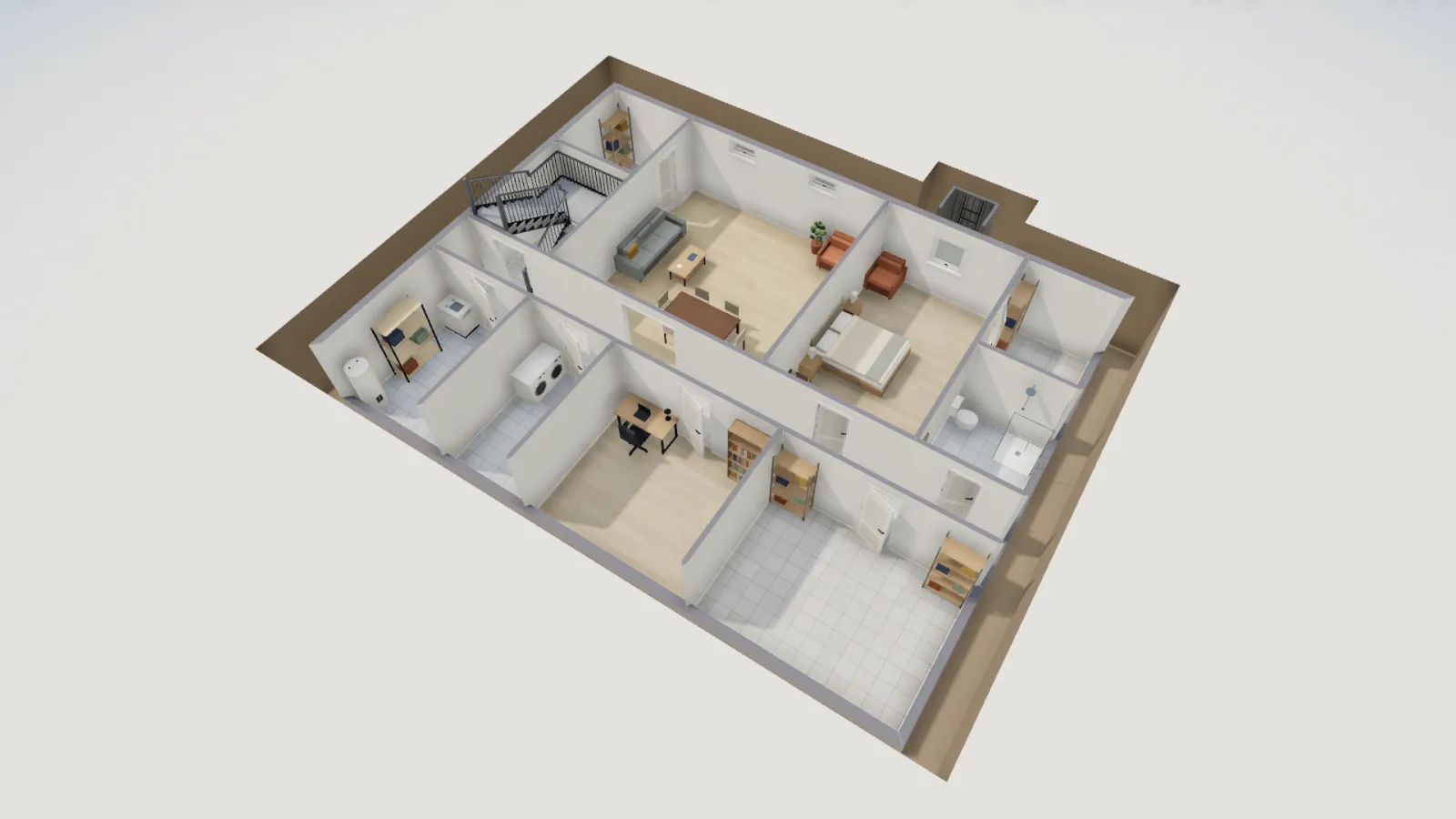
- Show them: render the plan or a 3D view as an image in the chat, so ChatGPT can look at what it drew before it answers.
Every edit lands in the real project, appears in an open FloorGen tab within about a second, and is one undo step. ChatGPT works on the plan; it does not paint a picture of one.
Connect ChatGPT to FloorGen
- Make a free FloorGen account (Google sign-in) and open or create a project, so there is something synced to work on.
- Turn on developer mode in ChatGPT: Settings → Apps & Connectors → Advanced settings → Developer mode. Custom connectors with write tools need it; check that your ChatGPT plan offers it.
- Create the connector: name it FloorGen, server URL
https://floorgen.app/mcp, authentication OAuth. - Sign in and pick the access: FloorGen's consent page asks for Read only, Read & edit, or Full (which can delete). Read & edit is the sensible start.
- Use it in a chat: pick the FloorGen connector, then ask "List my FloorGen projects".
To give ChatGPT more than the 44 core tools, use https://floorgen.app/mcp?toolsets=core,more,macros as the URL; ?toolsets=all lists all 151. The MCP server reference lists every tool, and connecting Claude, ChatGPT and Cursor has the setup for other clients.
Prompts to try
Open my "Lake house" project and tell me which rooms are under 100 square feet.
In the basement, turn the storage room into a home office with a desk under the window, and check that the walkways are still clear.
Make a copy of this design and try the laundry next to the bedroom instead. Render both so I can compare.
Check the stairs against the IRC and explain anything that fails in plain words.
Requests with numbers ("at least 11 ft wide", "keep a 36 in hall") get better results than adjectives. Bigger jobs go better in steps, starting from a template or your own plan, with a look at the render after each.
Keeping it safe
Deletes need a confirmation token, so ChatGPT has to ask you before it removes anything, and deleted things go to a trash first. A checkpoint is saved before big changes, and Activity in the editor lists every change with who made it. You can disconnect the app at any time from Agents & MCP on FloorGen's Home screen.
Limits
- ChatGPT still makes mistakes, such as the wrong wall or an awkward door. Look at the plan and undo what you do not want.
- It works on projects synced to your account, not on plans saved only in a browser.
- File exports (PDF, DXF, video) are done in the editor; ChatGPT gets PNG renders.
Questions
Can ChatGPT draw a floor plan?
On its own it produces a description or an image that is not to scale. Connected to FloorGen, it draws a real plan with walls of set lengths that you can open and edit.
Do I need ChatGPT Plus?
You need a ChatGPT plan that offers developer mode and custom connectors; that changes, so check OpenAI's current plans. The FloorGen side is a free account.
Can ChatGPT see all my projects?
With OAuth it can reach every project in your account, at the access level you chose. For one project only, use an API key client such as Cursor or Claude Code.
Can I undo what ChatGPT changed?
Yes. Each change is one step in the editor's undo, and ChatGPT can call undo itself.