Move around and walk through
Updated 4 min readWorks without an account
Drag with the middle mouse button to orbit round a model from any tool, and scroll to zoom. The camera tools on the rail, the view cube and the View menu do the rest, and Walk and look around puts you inside the model at eye height.
The camera tools
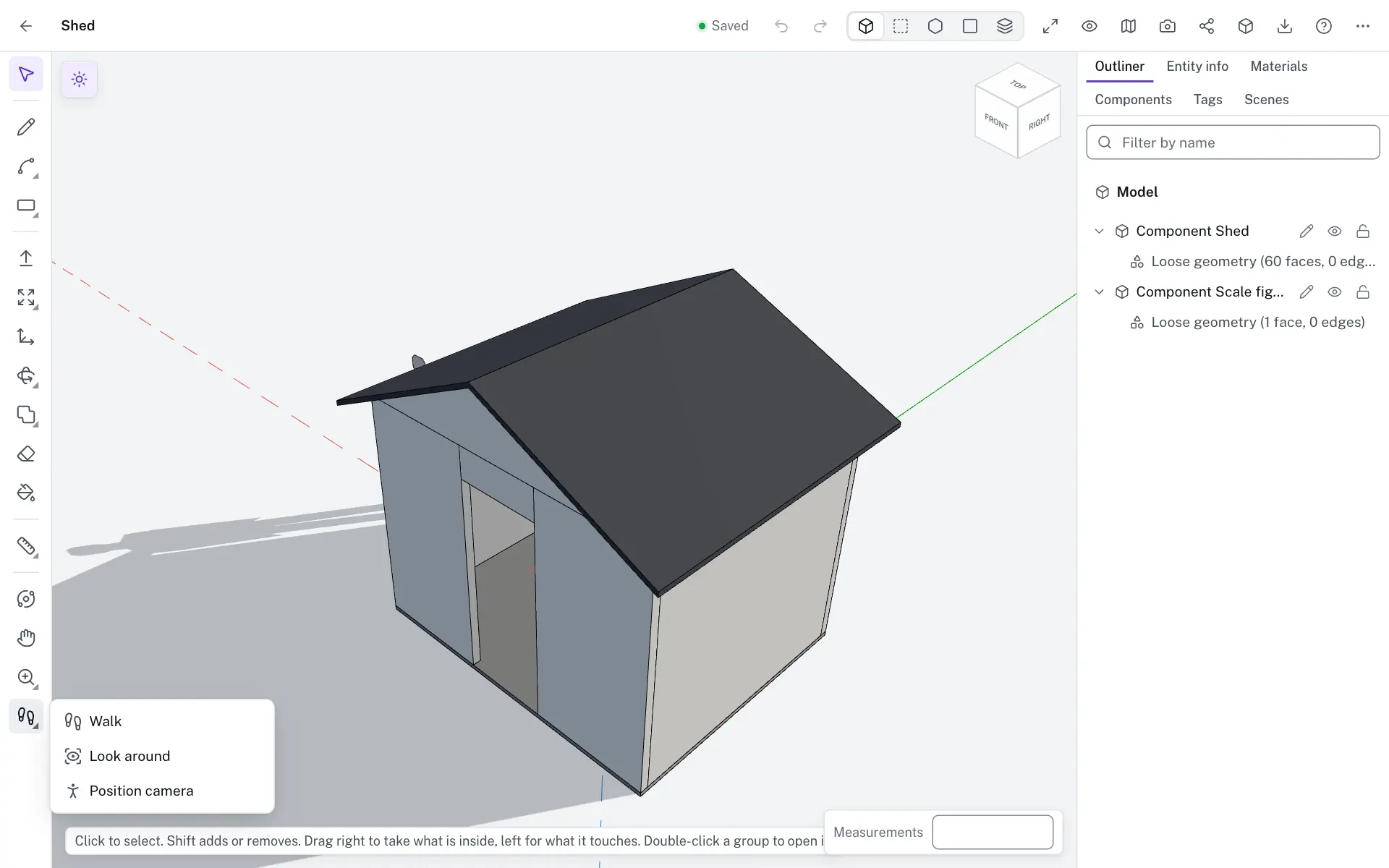
- Step 1: Orbit
Press O for Orbit and drag to turn round the model.
- Step 2: Pan
Press H for Pan and drag to slide the view.
- Step 3: Zoom
Press Z for Zoom and drag up to come closer, down to move away. Zoom window in the same flyout fills the view with a box you drag.
- Step 4: Open Walk and look around
A click on Walk and look around starts the tool its button shows, Walk at first, from where the camera is now. To stand somewhere first, click it again or press ↓ on it to open its list.
- Step 5: Pick a first-person tool
Choose Position camera first and click where to stand, then Walk or Look around. Each is described under Walk through the model below.
- Step 6: Use the view cube
Click a side of the cube at the top right of the view to look from that side, or an edge or corner to look from between them.
Mouse, trackpad and keys
| To | Do this |
|---|---|
| Orbit | Drag with the middle mouse button, or scroll with two fingers on a trackpad |
| Pan | Hold ⇧ and drag with the middle button, or hold ⇧ as you scroll with two fingers |
| Zoom toward the pointer | Turn the mouse wheel, or pinch on a trackpad |
| See the whole model | ⇧ Z (Zoom to fit) |
Standard views
Open View in the top bar (below 1280 px wide it is under More actions › View). Under Standard views pick Top, Bottom, Front, Right, Back, Left or Isometric. The sides, on the menu and on the view cube, switch to Parallel projection so lines stay true; Isometric switches back to Perspective. Previous view and Next view step through where the camera has been, and Field of view widens or narrows the perspective.
Walk through the model
- Position camera: click where to stand, on the ground or a floor, or drag from there toward what to look at. Your eye goes 1.6 m above the spot and Look around starts.
- Look around: drag to turn your head where you stand.
- Walk: drag up to walk forward, down to step back and sideways to turn. Hold ⇧ to slide sideways. ↑ and ↓ walk a step, ← and → turn, or step sideways with ⇧.
- To stop walking, pick another tool, such as O for Orbit or Space for Select. ⇧ Z brings the whole model back into view.
To come back to a view later, save it as a scene. See Styles, sun, tags and scenes.
On a phone or tablet
- One finger works the tool you picked. Tap Orbit on the rail and drag with one finger to turn the model.
- With Select, drag one finger from empty ground to turn the model too. A tap still selects.
- Two fingers move the camera from any tool: pinch to zoom, drag them together to pan, and twist them to orbit.
Questions
I lost the model. How do I find it again?
Press ⇧ Z, or choose Zoom to fit, and the whole model fills the view.
Can I change the eye height?
No. Position camera always puts your eye 1.6 m above the spot you click. Click on a floor or a stair to stand higher.