Import and export a 3D model
Updated 5 min readWorks without an account
Bring a 3D file, a DXF drawing or a picture into a model with Import, under More actions (the ⋯ button) at the right of the top bar, and send the model out to other 3D programs, a 3D printer, AR, drawings or a render with Export. There is no Import button on the bar itself.
Import a file
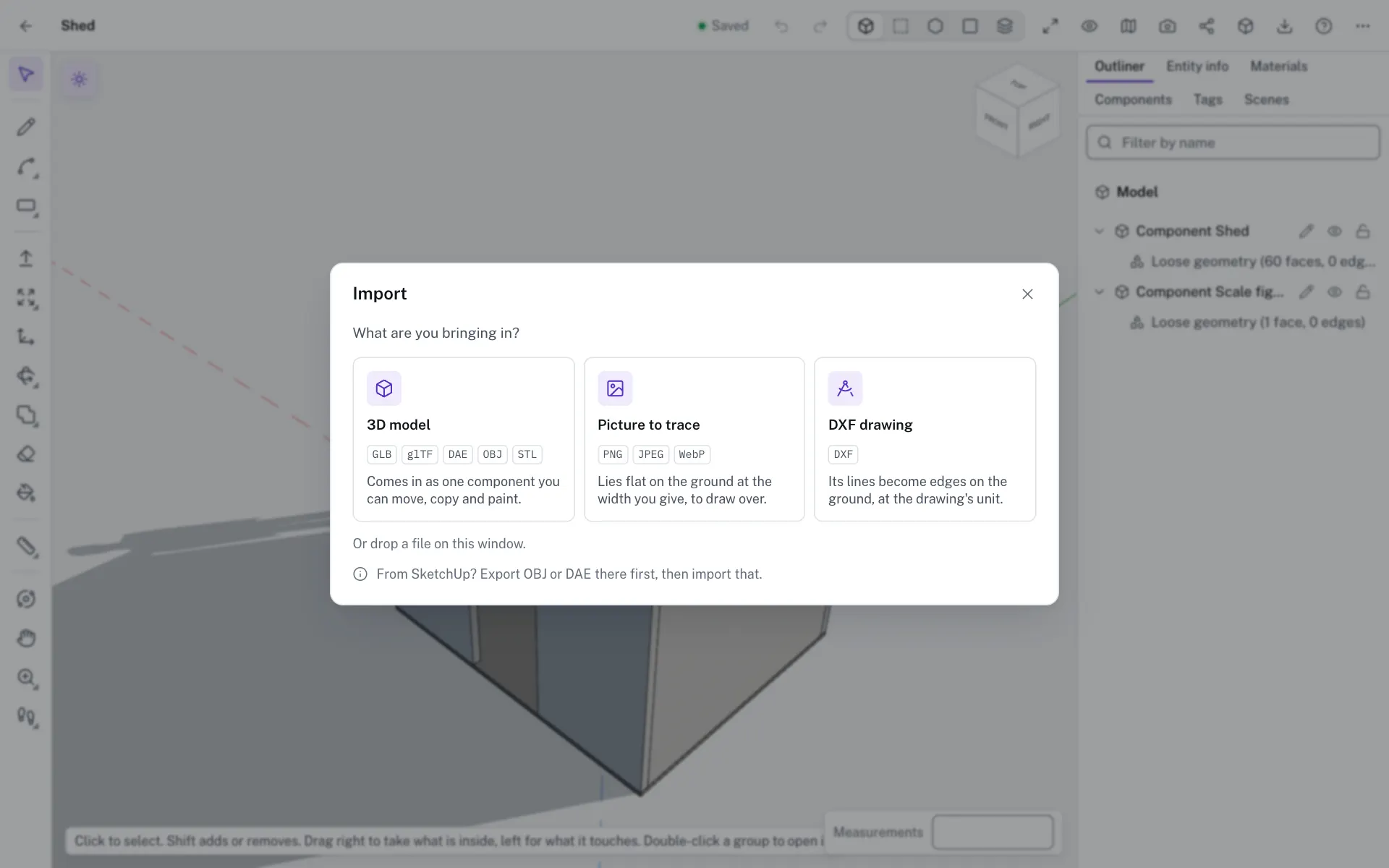
- Step 1: Open Import
Click More actions in the top bar and choose Import. The dialog asks What are you bringing in?
- Step 2: Pick the kind of file
Click 3D model for a GLB, glTF, DAE, OBJ or STL, Picture to trace for a PNG, JPEG or WebP, or DXF drawing, and choose the file. You can also drop the file on the dialog.
- Step 3: Check the size
An OBJ or STL asks The file is in (its unit) and the Up axis, and says how big it comes in, such as “Comes in 2 m wide, 1 m deep and 80 cm tall”. A DXF asks its Drawing unit. A picture asks its Width on the ground (cm).
- Step 4: Import it
Click Import. The file goes in beside what the model already holds, as one step you can undo.
| Card | Files | Comes in as |
|---|---|---|
| 3D model | GLB, glTF, DAE, OBJ, STL | One component named after the file, which you can move, copy and paint. Colours and textures in the file are not carried over. |
| Picture to trace | PNG, JPEG, WebP | A flat picture on the ground at the width you give, to draw over. It keeps its proportions. |
| DXF drawing | DXF | Its lines, arcs and circles as edges on the ground, ready to pull up. Closed shapes become faces; text and dimensions are left out. |
Units and the size check
- A GLB, glTF or DAE says its own units and up axis, so the dialog reads This file says its own units and up axis; it is turned to stand on the ground. and asks nothing.
- An OBJ starts in centimetres and an STL in millimetres, both with Z up. Change The file is in if the size looks wrong, and pick Y up for a file that lies on its side.
- When the size is far off (an OBJ, STL or DXF), a warning such as “That is very large. In millimetres, its longest side would be 12 m.” comes with a button that sets that unit, such as “Use millimetres”.
- A DXF that does not say its unit shows The file does not say its unit: check this one.
When a file is refused
- One import takes at most 200,000 triangles, and a DXF at most 20,000 points. A mesh whose triangles share few points (curved, bumpy) fits fewer, about 133,000 for a bumpy grid: its edges reach the limit first. The message gives the file’s own count, checked when you pick it.
- A file is refused on its size before it is read: 50 MB for a 3D file, 8 MB for a DXF and 15 MB for a picture.
- SketchUp files (.skp) can’t be read. In SketchUp, export the model as OBJ or DAE, then import that.
- A glTF that uses files beside it is refused: export a .glb (one file) instead. A glTF compressed with Draco or meshopt is refused too; export it without mesh compression.
- Your own pictures, to trace over or as textures, come with a paid plan by default. 3D files and DXF drawings import on every plan, guests included.
Export
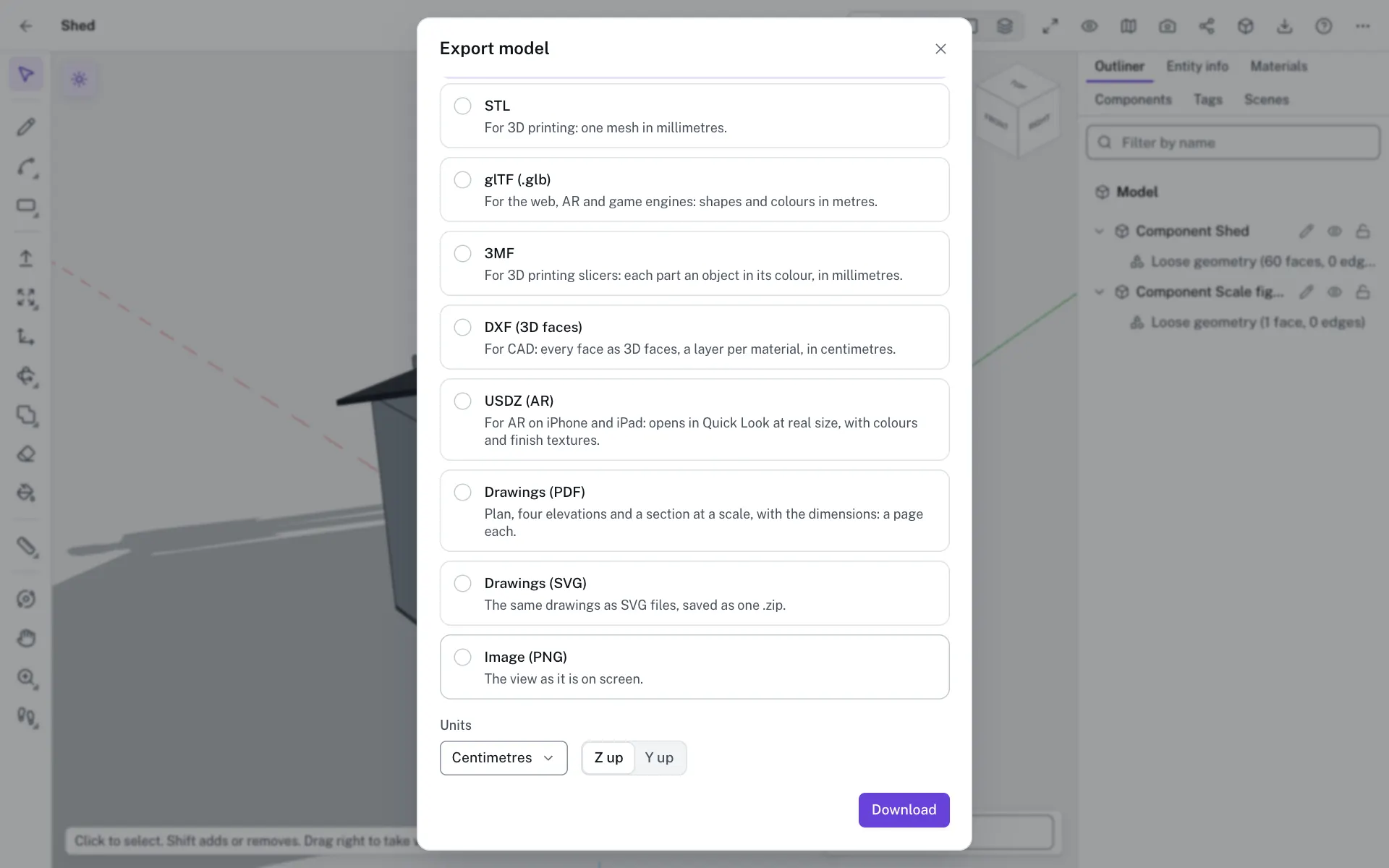
- Step 5: Open Export
Click Export in the top bar, or in More actions on a narrow window. The Export model dialog opens.
- Step 6: Pick the format
Choose a File format. Each one says what it is for.
- Step 7: Set the options
An OBJ, STL, GLB, 3MF or DXF asks its Units and Up axis, starting at the format’s own. Tick Selection only to export only what is selected. Drawings ask a Scale and which Drawings to make; an image asks its Image size.
- Step 8: Download
Click Download. When a format needs an account or a plan you do not have, a card says so instead. When no plan includes a format, the dialog does not show it.
| Format | For | Needs |
|---|---|---|
| OBJ with MTL | Blender, SketchUp and most 3D tools. With finish textures it is saved as one .zip. | A paid feature |
| STL | 3D printing, as one mesh in millimetres. Tick ASCII STL for a text file. | A paid feature |
| 3MF | 3D printing slicers, each part an object in its colour | A paid feature |
| glTF (.glb) | The web, AR and game engines, in metres | A paid feature |
| USDZ (AR) | AR on an iPhone or iPad, at real size | A paid feature |
| DXF (3D faces) | CAD programs: every face as 3D faces, a layer per material | A free account |
| Drawings (PDF) | The plan, four elevations and a section at a scale, with your dimensions, a page each | A free account |
| Drawings (SVG) | The same drawings as SVG files, in one .zip | A free account |
| Image (PNG) | The view as it is on screen, at Screen size, 2x or 4x | A free account |
Before an STL
A 3D printer needs closed shells. If some parts have open edges, the dialog lists them under Some parts are not closed solids: close the gaps, or click Export anyway.A section drawing needs a Section plane in the model; without one the dialog says Add a section plane to draw a section too.
Render, AR and sharing
- Render makes a photoreal picture of the view in your browser. It needs a free account. See Make a photoreal render.
- View in AR places the model in the room around you: on an iPhone or iPad it opens in Quick Look, and elsewhere the file downloads for an AR viewer. It is a paid feature; when no plan includes it, the 3D Modeler does not show it.
- Share invites people by email to view or edit the model. Sharing needs a free account. See Share a project.
Questions
Why does furniture export as boxes?
A few catalogue pieces have no drawn model yet; the export dialog says how many export as boxes.
Can I open the model in SketchUp?
Yes. Export OBJ with MTL, which is a paid feature, and import it in SketchUp. With a free account, DXF (3D faces) also opens there.
Can I import a SketchUp file?
Not a .skp file. Export OBJ or DAE from SketchUp first, then import that as a 3D model.