Move, rotate, scale and copy
Updated 5 min readWorks without an account
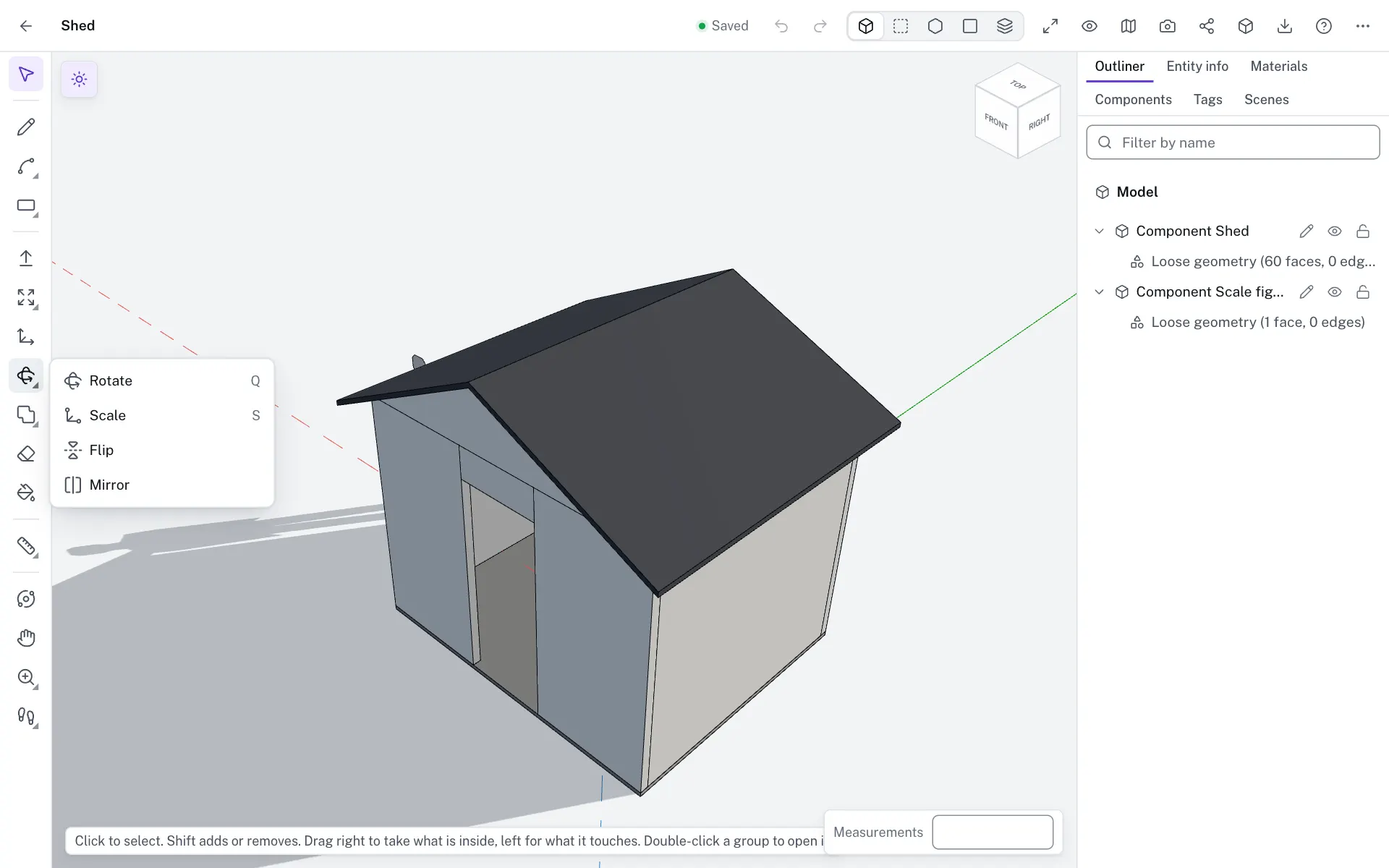
Move moves the selection, or what is under the pointer, and makes copies and evenly spaced rows of them. Rotate, Scale, Flip and Mirror sit in the Rotate, scale and flip flyout, Offset in Offset, Follow Me and rounding, and Eraser has its own button.
Move, copy and make a row of copies
- Step 1: Select the box
Press Space for Select and click the box. If it is loose faces, triple-click it to take the whole box.
- Step 2: Move it an exact distance
Press M for Move and click a point on the box. Point the way it should go, type a distance such as
100, and press Enter. - Step 3: Make a copy
Click a point on the box again. Hold Ctrl, or ⌥ on a Mac, and click where the copy goes. The original stays where it was.
- Step 4: Type how many copies
Straight after the copy, type
x5and press Enter. Now there are five copies, each the same distance apart.
Instead of x5, type /5 to fit five copies evenly between the original and the copy, or 3x4 for a grid of three rows by four columns, the original one of the twelve. After a grid, type a length to set the space between the rows. The copies become one group: select it, press M and type x8 to lay it out again with eight.
- With nothing selected, Move takes whatever is under the pointer when you click.
- Press →, ← or ↑ while you move to lock to the red, green or blue axis; ↓ lets go. A typed distance goes the way the pointer is going, or along the locked axis.
- Esc stops a move halfway.
Rotate
- Press Q, or open Rotate, scale and flip on the rail and pick Rotate.
- Click the centre. The protractor lies on the face under the pointer, or on the ground; press an arrow key first to turn about that axis instead.
- Click where the angle starts, then click the angle. It snaps to 15° steps by default (Angle snap in Model settings); hold ⇧ for any angle.
- Or type the angle in degrees, such as
90or-45, and press Enter. - Hold Ctrl, or ⌥ on a Mac, to rotate a copy. Then type
x6for six copies round the centre, or/6to fit six copies in the angle you turned.
Scale
- Select something and press S, or pick Scale in Rotate, scale and flip. Grips appear on the box round the selection.
- Drag a corner grip to scale all three ways alike, the middle of an edge to scale two ways, or the middle of a side to scale one way. Hold Ctrl to scale about the middle; hold ⇧ to change which axes scale.
- Type a factor and press Enter:
2makes it twice the size,0.5half.2,1,1scales the red, green and blue axes by different amounts. Where your numbers use a decimal comma, separate the three with;.
Offset
Press F, or pick Offset in the Offset, Follow Me and rounding flyout. Click a face, move in or out and a copy of its outline follows the pointer; click again to finish. Type a distance for an exact one: a plain number keeps the way the pointer went, and a minus sign, such as -10, goes inward. Double-click another face to offset it by the last distance again. Follow Me, Fillet and Chamfer in the same flyout are paid features, left out when no plan includes them; see Solid tools, Follow Me and rounding.
Flip and Mirror
- Flip turns a part over in place, along the red axis through its middle. Click the part, or with something selected click anywhere in the view. Press →, ← or ↑ first to flip along the red, green or blue axis.
- Mirror makes a mirror image across a plane. Select what to mirror, then click a face to mirror it across that face, or click two points for an upright plane through them. Hold Ctrl (⌥ on a Mac) at the last click to keep the original as well.
Erase
- Press E for Eraser, then click an edge, a face or a group, or drag over several. They go when you release, as one step.
- Hold Ctrl as you drag to soften edges instead, so a curved surface looks smooth; Ctrl and ⇧ harden them again.
- Click a guide line, a guide point, a dimension or a text label to remove it.
- Or select something and press Del.
Questions
How do I copy something without moving the original?
Use Move and hold Ctrl (⌥ on a Mac) when you click the end point. Or select it and press ⌘D to duplicate it beside itself.
Can I change the number of copies later?
Yes. Select the group of copies, press M and type a new count, such as x8 or /8, then press Enter.
How do I scale the whole model?
Press ⌘A to select everything, press S, type a factor such as 2 and press Enter.