Solid tools, Follow Me and rounding
Updated 5 min readWorks without an account
The pro tools join, cut and split solids (Union, Subtract, Intersect, Trim and Split), sweep a profile along a path (Follow Me) and round or cut a corner (Fillet and Chamfer). They are paid features.
Find the pro tools
- Step 1: Open the list
Solid tools on the tool rail holds the five solid tools, and Offset, Follow Me and rounding holds Follow Me, Fillet and Chamfer. A click starts the tool the button shows; click again, or press ↓ on the button, to open its list. A tool your plan does not include shows PRO on the rail button while the button shows it, and beside its name in the list. When no plan includes a tool, the 3D Modeler does not show it.
- Step 2: Pick a tool
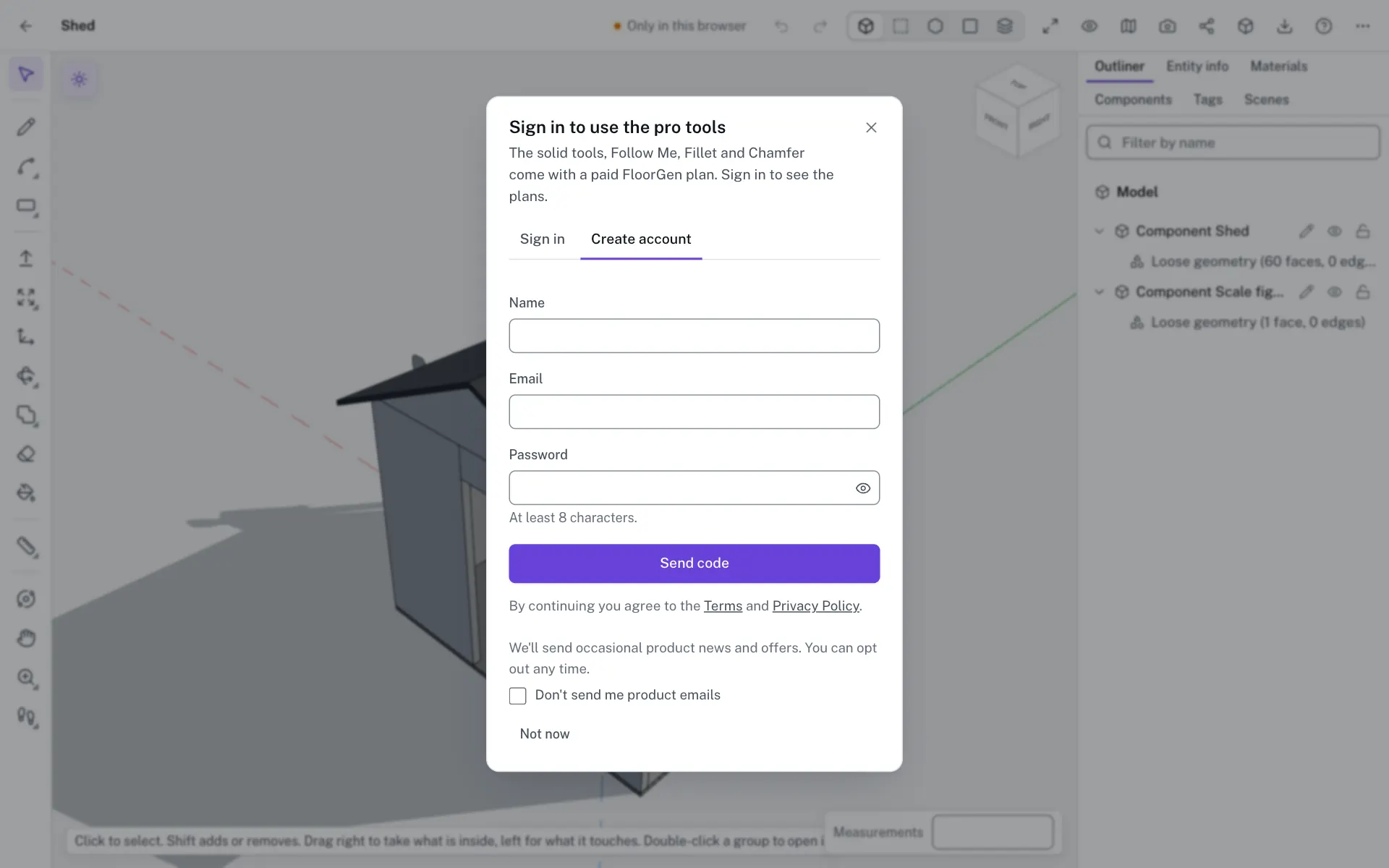
On a plan with the pro tools, it starts at once. Otherwise a card opens instead, also when you click a button that shows a pro tool: a guest sees Sign in to use the pro tools, and an account without them sees Pro tools are not on your plan with See plans. Without the pro tools, a click on Solid tools always opens the card, so press ↓ on it to see the list.
A guest who signs in from the card on a plan with the pro tools goes straight on with the tool. Shapes you already made with the pro tools stay in your models when a plan ends: you can still move, paint and copy them.
Combine two solids
The solid tools work on two groups or components that are closed solids, with no gaps in their faces. Entity info says whether a part is one: Solid reads Yes, or No (not closed), and a solid shows its Volume. Both parts must sit in the same place, loose in the model or inside the same open group.
Pick a solid tool, click the first solid, then click the second. Esc lets go of the first. The result is new groups in place of what the tool used up, each a closed solid again, so it can go into the next solid tool or out as an STL.
| Tool | Leaves |
|---|---|
| Union | One solid of both |
| Subtract | The first without the part the second fills; the second goes |
| Intersect | Only the part they share |
| Trim | The first cut where the second fills it, and the second kept as it was |
| Split | Three solids: the part only the first fills, the part they share and the part only the second fills |
If a part has a gap, the line at the bottom of the view says Can’t do that: both must be closed solids (a group or component with no gaps). Close the gap (draw the missing edge, or pull the open face shut) and try again.
Follow Me
Follow Me sweeps a flat face, the profile, along a path of edges: a moulding along a wall, a pipe, the rim of a table. Draw the profile standing across one end of the path first.
- Pick Follow Me and click the profile face.
- Click the edges of the path one by one; click an edge again to take it back out. Press Enter or double-click the last edge to sweep.
- Or, after the profile, click a face: the profile sweeps once round that face’s outline, for a rim or a picture frame.
An open path keeps the profile as one end; a closed path makes a ring. A path that branches, is in pieces or doubles back at a corner is refused, and so is a profile too big for a corner of the path.
Fillet and Chamfer
- Pick Fillet to round a corner or Chamfer to cut it off.
- Click a flat face near the corner you want.
- Type the size and press Enter: the radius for Fillet, or how far back along both edges to cut for Chamfer. Esc cancels.
Fillet and Chamfer work on the corners of a flat face, not the edges of a solid. Round the corners of a rectangle first, then pull it up with Push/Pull for a rounded table top. A size longer than the shorter edge at the corner is refused.
FloorGen AI and agents
FloorGen AI and agents (MCP) can use the pro tools on a plan that includes them. Without it, a request that uses a pro tool is refused as a whole, and the AI or agent is told to build the shape another way or suggest an upgrade. Other requests still work.
Questions
Do I lose shapes made with the pro tools if my plan ends?
No. They stay in your models as ordinary groups and faces. Only the tools themselves lock again.
Why does a solid tool say my part is not closed?
Somewhere an edge has a face on one side only, such as a missing top. Select the part and check Solid in Entity info, then close the gap and try again.