Units, grid and snapping
Updated 3 min readWorks without an account
Model settings, in the More actions menu, sets a model’s units and precision, its grid and angle snap, and which points the drawing tools snap to. The settings are saved with the model, so everyone who edits it draws the same way.
Change the model settings
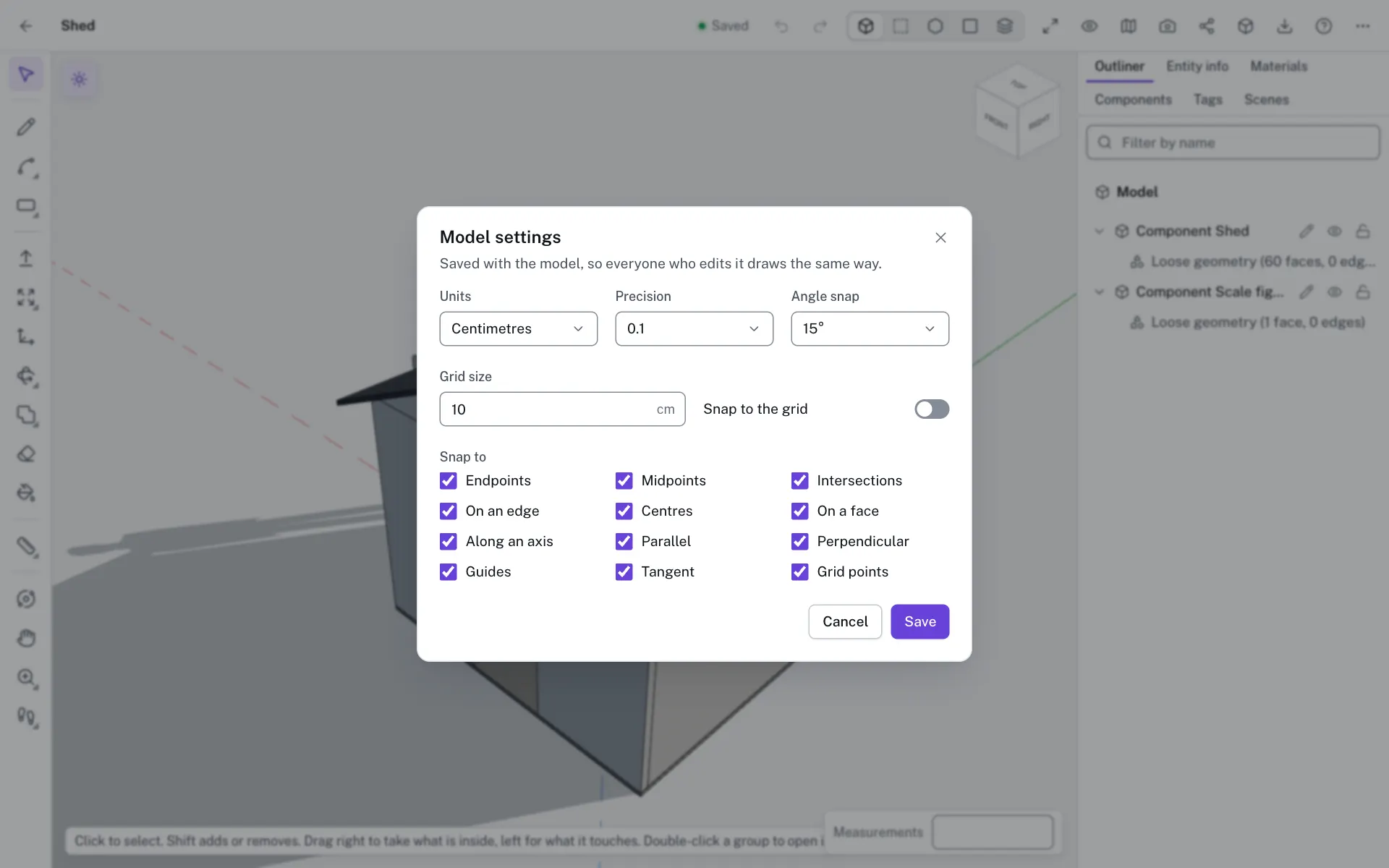
- Step 1: Open Model settings
Click More actions (the three dots at the right of the top bar) and choose Model settings. A view-only copy has no settings.
- Step 2: Pick the units and precision
Choose Millimetres, Centimetres, Metres, Inches or Feet and inches under Units, and how many decimals under Precision, from
1to0.0001. - Step 3: Set the grid
Type the Grid size in centimetres and turn on Snap to the grid to make points on the ground and on level faces snap to it.
- Step 4: Choose what to snap to
Under Snap to, untick the kinds of point you don’t want, then click Save.
Saving is one step: ⌘Z puts the old settings back. Cancel closes the dialog without changing anything.
What each setting does
| Setting | What it does | Default |
|---|---|---|
| Units | The unit dimensions show in, and the unit of the drawings you export. | Centimetres, or inches in an imperial project |
| Precision | How many decimals dimensions show. | 0.1 |
| Angle snap | The steps Rotate and Protractor snap to: Off, or 1° to 90°. Hold ⇧ for any angle. | 15° |
| Grid size | The spacing of the snap grid. | 10 cm |
| Snap to the grid | Makes points on the ground and on level faces snap to the grid, with the tag On grid. | Off |
| Snap to | Which kinds of point the tools snap to. | All on |
The grid size takes 0.1 to 100000 cm; outside that the dialog says Enter a grid size from 0.1 to 100000 cm. and won’t save. The grid drawn on the ground keeps a line every metre whatever the size; hide it with Grid under View › Style options.
The Snap to list
| Box | Snaps to | Tag |
|---|---|---|
| Endpoints | The ends of edges | Endpoint |
| Midpoints | The middles of edges | Midpoint |
| Intersections | Where edges cross | Intersection |
| On an edge | Anywhere along an edge | On edge |
| Centres | The centres of circles and arcs | Centre |
| On a face | Anywhere on a face | On face |
| Along an axis | In line with the last point along red, green or blue | On red axis, On green axis, On blue axis |
| Parallel | Parallel to an edge | Parallel to edge |
| Perpendicular | Square to an edge | Perpendicular to edge |
| Guides | Guide lines and guide points | On guide |
| Tangent | Carrying on smoothly from an arc’s end | Tangent at arc end |
| Grid points | The grid, when Snap to the grid is on | On grid |
Locks still work
Turning a snap off never stops an arrow key or ⇧ from locking a direction. See Lock a direction.Units in what you type
The measurements box reads a number with no unit in the project’s length unit: centimetres by default in a metric model, inches in an imperial one. Add a unit to type in any other: 2.4m, 240cm, 25mm, 8' or 6". Changing Units does not change what a plain typed number means; add m to type metres.
Questions
Why do my dimensions show in centimetres when I want metres?
Open More actions › Model settings, choose Metres under Units and click Save. Every dimension in the model changes at once.
How do I draw freely without snapping?
Untick the boxes you don’t want under Snap to in Model settings. Freehand never snaps.