Groups and components
Updated 4 min readWorks without an account
Loose faces and edges stick to whatever they touch. Wrap a part in a group to keep it apart, or in a component when you want copies that all change together: twelve chairs, a row of windows, a fence post.
Make a group
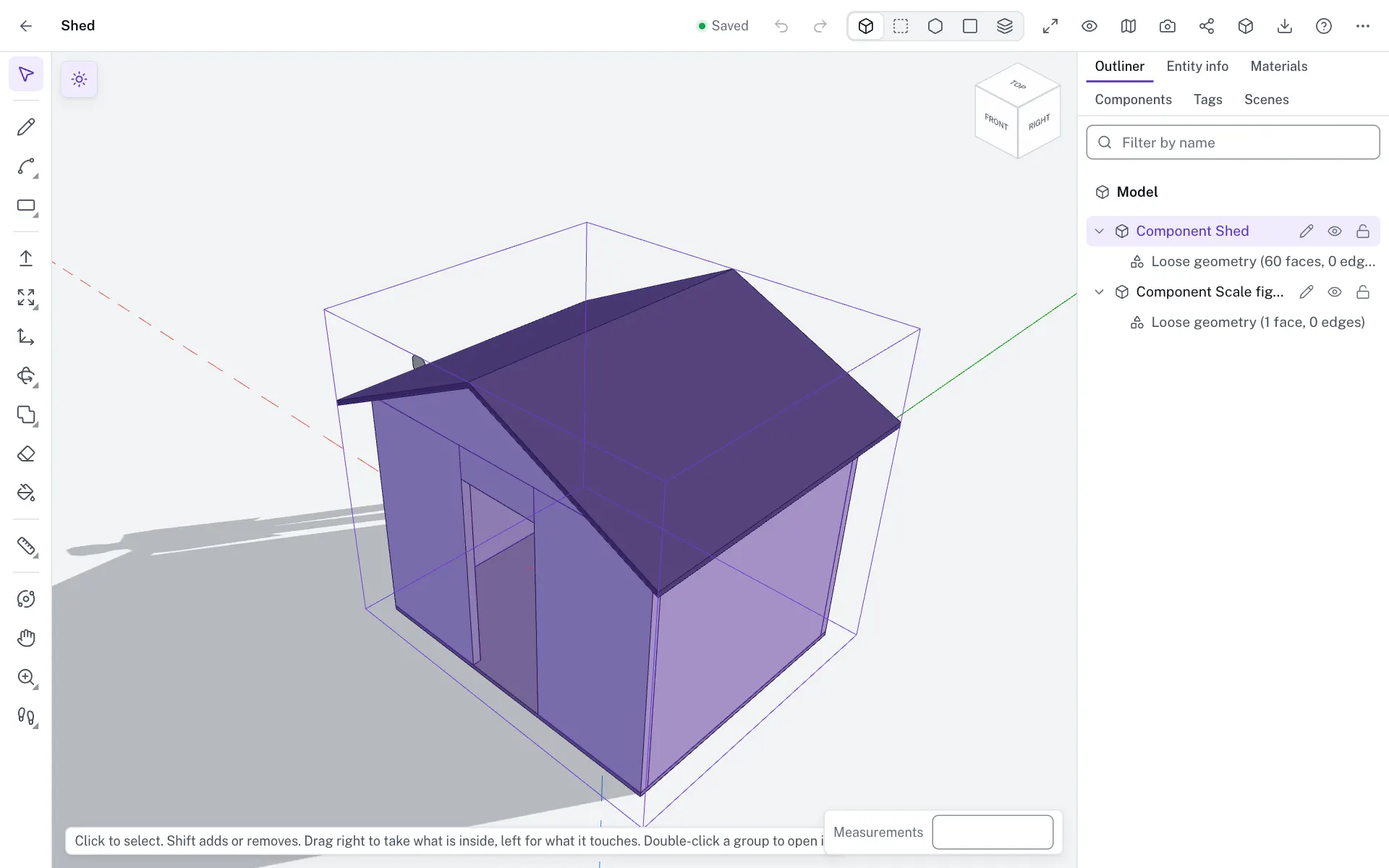
- Step 1: Select the part
Press Space for Select and click the faces and edges of the part, holding ⇧ to add more. Or drag a box: to the right takes what is inside it, to the left what it touches.
- Step 2: Make the group
Right-click the selection and choose Make group. It now moves, turns and copies as one piece and no longer sticks to its neighbours.
- Step 3: Find it in the Outliner
The Outliner lists the new Group. Click its row to select it; its buttons rename, hide or lock it.
- Step 4: Read Entity info
Entity info shows the group’s name, size and position. Type a new name, size or position there to change it.
- Double-click a group to open it and change what is inside; the rest of the model fades. Press Esc or click outside it to close it.
- Explode puts a group’s contents back into the model around it.
Components
- Select a part, right-click and choose Make component. Copy it with Move and Ctrl, ⌘C and ⌘V, or ⌘D: every copy is the same component.
- Open any copy and change it: every copy follows. To change one copy alone, right-click it and choose Make unique first.
- The Components panel lists the components In this model with how many places use each. Place puts another copy in the model.
- Save a component to My components with Save selected to use it in your other models.
Recipes and the catalogue
Under Recipes in the Components panel, pick a shed, a stair, a pergola, a table or another part, set its sizes and click Build component. A recipe part keeps its recipe: select it and change its sizes in the parameters section of Entity info, and every copy follows. FloorGen catalogue places furniture and fixtures from the plan library, drawn as the real piece.
Copy, paste and mirror
- ⌘C copies the selection and ⌘V pastes it at the pointer; ⇧ ⌘V pastes it in place. Copies work between your models too.
- ⌘D duplicates the selection beside itself.
- Flip and Mirror turn a part over or make its mirror image. See Move, rotate, scale and copy.
Combine solids
Groups and components that are closed solids can be joined, cut and split with the solid tools, which are paid features. See Solid tools, Follow Me and rounding.
Tags and the Outliner
The Outliner shows every group and component as a tree; filter it by name to find one. A tag in the Tags panel shows or hides everything that carries it at once, such as all the furniture. See Styles, sun, tags and scenes.
Questions
Why did my new rectangle join the box next to it?
Loose geometry sticks together where it touches. Make the box a group first, and nothing you draw beside it joins it.
Can I erase the Scale figure?
Yes. It is a component like any other: select it and press Del.