Upgrade, pay monthly or yearly, or cancel
Updated 4 min readNeeds a free account
Buy a paid plan on the pricing page, or from the upgrade window that opens when you click to get past a limit. Pay monthly or yearly, and cancel at any time from the pricing page.
Paying needs a free account. Plans and prices are set by FloorGen and can change, so the pricing page always shows today’s. Paddle runs the checkout and sends the receipt.
Pick a plan on the pricing page
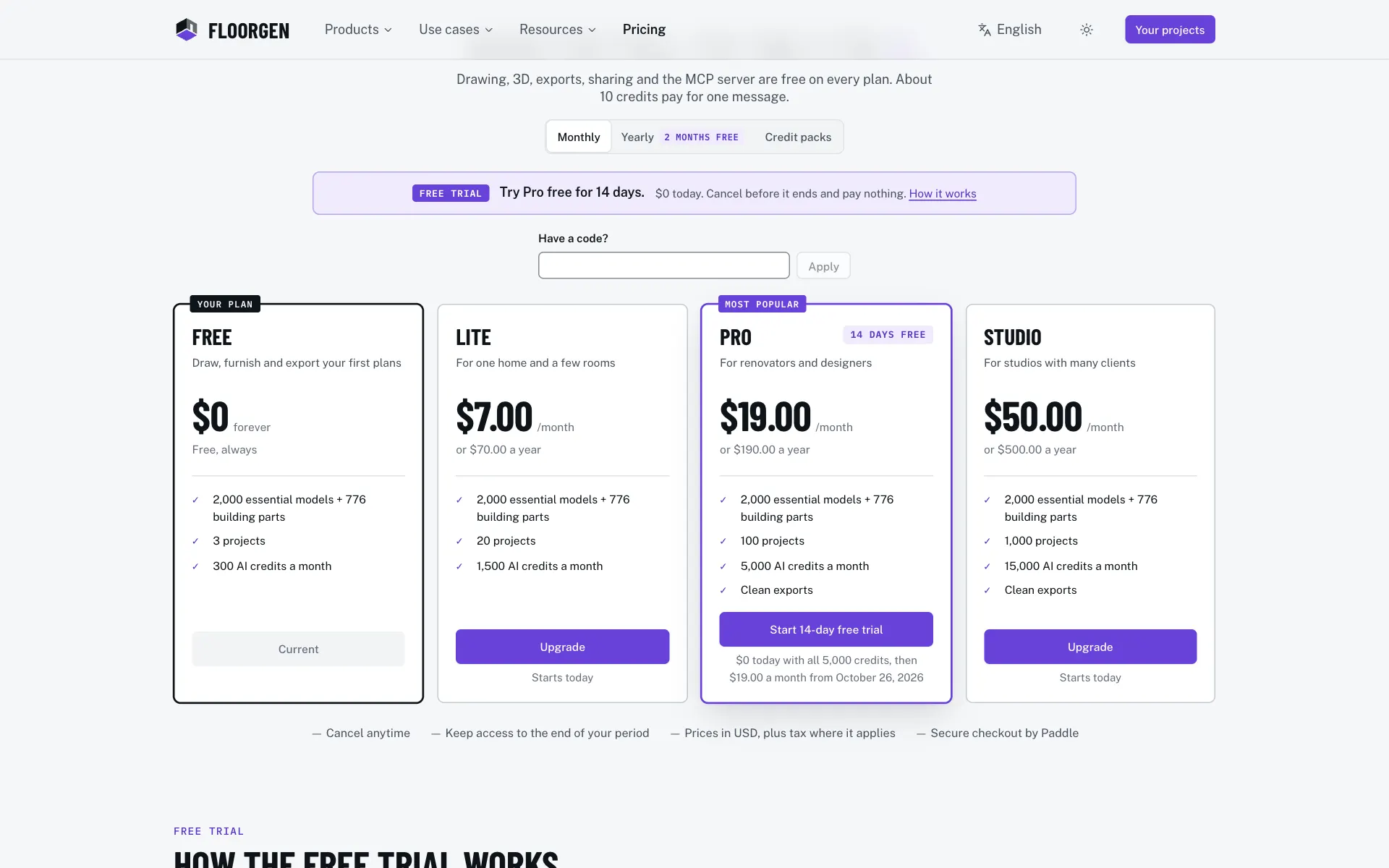
- Step 1: Open the pricing page
Click Plans and credits in My plan, or See plans in the credits popover. You can also go to floorgen.app/pricing.
- Step 2: Pick the billing period
The page usually opens on Monthly, or on the period you already pay by. Choose Yearly to pay for a year; its badge says how much that saves. Where FloorGen sells credit packs, a third tab, Credit packs, lists them.
- Step 3: Add a discount code
If you have one, type it under Have a code? and click Apply. The page says what it takes off and which plans it works on, and each card it covers says it applies at checkout. Remove takes it off again.
- Step 4: Upgrade
On the plan you want, click Upgrade. Pay in Paddle’s window; your plan changes a moment later.
Upgrade when you hit a limit
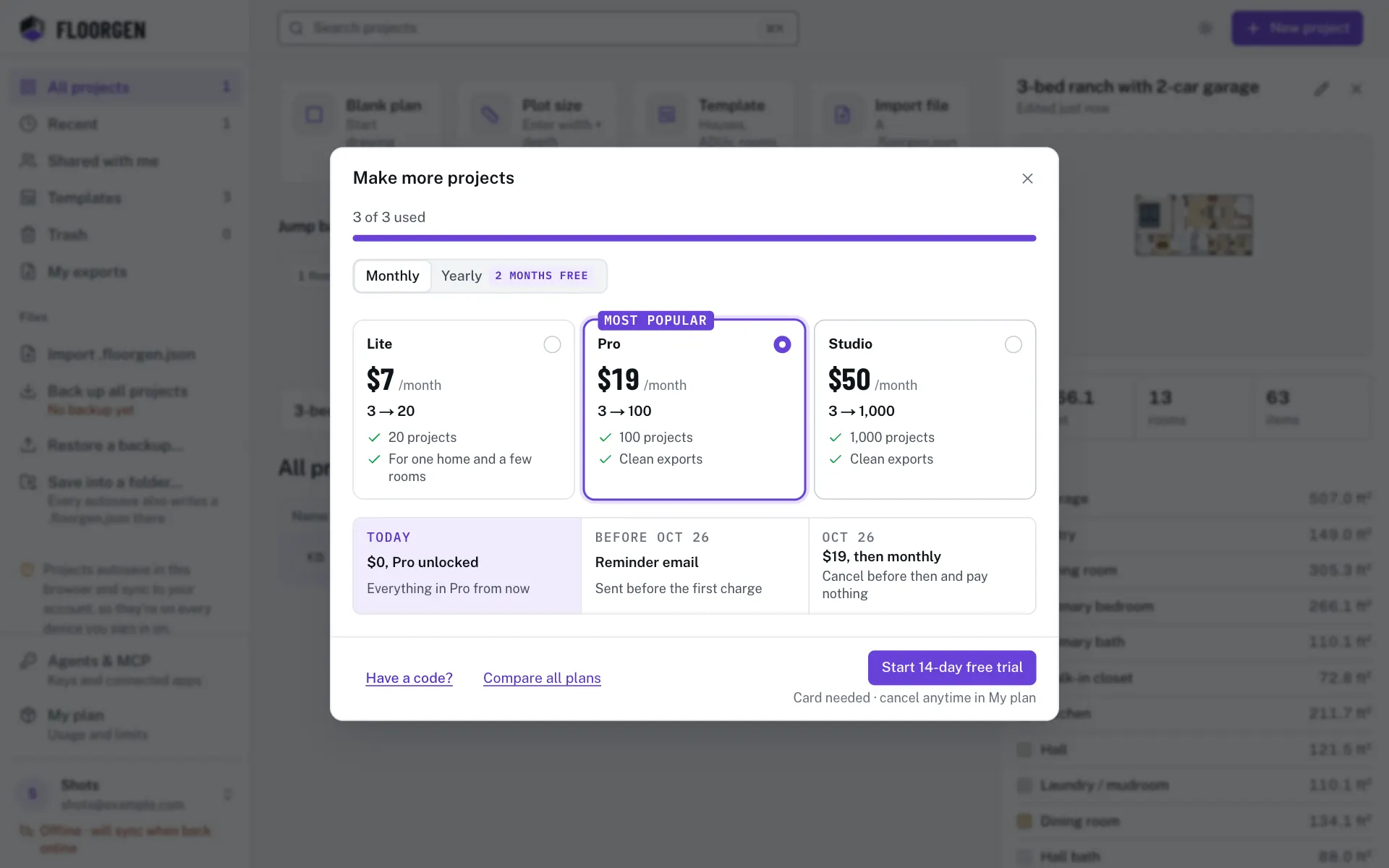
- Step 5: Click to get past the limit
The upgrade window opens only when you click, for example Get more credits on an AI card, Upgrade when you have used all your projects, or See plans on a feature your plan lacks. Its title names what you need, and a bar shows how much of the limit you have used.
- Step 6: Pick a plan
The window shows only the plans that lift this limit, as cards with their price and what they add. If you don’t pay for a plan yet, choose Monthly or Yearly above them. At an AI credits limit, Upgrade plan and Buy credits once switch between plans and credit packs.
- Step 7: Add a code
Click Have a code? at the bottom to type a discount code. If it doesn’t cover the plan and period you picked, the window says so, and the checkout goes without it. Compare all plans opens the pricing page in a new tab.
- Step 8: Pay and carry on
Click the main button and pay in Paddle’s window. When your new plan lands, the window offers to finish what you were doing, such as sending your message or creating the project.
If you already pay for a plan, the window moves you instead: pick the plan, click the button to move to it, then confirm. Paddle works out the charge for the rest of this billing period, and your renewal date stays the same.
On the Free plan, when today’s AI credits run out, the chat card can offer the cheapest monthly plan that lifts the daily limit, with its price. Its button goes straight to that plan’s monthly checkout, and your message is sent once the plan lands.
Discount codes
A discount code takes money off a new subscription. Enter it under Have a code? on the pricing page or in the upgrade window. Signed out, the pricing page keeps the code and checks it when you sign in.
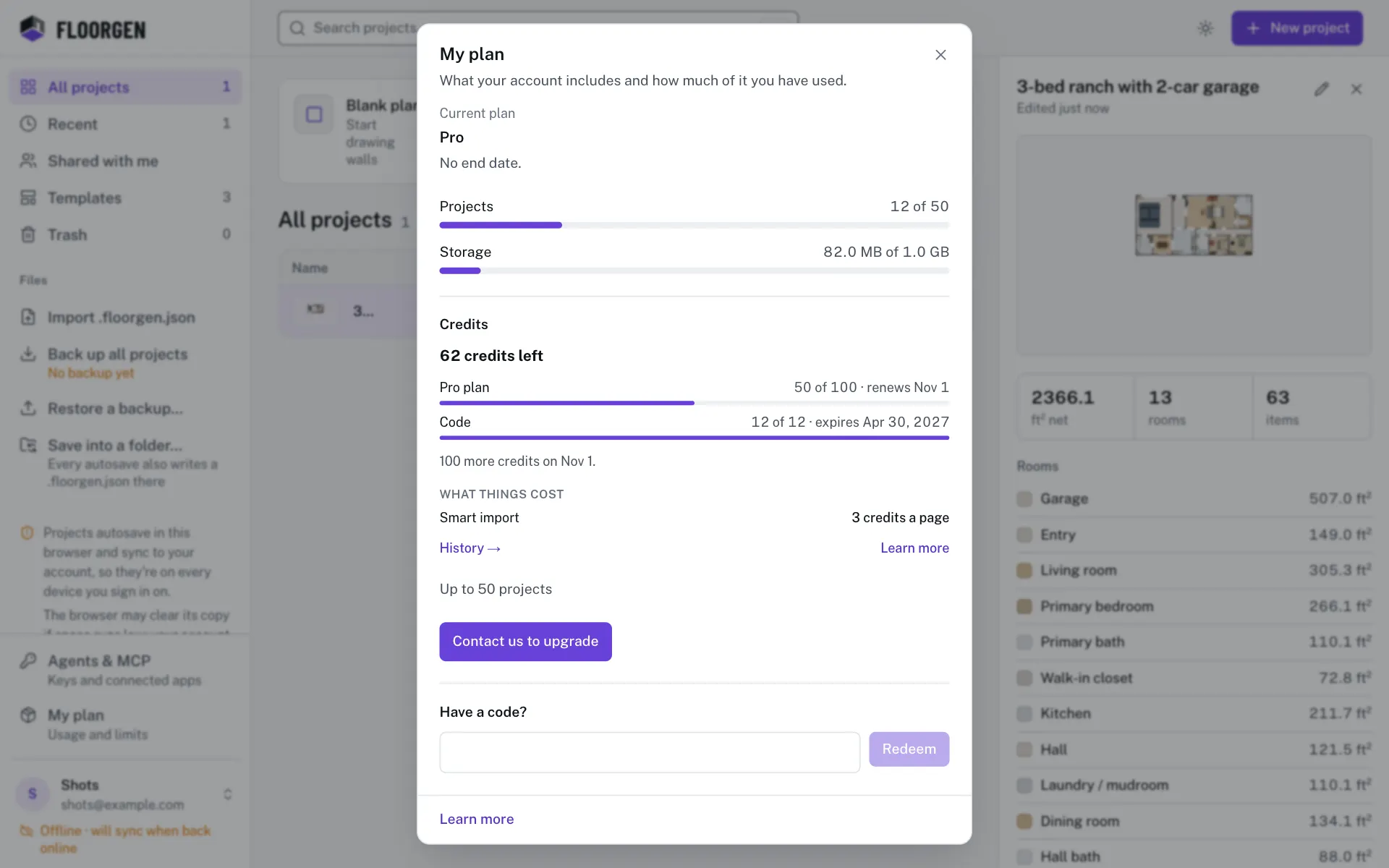
- Step 9: Open My plan
On the projects page, click My plan at the foot of the sidebar.
- Step 10: Enter the code
Type or paste it under Have a code? and click Redeem.
- Step 11: Follow the link
A discount code can’t be redeemed here. The dialog says it takes money off a paid plan, with a link to the pricing page that brings the code along. Plan codes and credits codes work here as usual; see Plans, limits and codes.
Cancel, resume or ask for a refund
- On the pricing page, click Manage, then Cancel subscription. Confirm in the dialog.
- You keep the plan until the end of the period you paid for, then your account moves to Free. Cancelling does not refund the payment.
- Changed your mind? The bar with your plan says when it cancels, with Resume. Click it before that day and the plan carries on.
- To ask for a refund within 14 days of a payment, click Manage, then Request a refund. It opens the contact form.
Questions
Can I switch between monthly and yearly?
No. The period is fixed when you subscribe. To change it, cancel and subscribe again on the other period when the paid time ends.
Can I buy AI credits without changing my plan?
Yes, where FloorGen sells credit packs: Buy a credit pack in Manage, or the Credit packs tab. See AI credits.