Walk through your plan
Updated 4 min readWorks without an account
Walk puts you inside the plan at eye height, so you can check sight lines, door swings and how big a room feels.
Walk through the plan
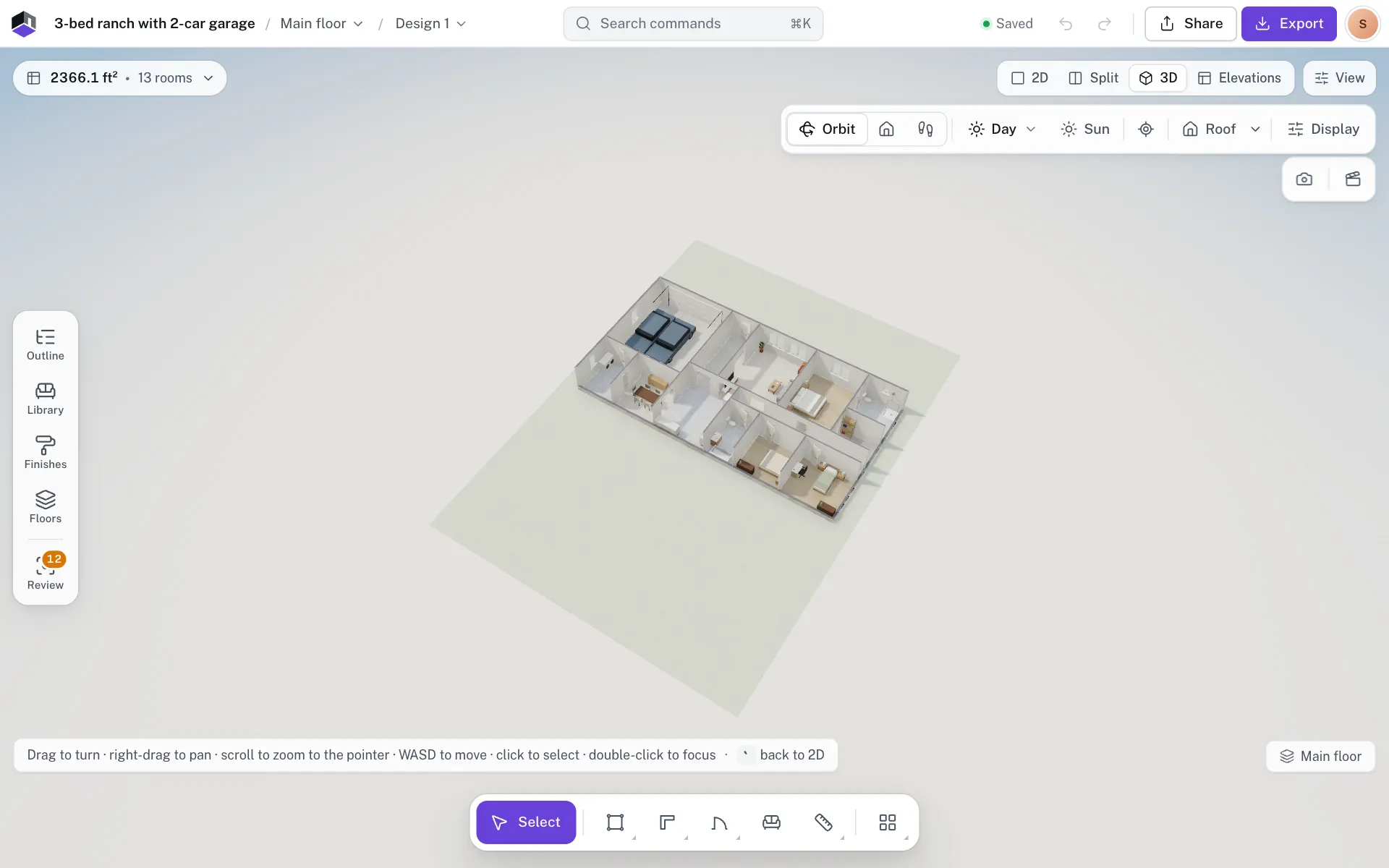
- Step 1: Switch to 3D
Press 3, or click 3D at the top right. Press ` to go back to 2D.
- Step 2: Choose Walk
The camera has three modes: Orbit, Dollhouse and Walk. Click Walk.
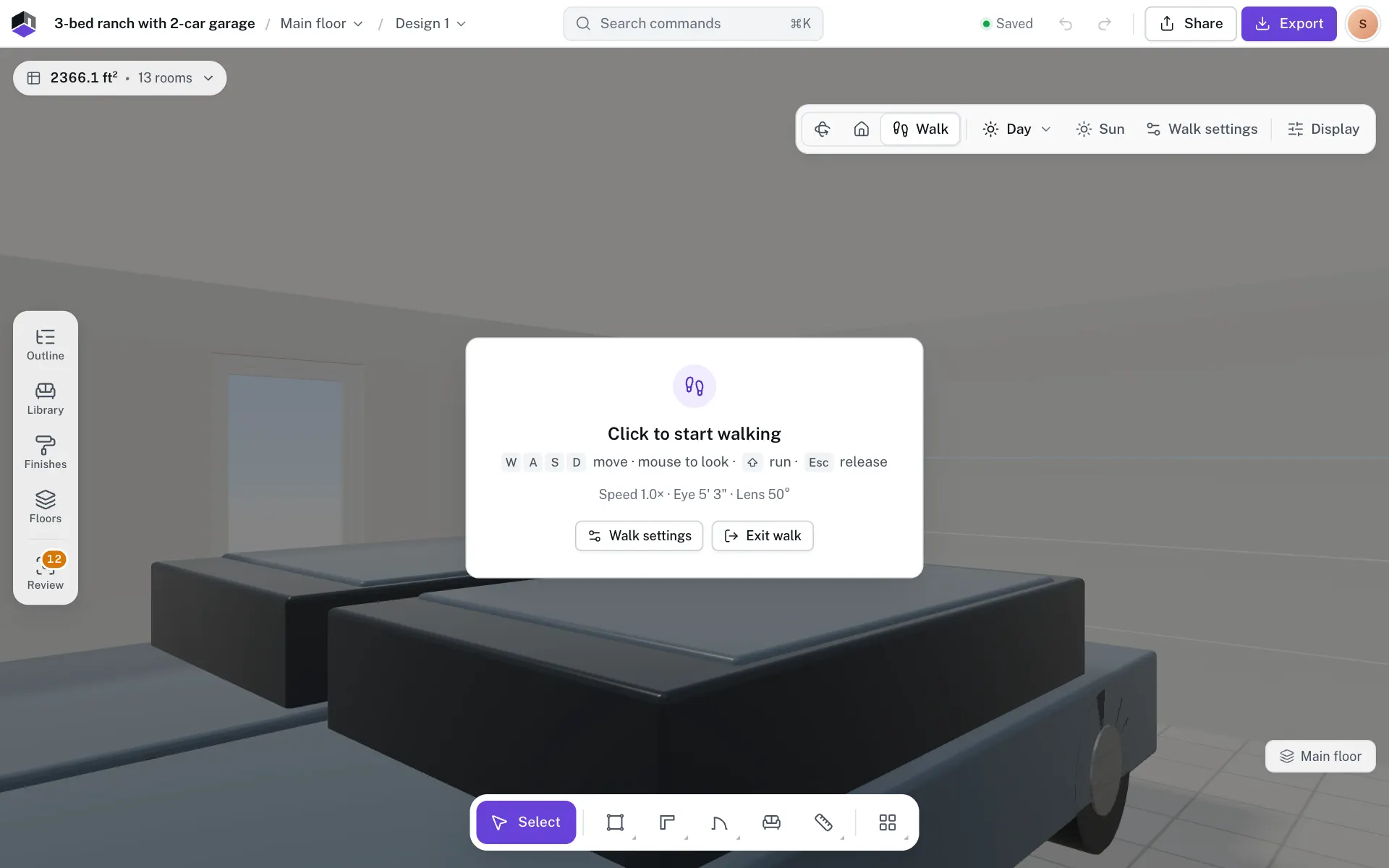
- Step 3: Click to start walking
Click anywhere in the view to capture the mouse. The card in the middle lists the keys and shows your current speed, eye height and lens, such as Speed 1.0× · Eye 160 cm · Lens 50°.
- Step 4: Change the walk settings
Click Walk settings on the card, or on the 3D bar while you walk. See Walk settings.
- Step 5: Stop walking
Press Esc to release the mouse, then click Exit walk to go back to Orbit.
Keys and mouse
| To | Do this |
|---|---|
| Walk forward, back and sideways | W A S D or the arrow keys |
| Look around | Move the mouse |
| Run | Hold ⇧ |
| Walk faster or slower | Scroll up or down. A note shows the new Walking speed. |
| Release the mouse | Esc |
| Go up or down a floor | Walk up or down a stair, or ride a lift |
The line at the bottom of the view repeats the keys while you walk. Controls hint in Walk settings hides it. Lengths show in the project’s units.
Walk settings
Walk settings has three tabs: Move, Look and Screen. Changes apply at once and are Saved in this browser. Reset puts every walk setting back to its default. On a touch screen the panel opens as a sheet over the bottom of the view, and some rows change, as the table says.
| Tab | Field | What it does | Range | Default |
|---|---|---|---|---|
| Move | Walking speed | How fast you walk. 1× is about 1.4 m/s. Scrolling while you walk changes it too. | 0.3× to 4×, in 0.1 steps | 1× |
| Move | Run (hold Shift) | How much faster you go while running. On touch it reads Run (stick pushed to the edge). | 1.5×, 2.2× or 3× | 2.2× |
| Move | Starting and stopping | How you speed up and slow down. | Instant, Smooth, Glide | Smooth |
| Move | Bump into walls and furniture | Walls, furniture and lift shafts stop you, and you slide along them. Rugs and items under 40 cm do not. Off, you walk straight through them. | On or off | Off |
| Move | Head bob | A gentle dip with each step. | On or off | Off |
| Look | Eye height | How high your eyes are above the floor. The chips set Child 110 cm, Seated 120 cm, Standing 160 cm or Tall 180 cm. | 90 to 200 cm, in 5 cm steps | 160 cm |
| Look | Field of view | Wider shows more of the room, with more stretch at the edges. | 40° to 90°, in 1° steps | 50° |
| Look | Mouse sensitivity | How far the view turns as the mouse moves. On touch it is Drag-to-look speed. | 0.25× to 3×, in 0.05 steps | 1× |
| Look | Invert up and down | Moving up looks down. | On or off | Off |
| Look | Smooth mouse | Evens out a jittery mouse. Mouse only. | On or off | On |
| Screen | Centre marker | The mark in the middle of the view. Mouse only. | Dot, Cross, Off | Dot |
| Screen | Controls hint | The keys line at the bottom of the view. | On or off | On |
| Screen | Joystick size | The size of the stick. Touch only. | Small, Medium, Large | Medium |
| Screen | Joystick side | Which side of the screen the stick sits on. Touch only. | Left, Right | Left |
For what eye height means next to ceiling and sill heights, see Heights and levels.
Doors while you walk
Hinged doors all stand open while you walk. On a touch screen, tap a door within 3 m of you to swing it shut, and tap again to open it. With a mouse and keyboard the doors stay open: a click while you walk is not aimed at anything. With Bump into walls and furniture on, a shut door stops you. The doors open again when you leave Walk.
Ride a lift
Step into a lift cabin and the Lift panel opens on the right with its floors. Pick a floor there, or use the keys it lists. See Ride a lift in 3D.
On a phone or tablet
Drag the stick to move and drag anywhere else to look. Push the stick to its edge to run. Tap a door to swing it. Joystick size and Joystick side under Screen in Walk settings fit the stick to your hand.
Questions
Can I walk between floors?
Yes. Walk up or down a stair, or step into a lift and pick a floor on its panel.
How do I see the room as a child would?
Open Walk settings, go to Look and click Child to set the eye height to 110 cm.
Why can I walk through walls?
Bump into walls and furniture starts off. Turn it on under Move in Walk settings.
Can I record the walk?
Yes. Make a walkthrough video from the 3D view. See Make a walkthrough video.