Your first plan
Updated 4 min readWorks without an account
Create a blank project, then follow the five Quick start steps: draw a room, add a door, place a sofa, open 3D and export. It takes about five minutes, and the coach mark at the top of the plan walks you through each step.
Create the project
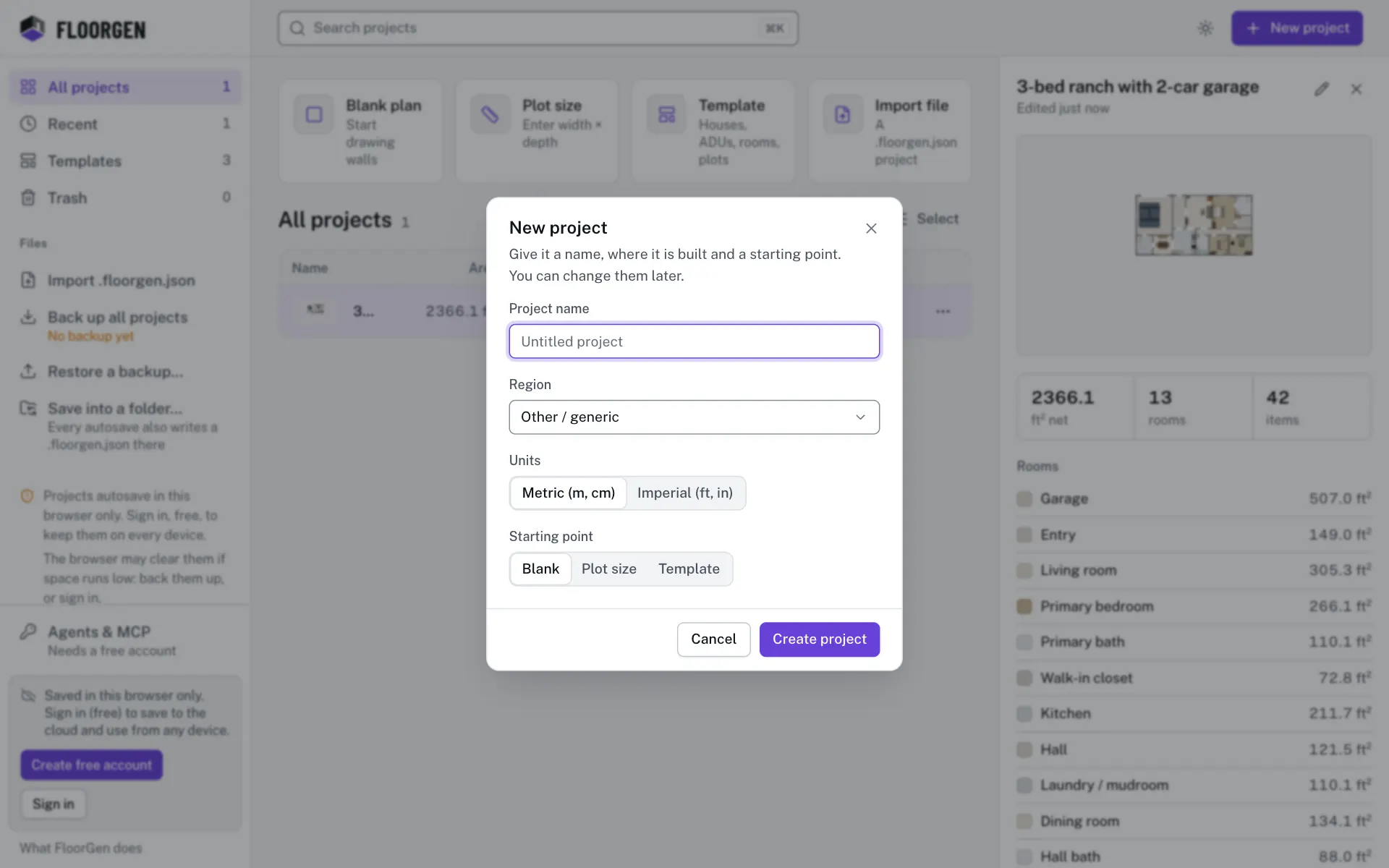
- Step 1: Open New project
On the projects page, click New project. Type a name in Project name, or leave it as Untitled project.
- Step 2: Pick the region and units
Choose where the house is built in Region. It sets the units, which you can still change between Metric (m, cm) and Imperial (ft, in).
- Step 3: Start blank
Leave Starting point on Blank and click Create project. The editor opens on an empty plan.
Follow the Quick start
The coach mark at the top centre of the plan shows your progress, for example Quick start 0/5, and a button that starts the next step. The empty plan also offers Draw a room, Draw walls, Trace an image and Use a template.
- Step 4: Draw a room
Press R or click Room in the tool dock, then drag from one corner to the opposite one. The room shows its name and area. See Draw a room.
- Step 5: Add a door
Press D, or pick Door & window in the dock, and click on a wall. Drag the door later to slide it along the wall. See Doors and windows.
- Step 6: Place a sofa
Press L to open the Library, find a sofa and drag it into the room, or click it to drop it in a free spot. Press R to rotate it. See Place and edit items.
- Step 7: Open 3D
Press 3, or click 3D at the top right. Press 2 to go back to the plan. See The 3D view.
- Step 8: Export
Click Export in the top bar and download a PNG of the plan. Exports need a free account. See Export a 2D plan.
Questions
Do I have to save?
No. FloorGen saves every change as you make it. On screens 1280 px and wider the top bar shows Saving… and then Saved; on narrower ones a dot beside Undo turns from amber to green.
How do I undo a mistake?
Press ⌘Z, or Ctrl+Z on Windows, or click Undo in the top bar.
Can I start from a photo of an old plan?
Yes. Choose Trace an image on the empty plan. See Trace an image or PDF.