Phone and tablet
Updated 3 min readWorks without an account
FloorGen works on phones and tablets with the same tools as on a computer. On a phone the tools run along the bottom and panels open as sheets from below; on a tablet panels open as drawers at the side.
Which layout you get
| Screen | Width | Layout |
|---|---|---|
| Phone | Under 640 px | Compact top bar, tool dock along the bottom, panels and settings as bottom sheets |
| Tablet | 640 to 1279 px | The desktop layout, with the left panels and All properties as full-height drawers |
| Desktop | 1280 px and wider | Panels float beside the plan, with room for the plan in the middle |
On a phone
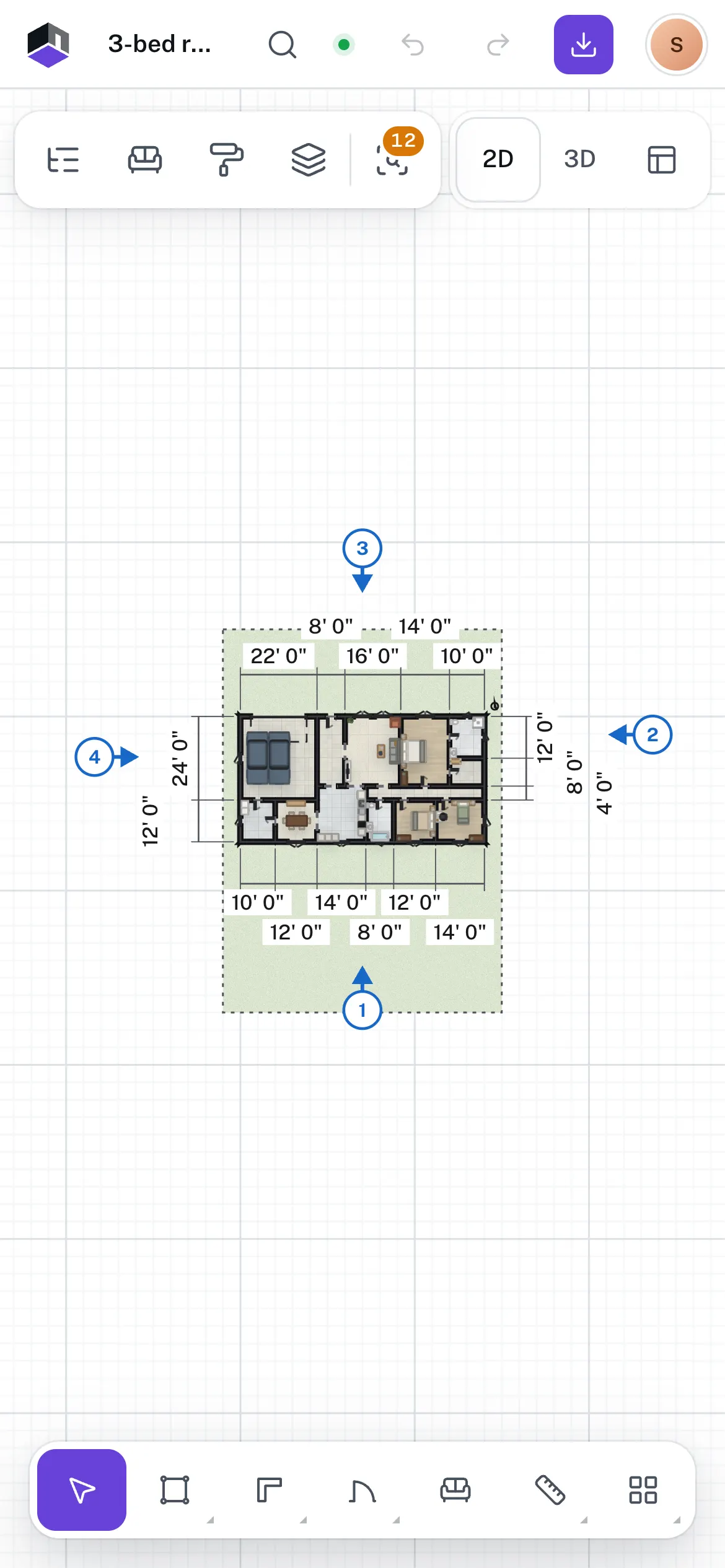
- Top bar: back to your projects, the project name, search, save state, Undo, Redo, an Export icon and the account menu.
- Account menu: besides the usual items it holds Share, Plan summary and View options, which have no button of their own on a phone.
- Panels: the rail is a row of icons at the top left. Outline, Library, Finishes, Floors and Review open as bottom sheets, one at a time. Close a sheet with its × button.
- Views: switch between 2D, 3D and Elevations (the last is an icon) at the top right. Split is not offered on a phone.
- Floors and designs: switch them in the Floors panel.
- Tools: the dock along the bottom has the same seven tools as on a computer. Tool options and More tools open above it.
- Selection: the card for the selected object docks above the tool dock, and the plan glides so the selection stays in view.
Touch gestures
| To | Do this |
|---|---|
| Select | Tap the object |
| Move | Drag it |
| Zoom | Pinch with two fingers |
| Pan | Drag empty space with one finger |
| See more actions | Long-press the object |
| Select an area | Long-press empty space, then drag a box without lifting your finger |
| Draw a room | Pick Room in the dock and drag, or Wall and tap corner to corner |
In 3D, use the on-screen stick to walk and drag to look round. Tap a door to swing it. See Walk mode.
On a tablet
Tablets get the full desktop layout. The left panels open as a drawer on the left and All properties as a drawer on the right, one at a time. While a drawer is open the zoom buttons hide and the tool dock gets narrower. With a keyboard attached, every shortcut works.
Questions
Can I draw precisely on a touch screen?
Yes. Type exact sizes on the selection’s card, or open All properties for every setting.
How do I get to the settings on a phone?
Open the account menu at the top right and choose Settings….
Do my projects move between my phone and computer?
Yes, when you sign in on both. A guest’s projects stay in the browser they were made in. See Guest or account.