The command palette
Updated 4 min readWorks without an account
The command palette finds any action, tool, panel, room, object or floor by name. Press ⌘K (Ctrl+K on Windows), type a few letters and press ↵.
Run a command
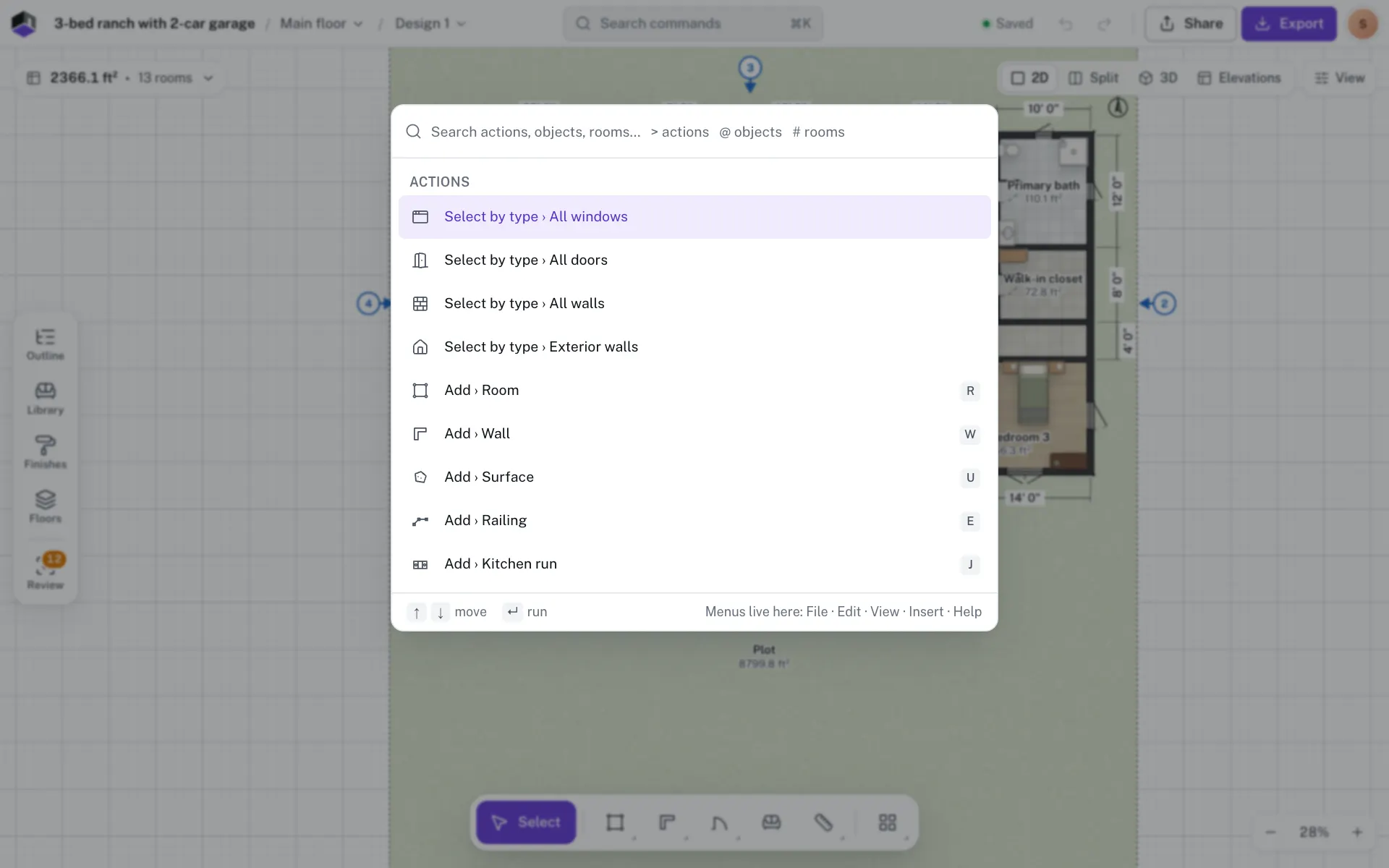
- Step 1: Open the palette
Press ⌘K, or click Search commands in the middle of the top bar.
- Step 2: Type what you want
Type part of a name, such as
export,snaporkitchen. With nothing typed, the list shows every action, grouped the way the old menus were. - Step 3: Run it
Use ↑ and ↓ to move through the list and press ↵ to run the highlighted command, or click it. ⌘K closes the palette.
Narrow the search
Start the search with one of these characters to look in one place only:
| Start with | To find | Example |
|---|---|---|
| Nothing | Everything: actions, rooms, objects and library pieces | history |
> | Actions only: tools, edit, view, insert, panels, file, floors and help | > grid |
@ | Objects: furniture already on the plan, and library pieces to add | @ sofa |
# | Rooms on the open floor, with their area | # kitchen |
What the results do
- A room or a placed object is selected and brought into view.
- A library piece, marked Add to plan, is added in the middle of the view, inside the nearest room.
- Go to followed by a floor’s name switches to that floor.
- Toggles and choices show On for the current state, such as Snap to grid or Plan style › Blueprint.
- Commands that can’t run right now stay in the list, dimmed, with the reason, such as Nothing selected or Add a traced image first.
- A tool brings the plan into view first; from the 3D view alone it opens Split.
The groups
With nothing typed, the list is grouped in this order. Each command shows its shortcut, where it has one.
| Group | What it holds |
|---|---|
| For the selection | The actions for whatever you have selected, the same as its right-click menu |
| Actions | The right-click menu of empty space, such as Select by type › All doors and Add › Room, where no other group already has it |
| Tools | Every tool: Select & move, Draw walls, Draw room, Draw surface (terrace, cutout), Draw kitchen run (drag along a wall), Place door, Place double door, Place sliding door, Place pocket door, Place bifold door, Place garage door, Place window, Place open passage, Tape measure, Draw railing, Text note, Dimension that follows walls, Section line, Pan, Trace an image and Set image scale |
| Edit | Undo and Redo (each shows the step it would take), History…, Cut, Copy, Paste, Duplicate, Rotate 90°, Delete, All properties, Select all and Deselect. Rotate 90° is dimmed with Only items, stairs and lifts turn for other kinds. With something selected, the ones its own menu offers, such as Copy and Delete, show under For the selection instead. |
| View | Show 2D plan, Show Split view (plan and 3D side by side), Show 3D view and Show Elevations (drawings of each façade) (Split and Elevations not on a phone); Show grid, Snap to grid, Show dimensions, Floor below, faintly and Tool hints; Zoom in, Zoom out and Zoom to fit (dimmed Only on the 2D plan in 3D); a command per choice of Plan style, Units, Rulers, Theme, Scroll wheel and 3D renderer; 3D camera: Orbit or Dollhouse, 3D lighting: Day, Evening or Night, and Reset 3D view (Home) |
| Insert | Balcony, each staircase and lift (added in the middle of the view), Columns, voids and more…, Furniture from the library and Straighten image |
| Panels | Open followed by each panel’s name (Outline, Library, Finishes, Floors, Review, Project settings, Project details, Schedules and budget, Activity), Open Plan summary (⌥3), Go to the tool dock (B) and Ask FloorGen AI (⌘I, when FloorGen AI is on) |
| File | New project…, All projects, Rename project…, Duplicate project, Import project file…, Open stress test › followed by the size of a heavy sample plan (four sizes, each opened as a new project to try the editor’s speed), Export… and Export › each format, Version history…, Project settings and Settings… (⌘,) |
| Help | Getting started, Keyboard shortcuts (?, on a keyboard), Quick-start checklist (shows how many of its 5 steps are done and brings it back) and Help panel (⌥7) |
| Floors, Rooms, On the plan, Add from the library | Appear once you type: floors to go to, rooms, placed furniture and library pieces |
On a phone
Tap the search icon in the top bar to open the palette.
Questions
Why don’t I see rooms or furniture in the list?
Rooms, placed objects, library pieces and floors appear once you type. Start with # for rooms or @ for objects.
Why is a command greyed out?
It can’t run right now. The reason is shown beside it, for example Nothing selected.
Do the editor shortcuts still work?
Yes. The palette lists the shortcut beside each command that has one. See Keyboard shortcuts.