Schedules and budget
Updated 4 min readWorks without an account
Schedules and budget lists every door and window by size, works out paint, flooring, baseboard and tile quantities, makes a furniture shopping list, and turns them into a budget from the unit rates you enter. It covers every floor of the project.
Open the schedules
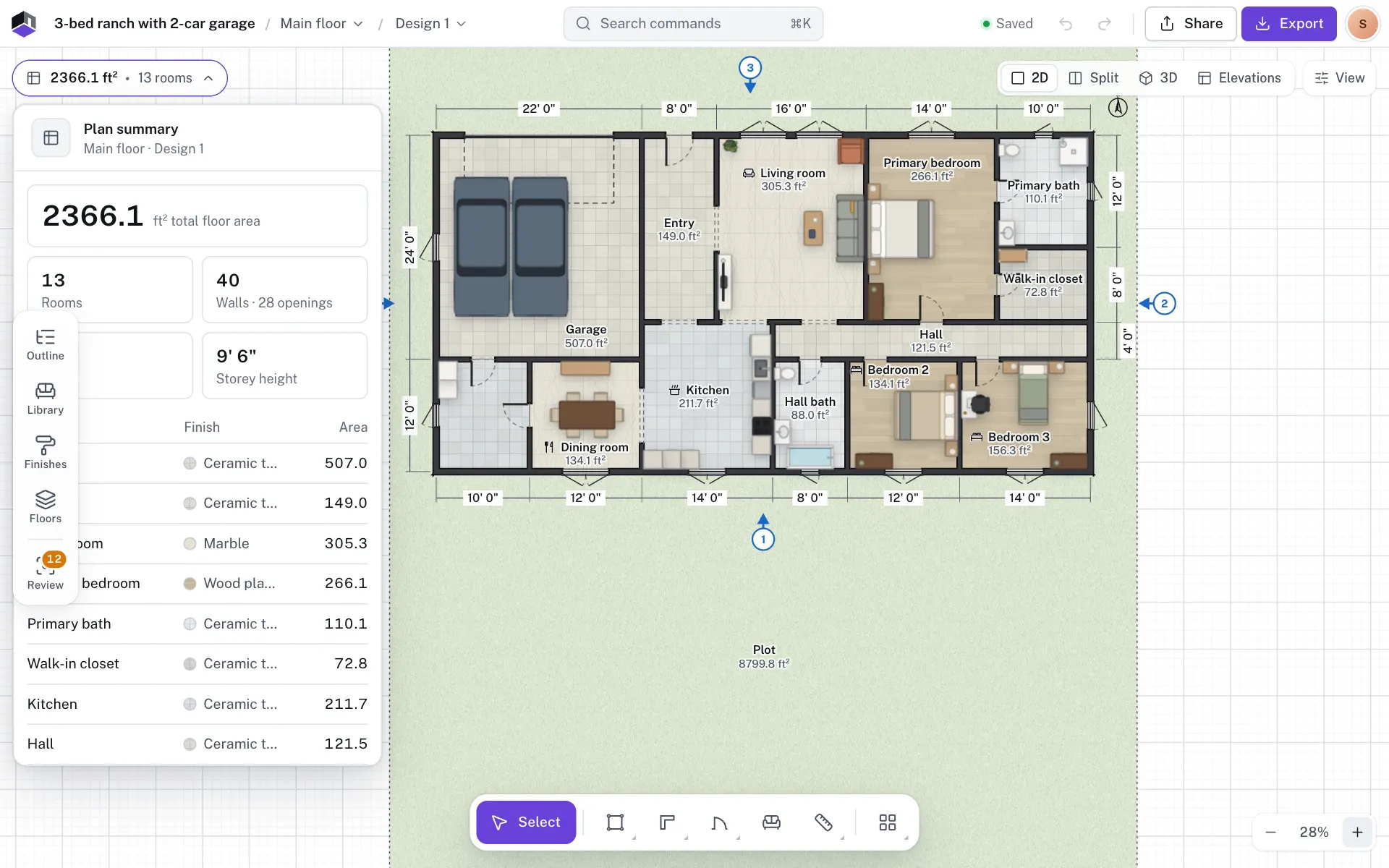
- Step 1: Open the plan summary
Click the chip at the top left that shows the area and rooms.
- Step 2: Click Schedules and budget
The link is at the foot of the summary. You can also open the account menu at the top right and choose Schedules and budget.
- Step 3: Read the lists
The panel shows Doors and windows, Finishes, Furniture and shopping list, Unit rates and Budget, for the open design of every floor.
What each list holds
| Section | What it lists |
|---|---|
| Doors and windows | Each type and size with its tag, its kind and width × height, and the count, such as × 3. Tags start with D for every kind of door, W for windows and O for open passages: D1, D2, W1, O1. |
| Finishes | Paint (walls, net of openings), flooring and tile with waste added, and Skirting (net of doors). By room opens the figures for each room. |
| Furniture and shopping list | Each item with its quantity and price, and a link to the product page when the item has one |
| Unit rates | Your price per unit for paint, flooring, baseboard or skirting, tile, each door and each window, and the Waste percentage |
| Budget | Each line’s quantity times its rate, and the Total |
Openings share a tag when they have the same kind, window type, width, height and sill, so two lines can both read Window at one size. Rooms with a tile floor count as tile, all others as flooring. Quantities are in ft and ft² in an imperial project, and in m and m² otherwise.
Build the budget
- Step 4: Enter your rates
Type a price in each field under Unit rates. Each field shows its unit after the number, such as $/ft², $/m or $ for each door. A line with no rate reads Set a rate.
- Step 5: Set the waste
Waste adds a share to flooring and tile for cuts and spares. It starts at 10%.
- Step 6: Price the furniture
Set a price and link on each item to build the shopping list. Items with no price read No price.
- Step 7: Check the total
The Total at the foot of Budget adds every line. Rates are saved with the project.
| Field | What it does | Range | Default |
|---|---|---|---|
| Paint | Price per ft² or m² of wall, net of openings | 0 or more | Placeholder $2/ft² ($21.53/m²) |
| Flooring | Price per ft² or m² of floor that is not tile | 0 or more | Placeholder $8/ft² ($86.11/m²) |
| Baseboard or Skirting | Price per ft or m of wall base, net of doors | 0 or more | Placeholder $6/ft ($19.69/m) |
| Tile | Price per ft² or m² of tiled floor | 0 or more | Placeholder $15/ft² ($161.46/m²) |
| Door | Price for each door of any kind | 0 or more | Placeholder $450 |
| Window | Price for each window | 0 or more | Placeholder $750 |
| Waste | Share added to flooring and tile for cuts and spares | 0 to 100% | 10% |
Rates are per ft and ft² in an imperial project and per m and m² otherwise. When you save a rate, FloorGen saves which of the two it is in, so your rates keep their meaning if you change the project’s units later. Open passages are listed but not priced.
Copy or print the schedules
- Copy as CSV puts every list on the clipboard, ready to paste into a spreadsheet.
- Add to print set opens Export on the Print set tab, with Schedules and budget among the extras.
- The budget uses the project’s currency. Change it in Settings (⌘,) on the Region tab under Currency.
Questions
Which currencies can I use?
US dollar, Canadian dollar, Mexican peso, euro, pound sterling, Swiss franc, Swedish krona, Norwegian krone, Danish krone and Polish złoty.
Why does it say baseboard instead of skirting?
Projects in the United States and Canada, or budgeted in US or Canadian dollars, call it baseboard.
Do I need an account?
No. Schedules, the budget and Copy as CSV work for guests. Adding them to a print set needs a free account by default, as exports do.