Export a 3D image
Updated 2 min readNeeds a free account
Save the 3D view as a PNG picture in HD, Full HD or 4K. It uses the current camera angle and lighting, framed to fit the model, or exactly what you see when you are walking.
Export a 3D image
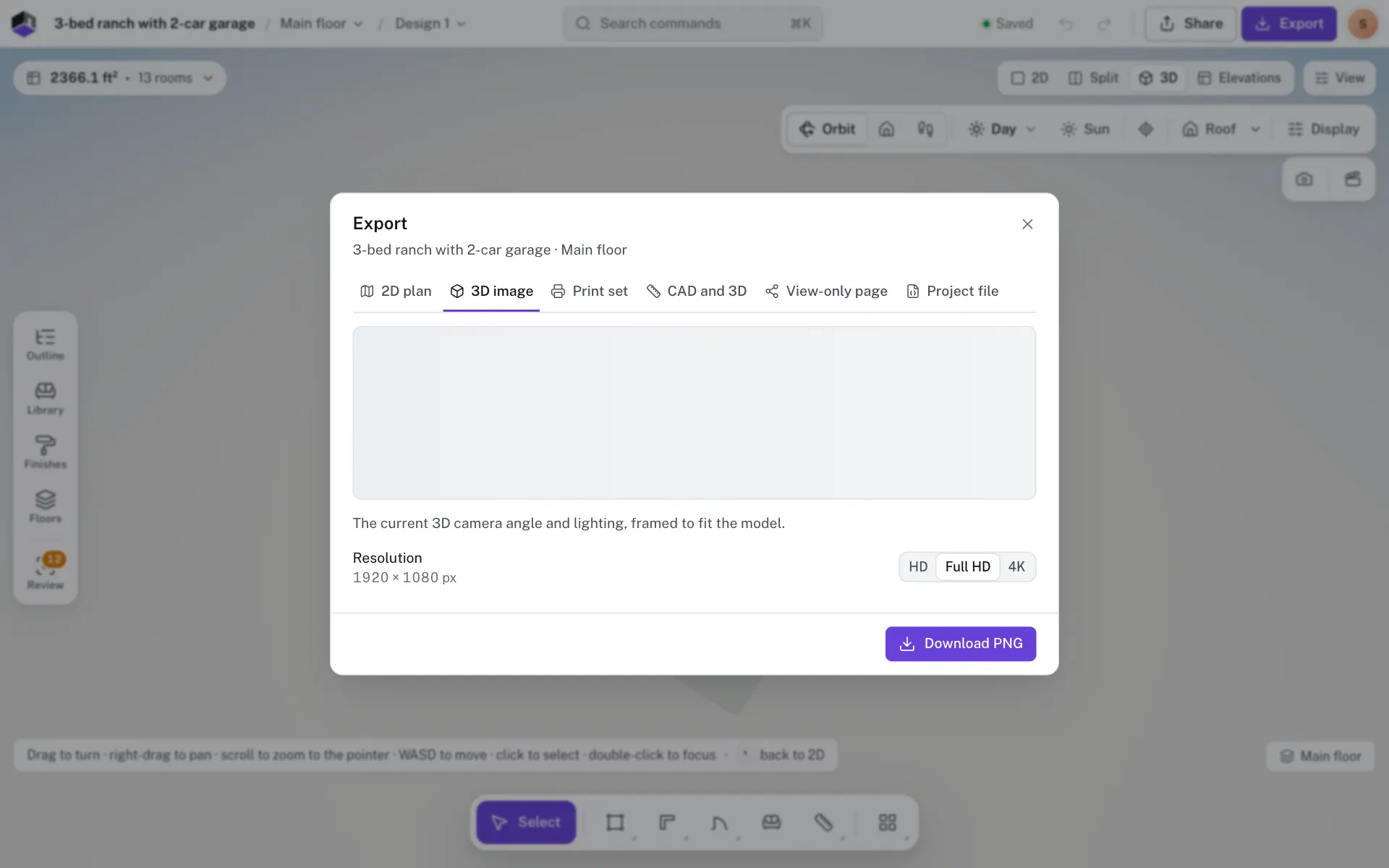
- Step 1: Set up the view
Press 3 for the 3D view. Turn the camera to the angle you want and pick the lighting, or click Sun for a time of day. Click a saved camera view to return to one.
- Step 2: Open the 3D image tab
Click Export in the top bar. From the 3D view the dialog opens on 3D image, with a preview.
- Step 3: Pick the resolution
Choose HD, Full HD or 4K under Resolution. It starts on Full HD, and the size in pixels shows under the label.
- Step 4: Download
Click Download PNG.
| Resolution | Size | Good for |
|---|---|---|
| HD | 1280 × 720 px | Messages and quick previews |
| Full HD | 1920 × 1080 px | Most screens and slides |
| 4K | 3840 × 2160 px | Large prints and close crops |
Orbit, Dollhouse or Walk
In Orbit and Dollhouse, the image keeps your camera angle and lighting and frames the whole model. In Walk, it saves exactly what the walk view shows, in its lighting. Use Walk for a shot from inside a room.
You can export a 3D image from the 2D plan too. FloorGen switches to 3D for the picture and comes back to the plan.
Questions
Why is the preview missing?
The preview can fail on some devices. The download still renders the current 3D view.
Can I hide the roof?
Yes. In Orbit, turn off Roof on the 3D bar before you export.
Can I export a 3D model instead of a picture?
Yes. The CAD and 3D tab exports a glTF model. See Export CAD and 3D files.