Keyboard shortcuts
Updated 2 min readWorks without an account
Press ? in the editor to open this list. ⌘ is Ctrl and ⌥ is Alt on Windows and Linux. The list below comes from the same source as the app, so it always matches.
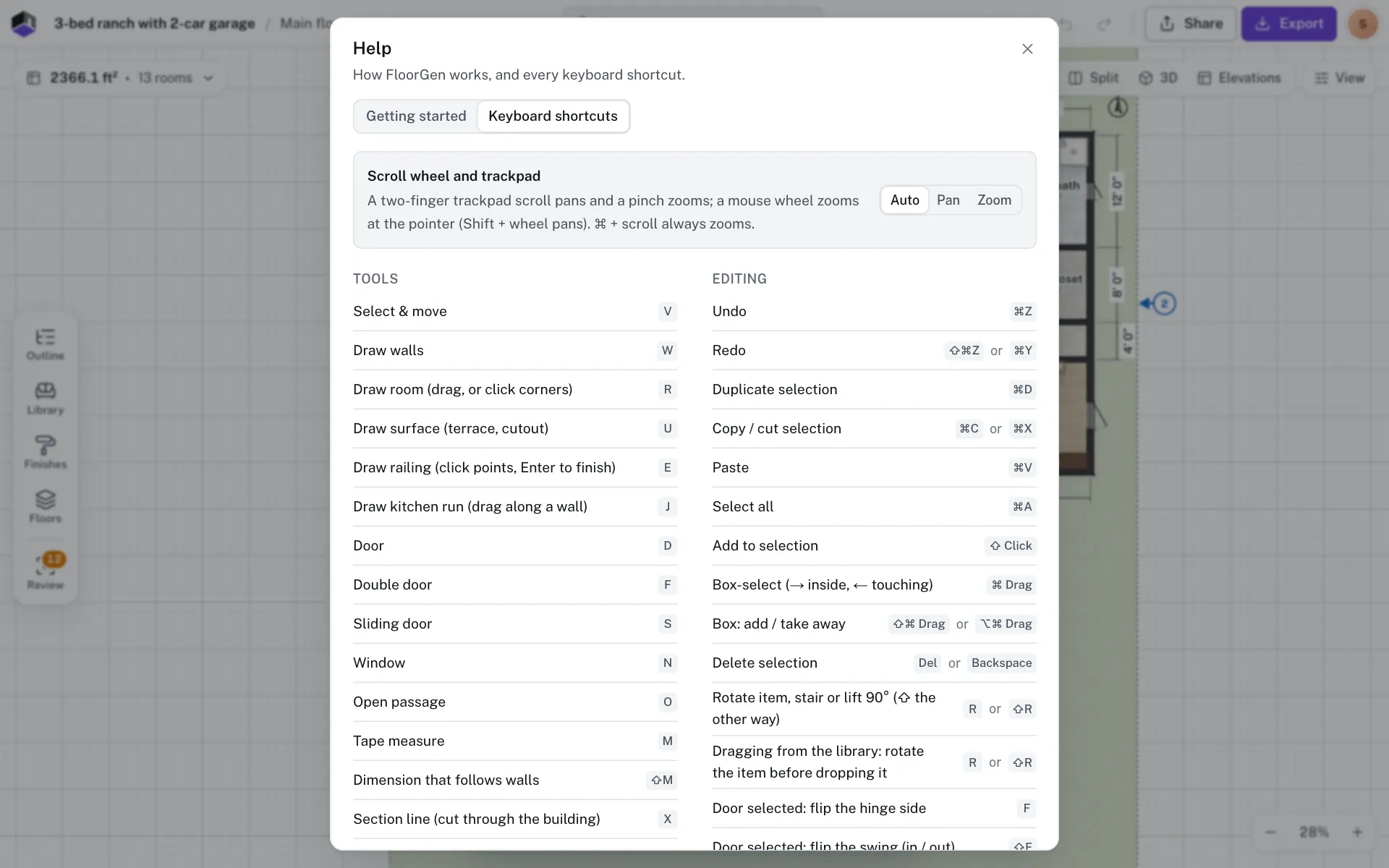
Tools
- Select & move
- V
- Draw walls
- W
- Draw room (drag, or click corners)
- R
- Draw surface (terrace, cutout)
- U
- Draw railing (click points, Enter to finish)
- E
- Draw kitchen run (drag along a wall)
- J
- Door
- D
- Double door
- F
- Sliding door
- S
- Window
- N
- Open passage
- O
- Tape measure
- M
- Dimension that follows walls
- ⇧M
- Section line (cut through the building)
- X
- Text note
- T
- Trace an image
- I
- Set image scale
- K
- Pan
- H
Editing
- Undo
- ⌘Z
- Redo
- ⇧⌘Zor⌘Y
- Duplicate selection
- ⌘D
- Copy / cut selection
- ⌘Cor⌘X
- Paste
- ⌘V
- Select all
- ⌘A
- Add an object to the selection, or take it out
- ⇧ Clickor⌘ Click
- Box-select (→ inside, ← touching): drag from empty space (⌘/Ctrl: from an object, or with Scroll wheel on Zoom)
- Dragor⌘ Drag
- Box: add / take away
- ⇧⌘ Dragor⌥⌘ Drag
- Dragging a selection box: cancel it, keeping the selection you had
- Esc
- Delete selection
- DelorBackspace
- Rotate the selected item, stair, lift or group 90° (⇧ the other way)
- Ror⇧R
- Dragging from the library: rotate the item before dropping it
- Ror⇧R
- Door selected: flip the hinge side (other doors flip to the other side; a pocket door moves its pocket)
- F
- Door selected: flip the swing (in / out)
- ⇧F
- Item selected: flip horizontal (⇧ vertical)
- For⇧F
- Nudge 1 cm (⇧ for 10 cm)
- ←↑→↓
- Stop drawing (press again for Select) / deselect
- Esc
- Finish a wall chain
- ↵orDouble-click
- Drawing walls, rooms or surfaces: remove the last corner
- Backspace
- Drawing walls: type a length (Tab for the angle), Enter places the wall
- 0–9
- Hold while drawing to lock a wall horizontal or vertical
- ⇧
- Tape measure: chain on from the end / finish the chain
- ↵orDouble-click
- Tape measure: pin the measurement to the plan
- P
- Hold while measuring to lock the angle to 45° steps
- ⇧
- Hold to draw or drag without snapping
- ⌥
- Context menu; while drawing walls, rooms, surfaces or railings, it finishes the chain
- Right-click
- Next / previous object (canvas focused)
- ]or[
- Open properties of the selection (canvas focused)
- ↵
View
- Cycle the view: 2D, Split, 3D
- `
- 2D view / 3D view
- 2or3
- Elevations
- 4
- Zoom to fit
- 0or⌘0
- Zoom in
- +or⌘+
- Zoom out
- -or⌘-
- Zoom at the pointer
- Pinchor⌘ Scroll
- Trackpad pans, mouse wheel zooms; change it in Scroll wheel (⇧: pan sideways)
- Scrollor⇧ Scroll
- Hold and drag to pan (or drag inside a room)
- SpaceorMiddle-drag
- Toggle snap to grid
- G
- Show / hide the grid
- ⇧G
- Keyboard shortcuts
- ?
- Command palette: search every action, object, room and floor
- ⌘K
- Open or close FloorGen AI
- ⌘I
- Settings
- ⌘,
- Stop a camera tour or recording (3D)
- Esc
Panels
- Tool dock
- Bor⌥2
- Library
- Lor⌥4
- Project settings
- ⌥1
- Plan summary
- ⌥3
- Outline (hide and lock)
- ⌥8
- Finishes
- ⌥5
- Floors and designs
- ⌥9
- Review: numbered problems on the plan
- ⇧I
- Export
- ⌥6
- Help panel
- ⌥7
- Close the open panel (nothing selected)
- Esc
import.scGroup
- import.scMove
- ↑↓
- import.scKeep
- ↵
- import.scDrop
- XorDel
- import.scFlip
- F
- import.scAdd
- ⇧↵
- import.scClose
- Esc
Camera (3D)
- Turn the view about the point you press on
- Drag
- Pan
- Right-dragorMiddle-dragorSpace-drag
- Zoom towards the pointer
- ScrollorPinch
- Pan the view (Shift: faster)
- WASDor↑←↓→
- Turn the view left / right
- QE
- Zoom in / out
- +-
- Reset the view
- Home
- Focus on an object
- Double-click
- 3D view, Orbit or Dollhouse: delete, rotate 90° (⇧ the other way) or duplicate the selection
- DelorBackspaceorRor⇧Ror⌘D
Walk mode (3D)
- Move
- WASDor↑←↓→
- Run
- ⇧
- Walking speed
- Scroll
- Release the mouse
- Esc
Keys in particular places
| Where | Keys | What they do |
|---|---|---|
| Mouse wheel over the plan | Scroll, ⇧ Scroll, ⌘ Scroll | With Scroll wheel on Auto (the default), a trackpad scroll pans and a mouse wheel zooms at the pointer. ⇧ always pans sideways and ⌘ always zooms. Change it in View options, Settings or this dialog. |
| Empty space on the plan | Drag, ⌘ drag | With a mouse or trackpad, a drag draws a selection box. With Scroll wheel on Zoom, a plain drag pans and ⌘ drag draws the box. On a touch screen a finger pans. ⌘ drag can also start on an object. |
| The 2D plan | ⌘+, ⌘-, ⌘0 | Zoom the plan instead of the browser page. In Elevations they zoom the drawing; in 3D or with a dialog open they do nothing. |
| Anywhere in the editor | Esc | Closes one thing at a time, innermost first: the plan summary or View options, All properties, the selection, then the open panel. With a drawing tool picked and nothing being drawn, it goes back to Select. |
| A property field | ⌘Z, ⌘Y | Once the value is entered, they leave the field and undo or redo the plan. While you are still typing, they undo or redo your typing. |
| The selection pill | ← →, Home End | Move between the pill’s buttons without nudging the selection |
| A text note being typed | ↵, ⌘↵, Esc | ↵ starts a new line, ⌘↵ saves (so does clicking away) and Esc cancels. Keys typed in the note never reach the editor shortcuts. |
| The Set image scale dialog | ↵ | Applies the scale typed in Real length |
| The 3D view, Orbit or Dollhouse | Del or Backspace, R / ⇧R, ⌘D | Delete, rotate (an item, stair, lift or group) or duplicate what you selected in 3D. Walk mode doesn’t edit; in Split the plan takes the keys. |