Sign in and sync
Updated 3 min readNeeds a free account
Sign in free from the account menu or the projects page. Your projects then sync to your account and open on every device you sign in on, and the projects you made as a guest in this browser move into it.
Sign in
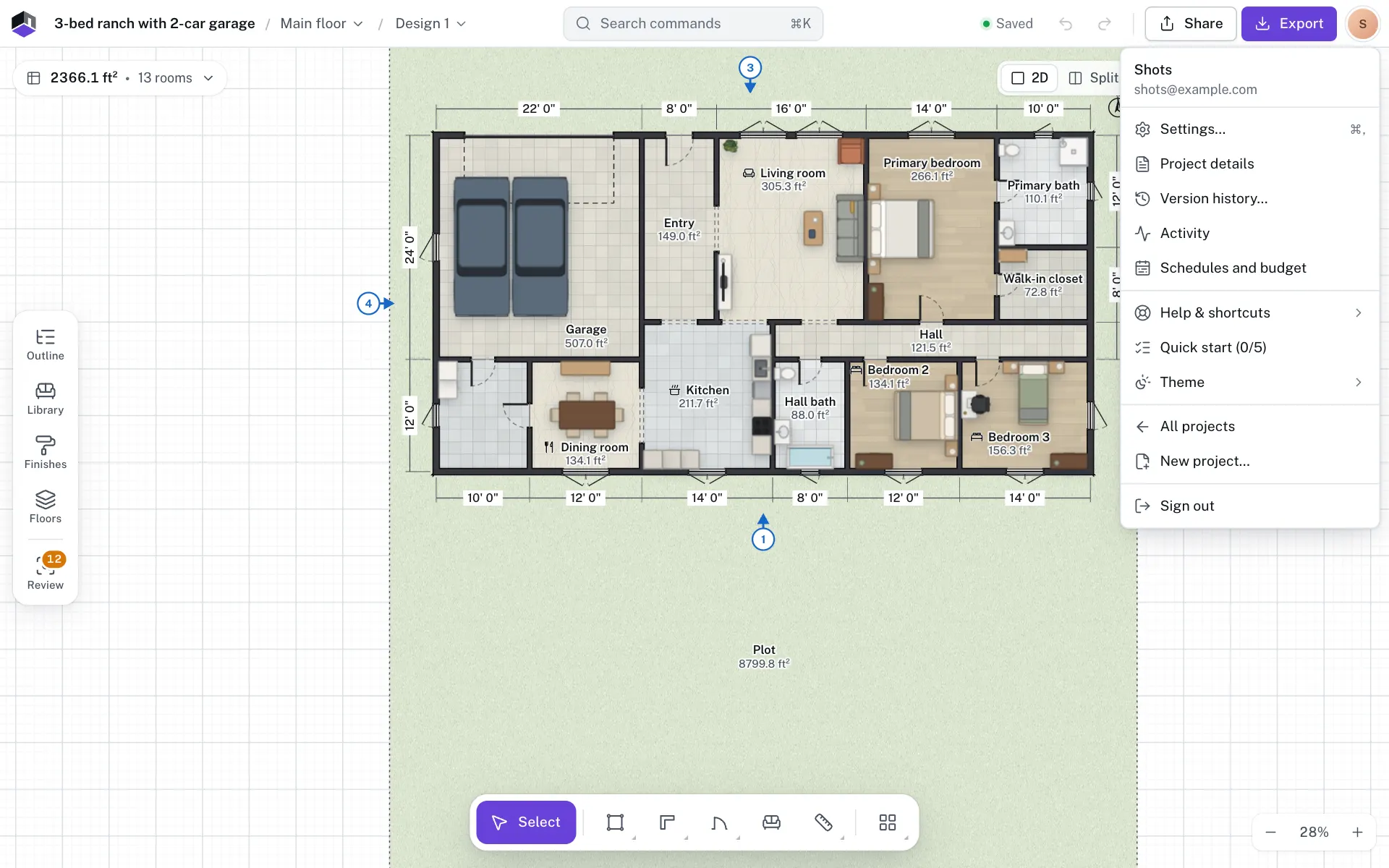
- Step 1: Open the account menu
In the editor, click the round avatar at the top right. On the projects page, use Sign in or Create free account at the foot of the sidebar instead.
- Step 2: Pick sign in
Click Sign in or create a free account…. The menu also says Saved in this browser only while you are a guest.
- Step 3: Choose how to sign in
Click the Google button and choose your Google account, or use your email where FloorGen offers it (see below). With Google, a new account is made the first time.
- Step 4: Keep working
You stay where you were. Your guest projects upload to your account in the background.
When FloorGen offers email sign-in, the dialog also has Sign in and Create account tabs for an email address and password, with the Google button above them. Where it is offered, Email me a code instead under Sign in sends a 6-digit code to your inbox, so you sign in without a password.
Create an account with email
- Step 5: Enter your details
On the Create account tab, type your Name, Email and Password, then click Send code. The password needs at least 8 characters.
- Step 6: Enter the code
FloorGen emails you a 6-digit code. It can take a minute to arrive, so check your spam folder too. Type it in; the account is made when you click Verify and create account, or as soon as you type the sixth digit. Where FloorGen can’t send email yet, the form shows the code instead.
- Step 7: If no code arrives
Send a new code appears after a short wait, with a countdown until then. Change details goes back to fix a typo in your email.
Forgot your password
- Step 8: Ask for a link
On the Sign in tab, click Forgot password? beside Password, where FloorGen offers it. Type your Email and click Send reset link.
- Step 9: Open the email
If there is an account for that address, FloorGen sends a link to choose a new password. It works once, for 30 minutes.
- Step 10: Choose a new password
The link opens Choose a new password. Type a New password of at least 8 characters and click Change password. You are then signed out everywhere else; click Sign in to carry on.
How sync works
- Each save goes up to your account a couple of seconds after you make it. FloorGen also syncs when you sign in, when you come back to the tab, and every few minutes.
- Offline, keep working. Changes stay in this browser and sync when you are back online.
- If the same project changed on two devices, the account’s version wins where they clash, and this device’s version is kept as a restore point in Version history….
- Deleting a project deletes it from your account too. Other devices move it to Recently deleted, where it stays for 30 days.
Check sync and sign out
| Status | Meaning |
|---|---|
| Synced 2 minutes ago | Everything is in your account. |
| Syncing… | Changes are uploading now. |
| 1 project waiting to sync | A change has not reached your account yet. |
| Offline · will sync when back online | No connection. Your work is safe in this browser. |
| Signed out · sign in again to sync | Your session ended. Sign in again. |
Click your name at the foot of the sidebar for Sync now and Sign out. If some changes have not synced, FloorGen asks Sign out with unsynced changes? They stay on this device and sync the next time you sign in here.
Questions
I forgot my password. What do I do?
Click Forgot password? on the Sign in tab and follow the emailed link to choose a new one.
How long do I stay signed in?
A session lasts 30 days on each browser.
Can two people use one browser?
Yes. Each account keeps its own projects in the browser, so signing in as someone else never shows or uploads another person’s projects.
Do my guest projects come with me?
Yes. When you sign in, the projects you made as a guest in this browser move into your account.