View options and plan styles
Updated 3 min readWorks without an account
View options, the View button at the top right of the editor, holds the switches for what the plan shows: snap, the grid, wall dimensions, rulers, units, the plan style and the theme. It stays open while you draw, and every keyboard shortcut keeps working.
Open View options
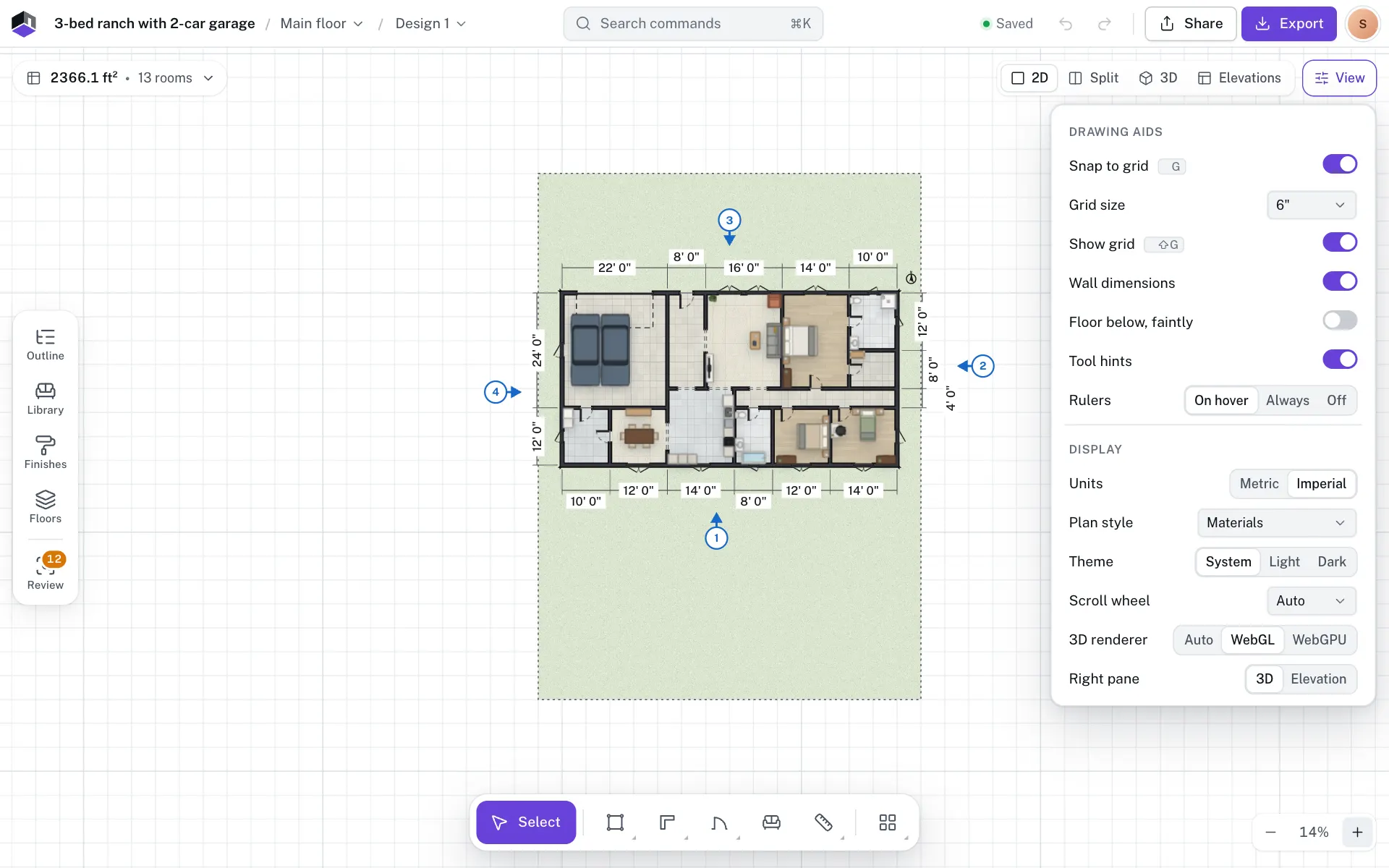
- Step 1: Click View
Click View beside the 2D, Split and 3D switch. On a phone, open the account menu and choose View options.
- Step 2: Change what you need
Flip a switch or pick a choice; the plan changes at once. Click outside the panel or press Esc to close it.
Drawing aids
| Row | What it does | Key | Default |
|---|---|---|---|
| Snap to grid | Corners and items land on grid points. | G | On |
| Grid size | The grid spacing: 1, 5, 10, 25 or 50 cm in metric, or 1″, 3″, 6″ or 1′ in imperial. | 10 cm, in imperial too, until you pick another | |
| Show grid | Shows or hides the grid lines. Snapping works either way. | ⇧G | On |
| Wall dimensions | Shows each wall’s length on the plan. | On | |
| Floor below, faintly | On an upper floor, shows the walls of the floor below as a faint outline. | On | |
| Tool hints | Shows the line above the tool dock that explains the current tool. | On | |
| Rulers | On hover (when the pointer nears the plan’s top or left edge), Always or Off. The X/Y position shows beside them. | On hover |
Display
| Row | Choices | Default |
|---|---|---|
| Units | Metric or Imperial for this project. Sizes don’t change, only how they are written. | From the project’s region |
| Plan style | Materials, Coloured outline, Black and white or Blueprint. | Materials |
| Theme | System, Light or Dark. | System |
| Scroll wheel | Auto (a trackpad pans, a mouse wheel zooms), Pan or Zoom. The modifier keys for each are in The Settings dialog. | Auto |
| 3D renderer | WebGL is the default, with every effect. WebGPU is experimental: it has no ambient occlusion, glow or contact shadows yet and draws a plain outline on the selection. Auto uses WebGPU when the browser has it and WebGL otherwise. If you pick WebGPU and the browser can’t run it, FloorGen falls back to WebGL and says so; under Auto it switches without a message. | WebGL |
| Right pane | What Split shows beside the plan: 3D or Elevation. | 3D |
Plan styles
- Materials draws floors with their textures. It is the default and follows the light or dark theme.
- Coloured outline fills each room with its own flat floor colour and draws furniture as outlines.
- Black and white draws black walls and text on white floors, with grey furniture outlines, for printing.
- Blueprint draws white walls and text on deep blue paper.
The plan style also sets how the 2D plan looks when you export it. See Export a 2D plan.
Questions
Are these settings saved?
Every row except Units is remembered in this browser: snap, grid size, show grid, wall dimensions, floor below, tool hints, rulers, plan style, theme, scroll wheel, 3D renderer and right pane. Units belongs to the project.
Why is Floor below, faintly greyed out?
It only applies on an upper floor. On the lowest floor there is nothing below to show.
Can I change the grid without View options?
Yes. Press G to turn snapping on or off and ⇧G to show or hide the grid. Grid size is also in Settings… › Drawing.