Export the 2D plan
Updated 2 min readNeeds a free account
Export the open floor as a PNG image to share, or as an A4 PDF at a real scale to print. Both show the whole floor on white with its dimensions, room names and areas.
Export the plan
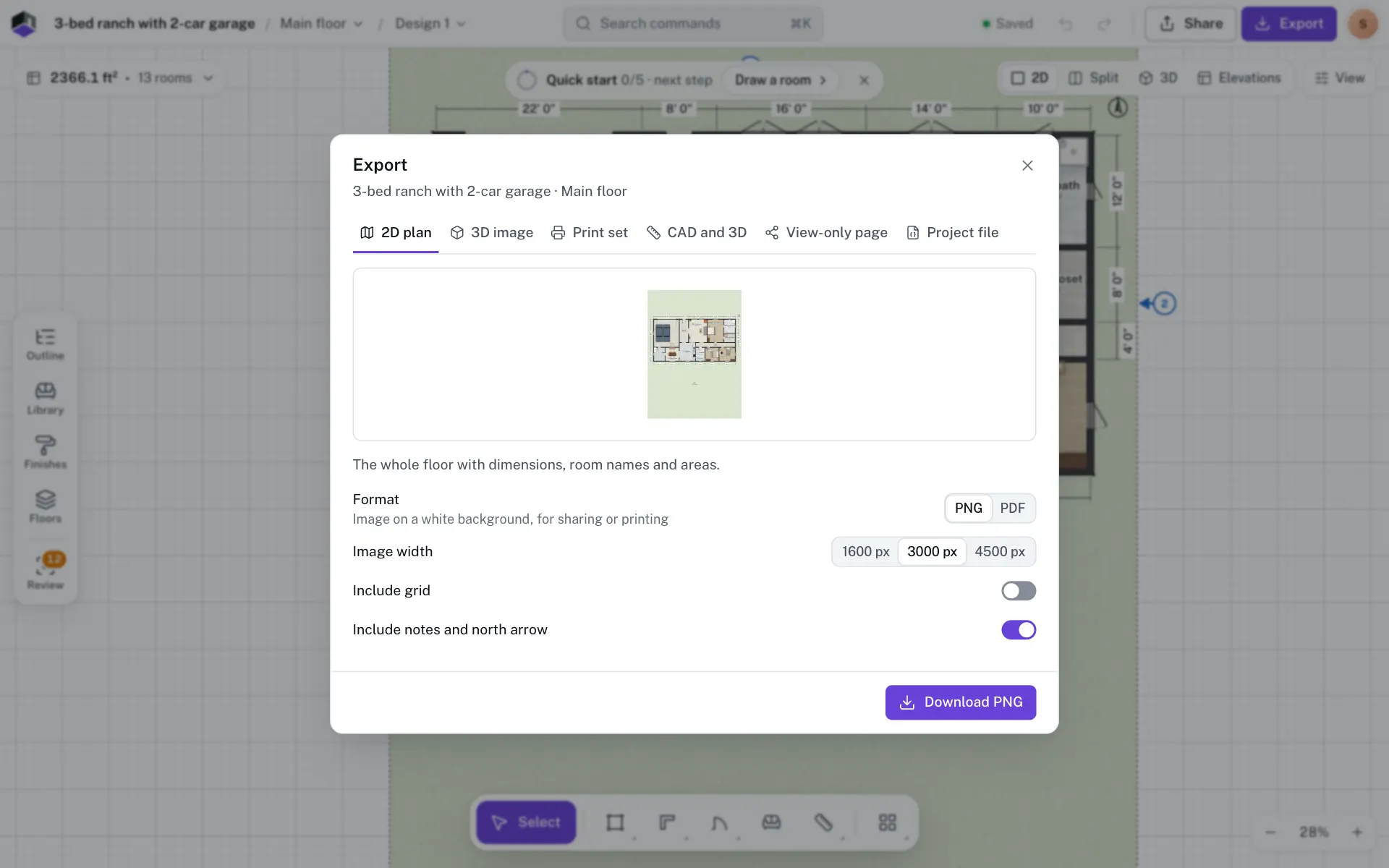
- Step 1: Open Export
Click Export in the top bar, or press ⌥6, and pick the 2D plan tab. The preview shows what you will get.
- Step 2: Pick the format
Under Format, choose PNG for an image or PDF for a printable sheet.
- Step 3: Set the options
For a PNG, pick the Image width: 1600, 3000 or 4500 px. Turn on Include grid if you want the grid, on a PNG or a PDF. Include notes and north arrow starts on; turn it off for a clean sheet.
- Step 4: Download
Click Download PNG or Download PDF. The file is named after the project and floor.
The options
| Field | What it does | Range | Default |
|---|---|---|---|
| Format | An image or a printable sheet. | PNG, PDF | PNG |
| Image width | PNG only: how wide the image is. | 1600, 3000 or 4500 px | 3000 px |
| Include grid | Draws the plan’s grid on the PNG or PDF. | On or off | Off |
| Include notes and north arrow | Your notes and the north arrow. One switch for the 2D plan and the print set; this browser remembers it. | On or off | On |
| Summary and sections | PDF only: adds the building summary page and a page per section line. | On or off | On |
PNG or PDF?
| PNG | ||
|---|---|---|
| Best for | Messages, email, listings and slides | Printing on A4 |
| Size | 1600, 3000 or 4500 px wide | An A4 sheet at the largest standard scale that fits |
| On the page | The plan on white | The plan with a scale bar, an area summary and a title block |
| Extra pages | None | Summary and sections, on to start, adds the building summary and a page per section line |
The plan is redrawn for the export, so your zoom, selection and dark theme don’t matter. It follows the plan style you draw in, and it covers the open design of the open floor.
Questions
Which width should I pick?
3000 px suits most screens and prints. Pick 4500 px for a large print or to zoom in close, and 1600 px for a small file.
How do I export another floor?
Switch to that floor, then export again. The 2D plan covers the floor that is open.
Can I hide the notes?
Yes. Turn off Include notes and north arrow before you download. The switch is shared by every plan export, the print set too, and this browser remembers it.