The Library
Updated 4 min readWorks without an account
The Library holds more than 3,000 pieces in 14 categories: furniture, fixtures, appliances, plants, stairs, lifts and more. Search or browse it, then drag a piece onto the plan or click it to add it.
Add a piece from the Library
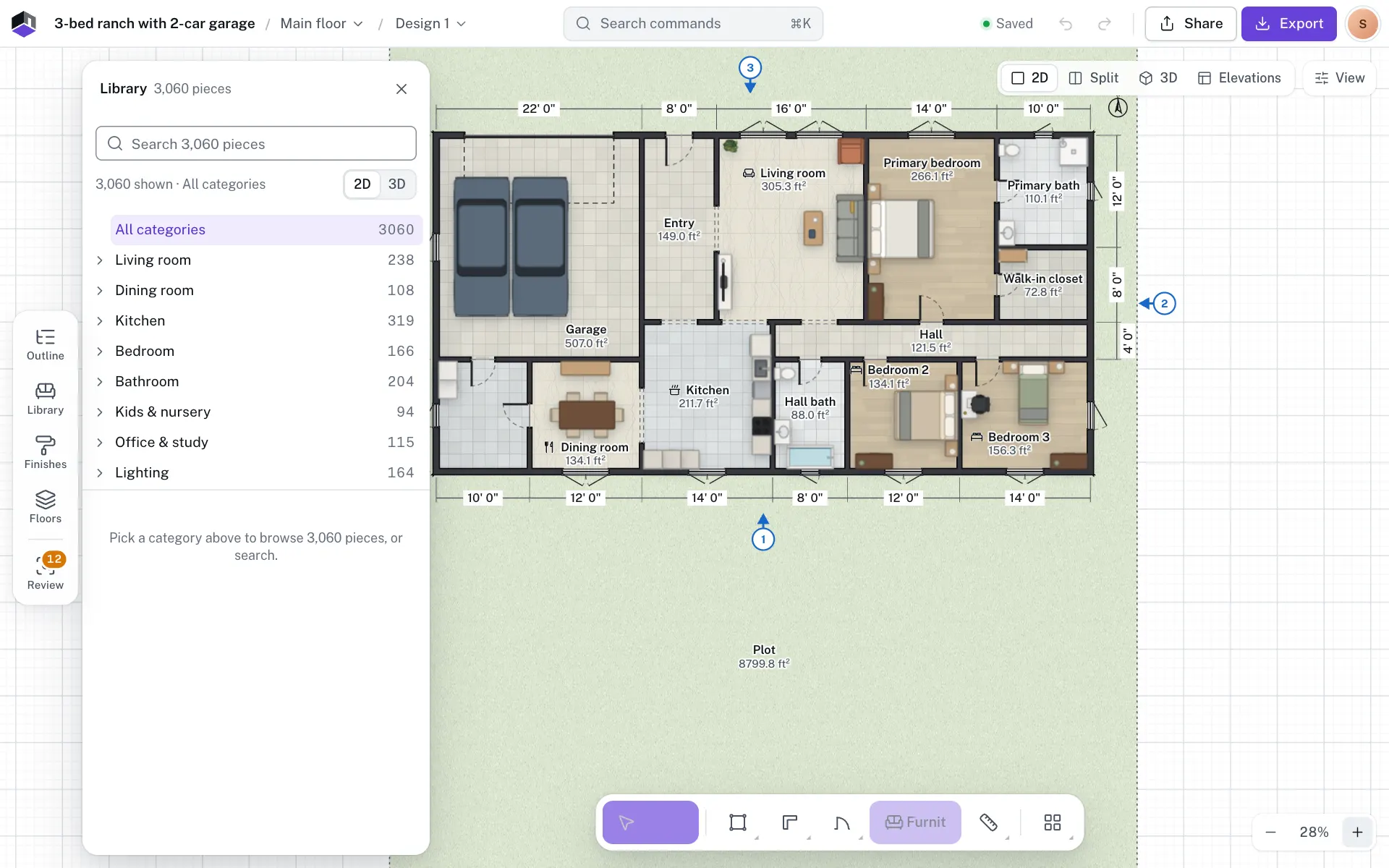
- Step 1: Open the Library
Click Library on the rail at the left, click Furniture in the tool dock, or press L.
- Step 2: Search for it
Type in the search field at the top. Search finds the start of words, plurals and near misses, and offers Did you mean when a word looks misspelt.
- Step 3: Or browse
Pick a category under Categories, then a subcategory. All categories goes back to the top.
- Step 4: Add it
Drag a piece onto the plan, or click it. A click puts it in a free spot, clear of other furniture, door swings and window fronts. When there is no free spot, it goes in the middle with the message No free space, placed at centre.
- Step 5: Turn it as you drop it
While dragging a piece from the Library, press R to turn it 90° (⇧R the other way).
The categories
- Living room, Dining room, Kitchen, Bedroom, Bathroom, and Kids & nursery
- Office & study, Lighting, Decor & accessories, and Laundry, storage & garage
- Structure: stairs, voids, columns, heating, railings and ramps, niches, roof elements, lifts, electrical, plumbing and gas, fire and safety
- Outdoor, Commercial & hospitality, and People & animals
The cards
- Each card shows the piece’s name and its width × depth, in the project’s units.
- Thumbnails switches the cards between a 2D top view and a 3D view of each piece.
- A long list shows 48 cards at a time. Scroll to the end, or click Show more, which gives the count left, for the next 48.
- With a card focused, the arrow keys, Home and End move between cards.
Your shelves
Your shelves show under the category list while All categories is picked, before you pick a category. A shelf shows only once it holds something.
| Shelf | What goes on it | Limit |
|---|---|---|
| Favourites | Pieces you starred. Hover a card and click the star at its top right; click it again to remove it. | 200 pieces |
| Recently used | The pieces you added last, newest first. | 12 pieces |
| My items | Your own copies, with their name, size, colours and materials. Select a piece on the plan and choose Save to My items on right-click or at the end of All properties. To remove one, hover its card and click the bin at its top left. | 100 items. When full, a message says My items holds up to 100; remove one first. |
Only pieces from the Library can be saved to My items. Later changes to the piece on the plan don’t change the saved copy. On a touch screen the star and the bin always show.
While you drag a piece over the plan, a label warns you of two things. Overlaps followed by a piece’s name means it would overlap that piece at the same height. Outside the rooms means it is not inside any room (shown once the plan has rooms). You can still drop it in both cases.
In the 3D view, clicking a piece waits for you to click the floor where it should go. Press Esc to cancel.
On a phone or tablet
On a phone, open the Library from the row of icons at the top left. On a tablet it stays on the rail at the left. Tap a piece to add it to a free spot, or drag it onto the plan.
Questions
Can I search with British or other words?
Yes. The search knows UK and Canadian names such as tap, cooker, hob and worktop, and everyday Spanish, German and French words such as Kühlschrank and lave-linge.
Where are the stairs and lifts?
Under Structure in the Library, and in More tools in the tool dock. See Stairs and lifts.
Can I search all of the Library from inside a category?
Yes. When a search finds nothing in the category you are in, click Search all objects.