Make a walkthrough video
Updated 4 min readWorks without an account
A walkthrough video walks from the street through the front door, into every room on every floor, then once round the outside. Set it up in one dialog, preview it in the 3D view, then record it as a video file.
Make a walkthrough video
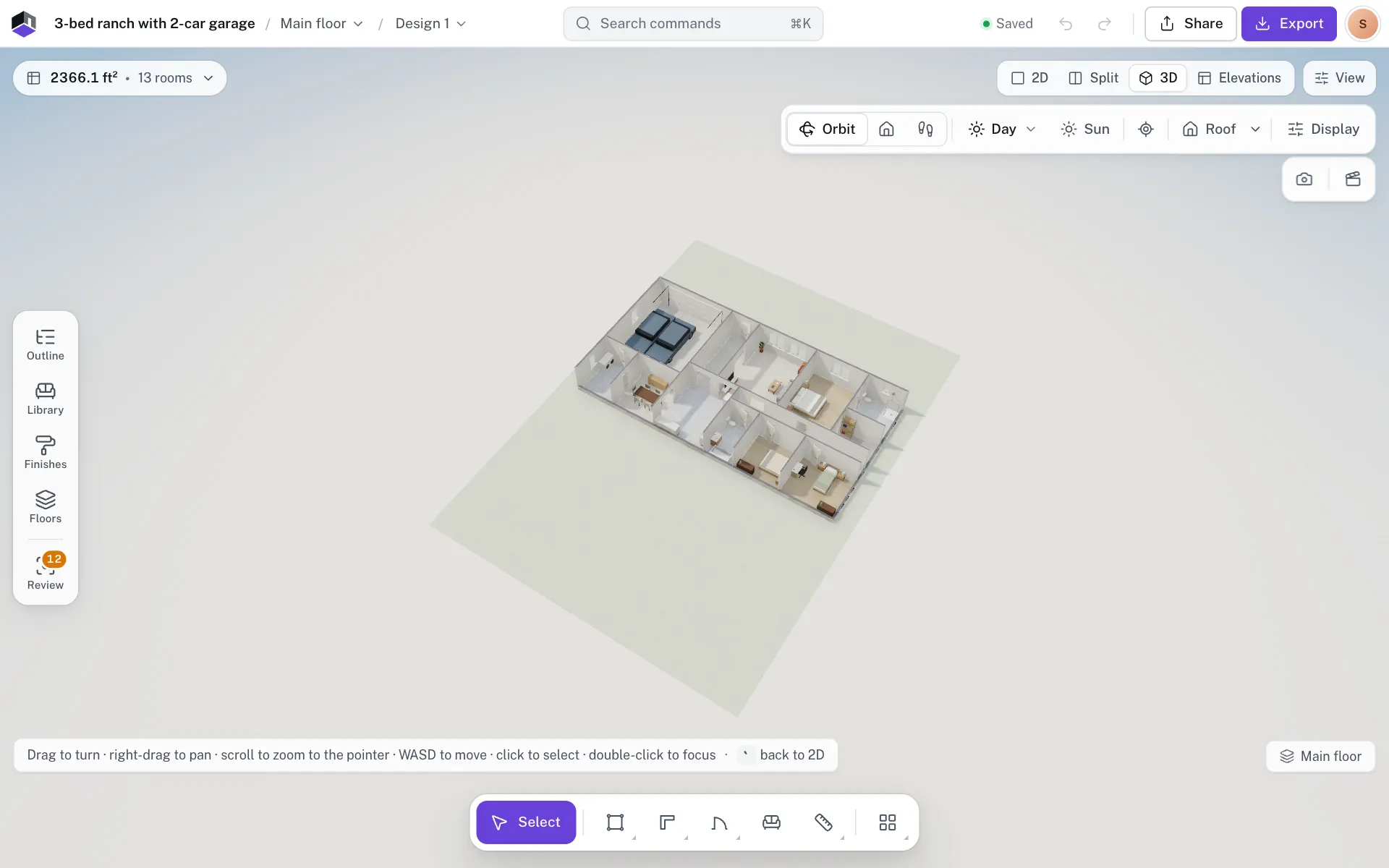
- Step 1: Open the 3D view
Press 3, or click 3D at the top right.
- Step 2: Open Walkthrough video
Click the clapperboard, Walkthrough video, at the end of the bar under the camera controls.
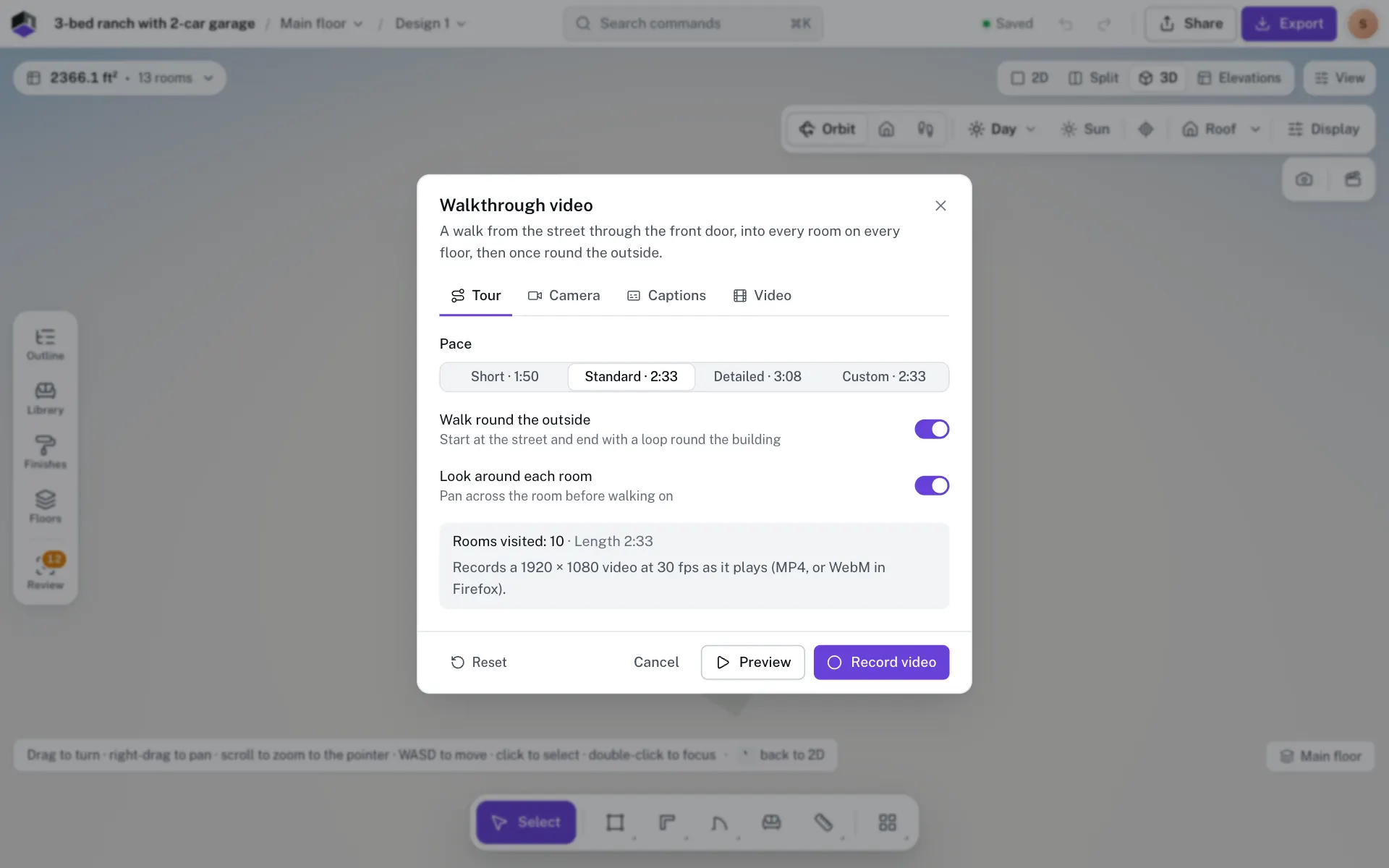
- Step 3: Choose the options
The dialog has four tabs: Tour, Camera, Captions and Video. The defaults make a 1920 × 1080 video at 30 fps, so you can skip this step.
- Step 4: Check what it covers
The box at the bottom of the dialog counts the rooms visited and gives the length. Rooms the walk can’t reach are listed after Can’t reach.
- Step 5: Preview it
Click Preview to play the walk in the 3D view. Pause it, change the speed to 1.5× or 2×, or turn captions off as it plays.
- Step 6: Record the video
Click Record video. The walk plays and records at the same time, then the file downloads. Click Cancel to stop without saving. In a browser that can’t record video, Record video is greyed out.
The options
| Tab | Field | What it does | Range | Default |
|---|---|---|---|---|
| Tour | Pace | How long the walk takes. Each pace shows its length beside its name. | Short, Standard, Detailed, Custom | Standard |
| Tour | Walking speed | With Custom: how fast the camera walks. | 0.5× to 1.6×, in 0.05 steps | 1× |
| Tour | Time in each room | With Custom: how long the camera stays in each room. | 1 to 6 s, in 0.1 s steps | 2.6 s |
| Tour | Walk round the outside | Start at the street and end with a loop round the building. | On or off | On |
| Tour | Look around each room | Pan across the room before walking on. | On or off | On |
| Camera | Same as my walk view | Use the eye height and lens from Walk settings. | On or off | Off |
| Camera | Eye height | With the switch above off: the camera’s height above the floor. | 90 to 200 cm, in 5 cm steps | 160 cm |
| Camera | Field of view | With the switch above off: how wide the lens is. | 40° to 90°, in 1° steps | 62° |
| Camera | Camera motion | How quickly the camera turns to face where it’s going. | Calm, Natural, Brisk | Natural |
| Camera | Lighting | Lights only the walkthrough; the view goes back to its lighting after. | Day, Evening, Night | The 3D view’s lighting |
| Captions | Room names on screen | The project name first, then each room as you reach it. | On or off | On |
| Captions | Title card | With Room names on screen on: opens the video for a few seconds with a Title and a Tagline. | On or off | On |
| Captions | Title and Tagline | With Title card on: the words on the title card. The title takes up to 80 characters and the tagline up to 60. | Text | The project name, and Walkthrough |
| Captions | Under the room name | With Room names on screen on: what each room caption shows under the name. | Nothing, Floor, Area | Floor |
| Captions | Caption position | With Room names on screen on: where the captions sit. | Bottom left, Bottom centre | Bottom left |
| Video | Shape | The frame of the video. | Landscape 16:9, Portrait 9:16, Square 1:1 | Landscape 16:9 |
| Video | Resolution | The size of the video. | 720p, 1080p, 1440p | 1080p |
| Video | Frame rate | Frames per second. | 30 or 60 fps | 30 fps |
Your choices are remembered in this browser, apart from the title and the lighting, which start from the project name and the 3D view each time. Reset puts them back to the defaults. The roof shows in the video when Roof is on in the 3D view.
Questions
What file do I get?
An MP4 in Chrome, Edge and Safari, and a WebM in Firefox. The file is named after the project, ending in -walkthrough.
Why does it skip a room?
The walk goes through doors and up stairs. A room it can’t get into, or a floor that no stair reaches, is named after Can’t reach before you start. Add a door, passage or stair to include it.
Do I need an account?
No. Walkthrough videos are recorded in your browser and work for guests too.
Can I make a vertical video for social media?
Yes. On the Video tab pick Portrait 9:16.