Layers and the Outline
Updated 3 min readWorks without an account
The Outline lists everything on the open floor, room by room. Use it to find and select an object, and to hide or lock objects one at a time or a whole kind at once.
Use the Outline
- Step 1: Open the Outline
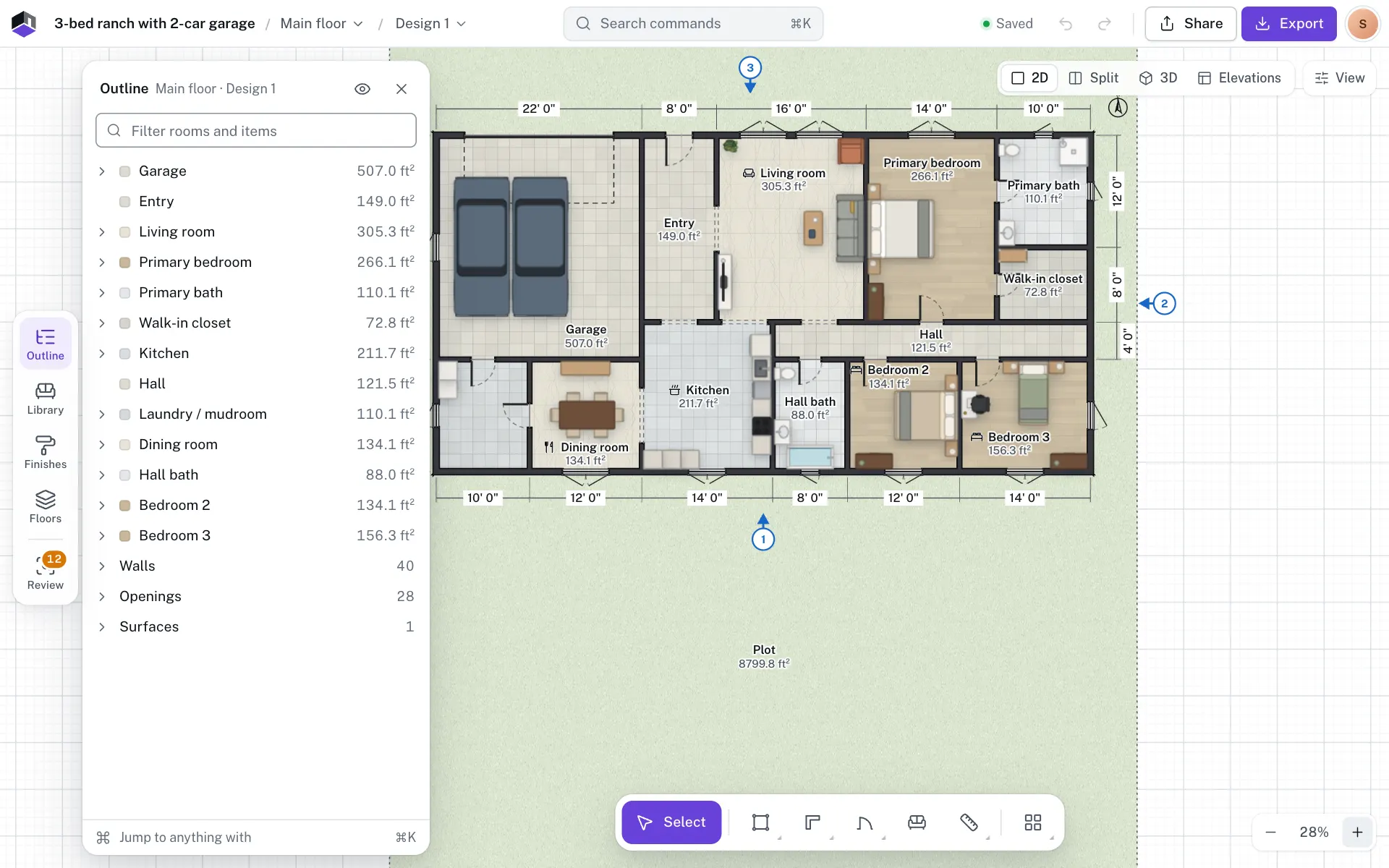
Click Outline on the rail at the left of the plan, or press ⌥8. Click it again, or press Esc with nothing selected, to close it.
- Step 2: Read the tree
Each room is listed with the furniture in it, then Items in no room, then the walls, openings and other kinds, folded with their counts.
- Step 3: Find something
Type in Filter rooms and items to narrow the list; with no match it says Nothing matches and what you typed. Esc clears the filter, and Esc on an empty filter closes the panel.
- Step 4: Select from the list
Click a row to select that object on the plan. ⇧ click or ⌘ click a wall, opening, furniture, stair or surface row to add it to the selection, or take it out. Hovering a row lights the object up on the plan, and the other way round.
Hide or lock one object
Hover a row and click its eye to hide the object, or its padlock to lock it. While an object is hidden or locked, its button stays in view so you can click it again. Hidden rows are struck through and greyed out, and can’t be clicked to select.
- A door or window on a hidden or locked wall is held by its wall: its own eye or padlock is greyed out. Show or unlock the wall instead.
- A room whose walls are all hidden is hidden with them.
Locked objects
A locked object ignores clicks on the plan: a click or right-click on it acts like one on empty space, so it clears the selection. Boxes and ⇧ clicks skip it too. To reach it, select it another way:
- Click its row in the Outline.
- Press ⌘K and type its name (rooms and furniture). See The command palette.
- Click the plan, then press ] or [ to step through the rooms, furniture, doors and windows, and walls.
Once selected, the card shows Locked with Unlock, and its fields are read-only. All properties says so in a sentence, such as This item is locked., with an Unlock button; every field is greyed out. A door or window on a locked wall says On a locked wall. Unlock the wall to edit this. In the pill, the right-click menu and ⌘K, every editing action is greyed out with Locked: unlock it in Outline to change it; All properties, Copy and the select actions still work.
Hide or lock a whole kind
The eye button in the Outline’s header (Show and lock walls, openings, furniture) works as layers. Under Show on the plan, untick a kind to hide every object of it. Under Lock against edits, tick a kind to lock all of them in one step.
| Kind | Covers |
|---|---|
| Walls | Every wall and invisible divider |
| Openings | Doors, windows and passages |
| Furniture | Every item from the library |
| Stairs | Staircases and ramps |
| Lifts | Lift shafts |
| Surfaces | Terraces, cutouts and balconies |
| Notes | Text notes |
To jump to any room or object by name, press ⌘K. See The command palette.
Questions
Where are the floors and designs?
In the Floors panel on the same rail. The Outline shows the open design of the open floor only.
How do I unlock everything again?
Open the Show menu in the Outline’s header and untick each kind under Lock against edits.
Why is a row greyed out and struck through?
That object is hidden. Click its eye to show it again.
Why does clicking an object on the plan do nothing?
It is locked, so the click goes to the empty space under it. Click its row in the Outline to select it, then Unlock on its card or its padlock in the row.