Finishes and wall paint
Updated 4 min readWorks without an account
Each room has its own floor finish and wall paint. Pick them in the Finishes panel, and paint one side of a single wall in that wall’s All properties.
Set a room’s floor and paint
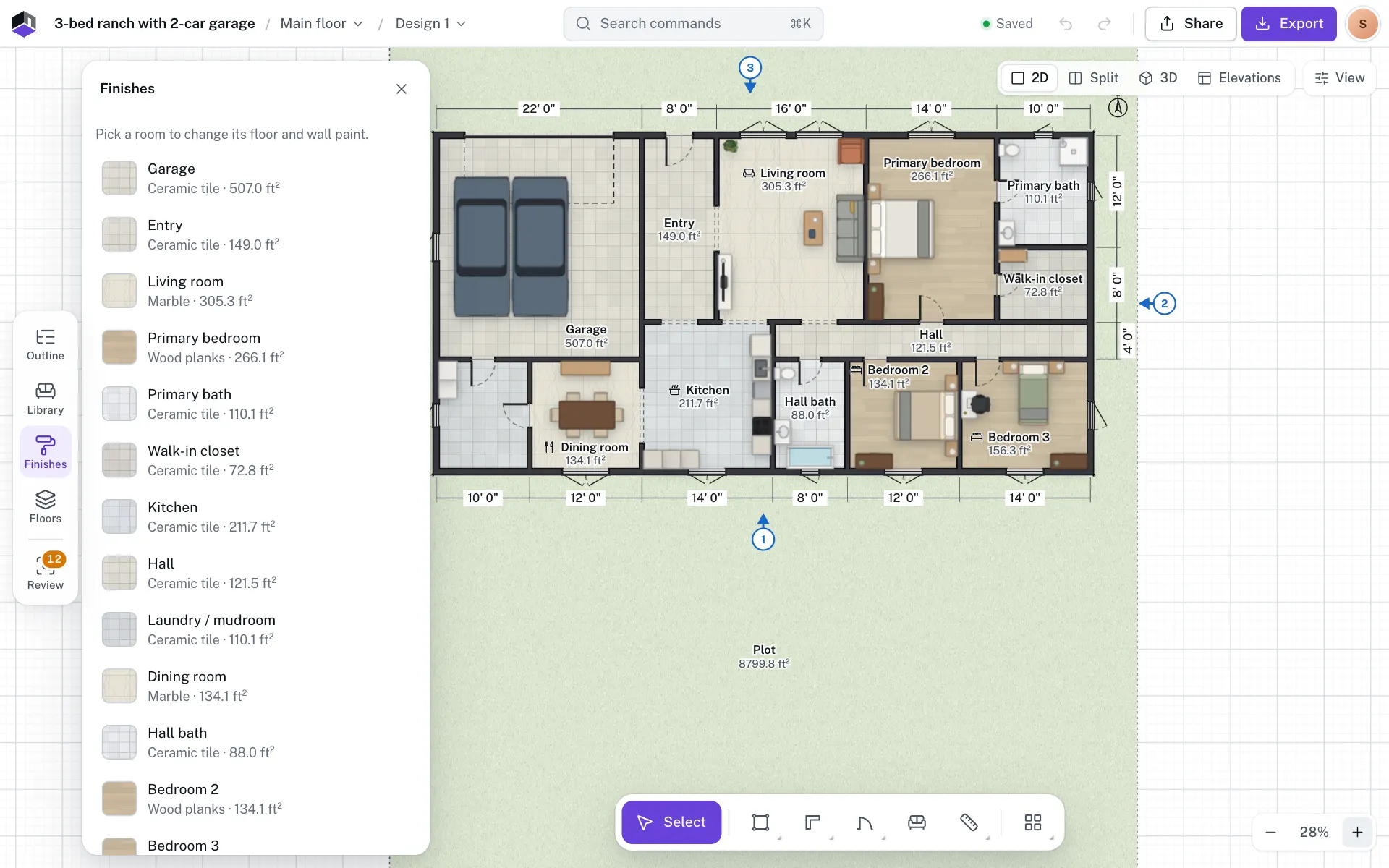
- Step 1: Open Finishes
Click Finishes on the rail at the left of the plan, or press ⌥5.
- Step 2: Pick a room
The panel lists every room with its finish and area. Click one, or select a room on the plan.
- Step 3: Choose the floor
Under Floor finish, pick Wood, Tile, Marble, Carpet, Concrete, Grass or Plain. Then pick a shade under Floor colour: each finish offers three to five shades that suit it, plus the rainbow Any colour chip.
- Step 4: Paint the walls
Pick a colour under Wall paint · inside this room. It paints this room’s side of all its walls.
- Step 5: Copy it or move on
Apply this floor to all rooms gives every room the same floor. Done with this room goes back to the list.
| Field | What it does | Choices | Default |
|---|---|---|---|
| Floor finish | The floor’s pattern, on the plan and in 3D | Wood, Tile, Marble, Carpet, Concrete, Grass or Plain | Plain, unless a Room type suggests another |
| Floor colour | The floor’s shade. Picking another finish resets it to that finish’s own colour. | Three to five shades per finish, or any colour | The finish’s own colour |
| Wall paint · inside this room | Paints this room’s side of all its walls | 12 paint chips, or any colour | Warm white (#f5f5f4) |
The same fields are in a room’s All properties, where they are named Floor (the finish tiles and Colour) and Wall paint.
Paint one side of a wall
- Select the wall and open All properties. Under Appearance, Both sides paints the whole wall, and a field for each side, named after the room it faces, such as Left side · Kitchen, paints that side alone.
- In the 3D view, click the face of a wall. The wall’s card then has a paint field for that side.
- Under Texture, Both sides gives the whole wall Plain, Plaster or Brick in 3D, and a picker for each side sets that side alone. Plain is the default. Each side’s paint colour still applies over it. An invisible divider has no Texture section.
- A shared wall keeps its other side’s paint when you repaint one room.
Other ways to set finishes
| Where | What you can set |
|---|---|
| Right-click a room | Floor finish, and Wall paint with eight named paints: Warm white, Bright white, Greige, Sage, Sky, Blush, Terracotta and Charcoal. Custom colour… opens the room’s All properties to pick any colour. |
| A room’s card | The floor finish, next to its name and type |
| A room’s All properties | Floor tiles and colour, and Wall paint |
| Room type | Suggests a name and a floor finish |
| A surface’s properties | Finish › Material and colour for terraces and paths |
| A piece of furniture | Appearance colours and materials for each part |
Need an exact colour? Click the round rainbow chip at the end of a colour row (Any colour). It offers 18 preset colours, a hex field (press ↵ to apply) and Custom colour, which opens your system’s colour picker.
Ceilings
Ceilings have no finish or paint setting. They are always a plain off-white, and the 3D view draws them only in Walk mode and while a walkthrough plays, so the sky doesn’t show above the walls. See Walk mode.
Quantities and cost
The Finishes schedule in Schedules and budget works out paint (net of openings), flooring and tile (with waste) and skirting (net of doors), room by room.
Questions
Why don’t I see the paint on the plan?
Paint shows in 3D only. The plan keeps walls dark so the drawing stays clear.
How do I give every room the same floor?
Set the floor on one room in the Finishes panel, then click Apply this floor to all rooms.
How do I paint the ceiling?
You can’t yet. Ceilings are a fixed off-white, shown only in Walk mode and in walkthrough videos.
Why did my floor colour change when I picked a new finish?
Each finish starts with its own colour. Pick a new shade under Floor colour after you choose the finish.
Can the two sides of a wall be different colours?
Yes. Select the wall, open All properties and set each side under Appearance. In the 3D view you can also click one face of the wall and paint it from the card.