Activity and revert
Updated 3 min readNeeds a free account
When an agent edits a project you have open, the change appears in the editor within about a second. Activity lists every agent edit with Show and Revert, and on your own unshared project each edit is also one step you can undo.
See what an agent changed
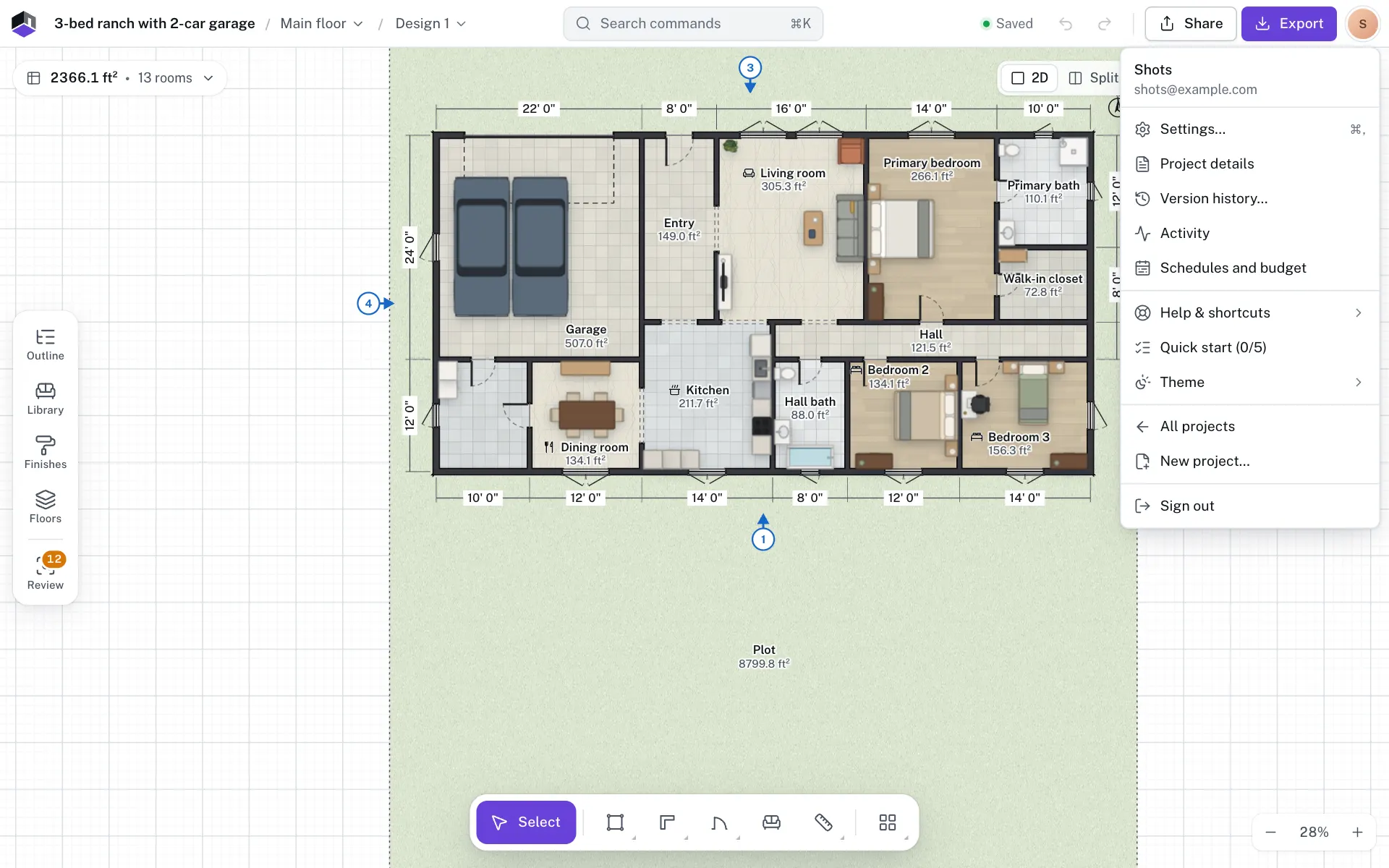
- Step 1: Open the account menu
Click your avatar at the top right of the editor. A dot on it means agents made edits you have not seen.
- Step 2: Pick Activity
Click Activity. The panel lists each edit, newest first, with who made it, when, and a short summary.
- Step 3: Show it on the plan
Click Show to select and frame what the edit touched.
- Step 4: Revert it
Click Revert to take that edit back out of the plan. A reverted edit is struck through. The revert is itself a step you can undo.
Undo an agent edit
- On a project only you work on, each agent edit is one labelled step, so ⌘Z undoes it. A toast with Undo also appears when an edit arrives.
- On a project shared with others, changes that did not come from you are not undo steps. Use Revert in Activity instead.
- If a later change touched the same things, Revert may not be possible. The panel says why.
| Message | What it means |
|---|---|
| This can’t be reverted because those things changed since. | A later edit touched the same things. Undo or change them by hand instead. |
| That edit is no longer available. | The edit has dropped out of the project’s history, so it can’t be reverted from here. |
| Reverted here, but the account was not told. Try again later. | The plan is reverted in this tab, but the row could not be marked as reverted. |
| That didn’t work. Please try again. | The revert failed. Try again. |
| Could not load activity. Try again in a moment. | The list did not load. Reopen the panel shortly. |
Safety nets
- An agent’s first edit of a task saves a checkpoint named “Before <agent> edits”. For an API key, <agent> is the key’s Name; for an app connected by sign-in, it is the app’s name. A new task starts when the same agent edits again after 30 quiet minutes. Checkpoints are also saved before big jobs, permanent deletes and restores.
- Checkpoints are kept for 30 days, by default up to 20 per project (a plan can set its own number), the oldest automatic ones going first. The “Before <agent> edits” checkpoints are counted apart, and only the newest 5 are kept. An agent rolls back to one with
restore_checkpoint(thehistorytoolset), which needs full access (Full (can delete) on a key, Full, can delete when the app signs in) and asks you to confirm. The editor keeps its own restore points in Version history… in the account menu. - To stop the automatic checkpoint, ask the agent to turn off
auto_checkpointfor the project withupdate_project_settings(themoretoolset), or connect with the headerX-FloorGen-Auto-Checkpoint: off. There is no switch for it in the editor. - Everyday deletes go to a trash the agent can restore from. Permanent deletes need a second confirmation.
- A deleted project can be restored for 30 days.
- Agents can preview an edit without saving it, and an edit made on an out-of-date copy is refused.
Questions
Does Activity list my own edits?
No. It lists edits made by agents and notes they leave. Your own steps are in the editor’s undo history.
Will a tab I left open overwrite an agent’s change?
No. An open editor merges agent edits in. If both changed the same thing, the account’s version wins and yours is kept as a restore point.
Can I stop an agent completely?
Yes. Revoke its key or disconnect the app in Agents & MCP. Access stops at once.