Project file and backups
Updated 3 min readNeeds a free account
A project file (.floorgen.json) holds one project with every floor, design and traced image. Download it to keep a copy or open the project in another browser. To save every project at once, back them all up from the home page.
Download a project file
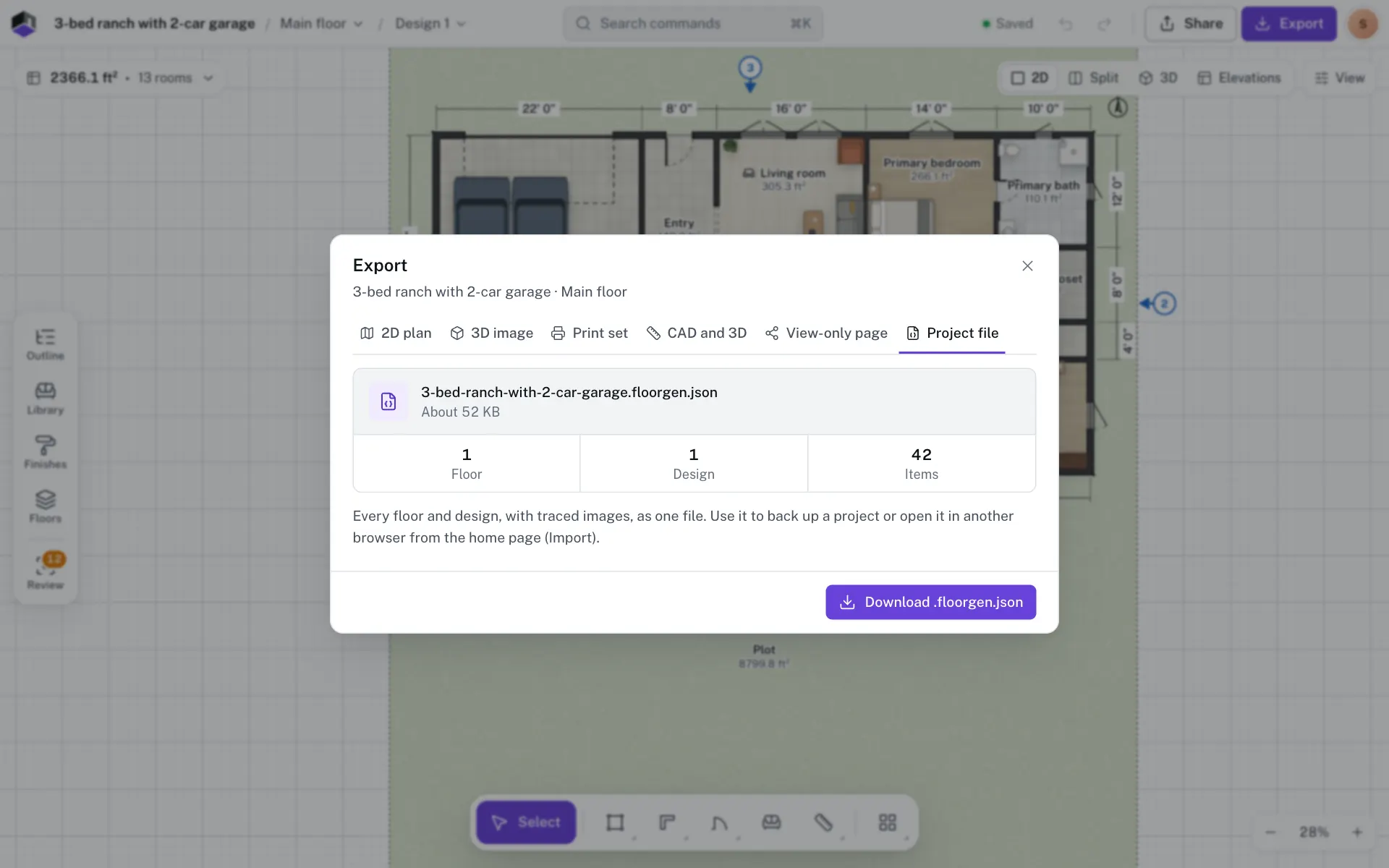
- Step 1: Open the Project file tab
Click Export in the top bar, or press ⌥6, and pick Project file.
- Step 2: Check what it holds
The tab shows the file name, about how big it is, and how many floors, designs and items it holds, with any traced images.
- Step 3: Download it
Click Download .floorgen.json.
Open a project file
On the home page, click Import .floorgen.json under Files in the sidebar and pick the file. In the editor, open the command palette with ⌘K and choose Import project file…. A project file can be up to 50 MB.
Back up every project
| Action | What it does |
|---|---|
| Back up all projects | Downloads every project as one file, named like floorgen-backup-2026-10-10.json. The line under it says when you last backed up. |
| Restore a backup… | Reads a backup file and adds its projects. A project you still have comes back as a copy, so a restore never overwrites your work. |
| Save into a folder… | In Chrome and Edge: every autosave also writes a .floorgen.json into a folder you pick. |
To go back to an earlier state of one project, use version history instead. See Saving and version history.
Questions
Does the project file include my traced image?
Yes. Traced images are inside the file. If one can’t be found, the file downloads without it and FloorGen tells you.
What if a restore skips a project?
FloorGen lists the projects it skipped or changed in Restore notes when it finishes.
Can I open a .floorgen.json from someone else?
Yes. Import it from the home page. It becomes a new project in your list.