Exports and your account
Updated 3 min readNeeds a free account
By default, a guest can draw, furnish, view in 3D and run checks, but every export needs a free account. This guide lists each export, where to start it, and which ones can carry the FloorGen badge.
Every export at a glance
| Export | Where you start it | A guest, by default | Follows the lock of | Badge possible |
|---|---|---|---|---|
| 2D plan, PNG or PDF | Export › 2D plan | Needs a free account | 2D plan | Yes |
| 3D image, PNG | Export › 3D image | Needs a free account | 3D image | Yes |
| Print set, PDF | Export › Print set | Needs a free account | Print set | Yes |
| SVG and DXF | Export › CAD and 3D | Needs a free account | CAD and 3D | Yes |
| glTF | Export › CAD and 3D | Needs a free account | CAD and 3D | No |
| View-only page, HTML | Export › View-only page | Needs a free account | View-only page | Yes |
| Project file | Export › Project file | Needs a free account | Project file | No |
| Back up all projects | The projects page | Needs a free account | Project file | No |
| Section, PDF | The section window | Needs a free account | 2D plan | Yes |
| Elevation, PNG or PDF | The Elevations view | Needs a free account | 2D plan | Yes |
| Elevation, SVG or DXF | The Elevations view | Needs a free account | CAD and 3D | Yes |
| Walkthrough video and tour video | The 3D view, camera views bar | Preview is free; recording needs a free account | 3D image | Yes |
| Room list, CSV | The plan summary: Export schedule (CSV) | Needs a free account | 2D plan | No |
| Schedules and budget, CSV text | Schedules and budget: Copy as CSV | Works without an account | No lock | No |
| Pictures an agent asks for | An AI agent over MCP | Needs a free account for agent access | Agent access | Yes |
What the sign-in card does
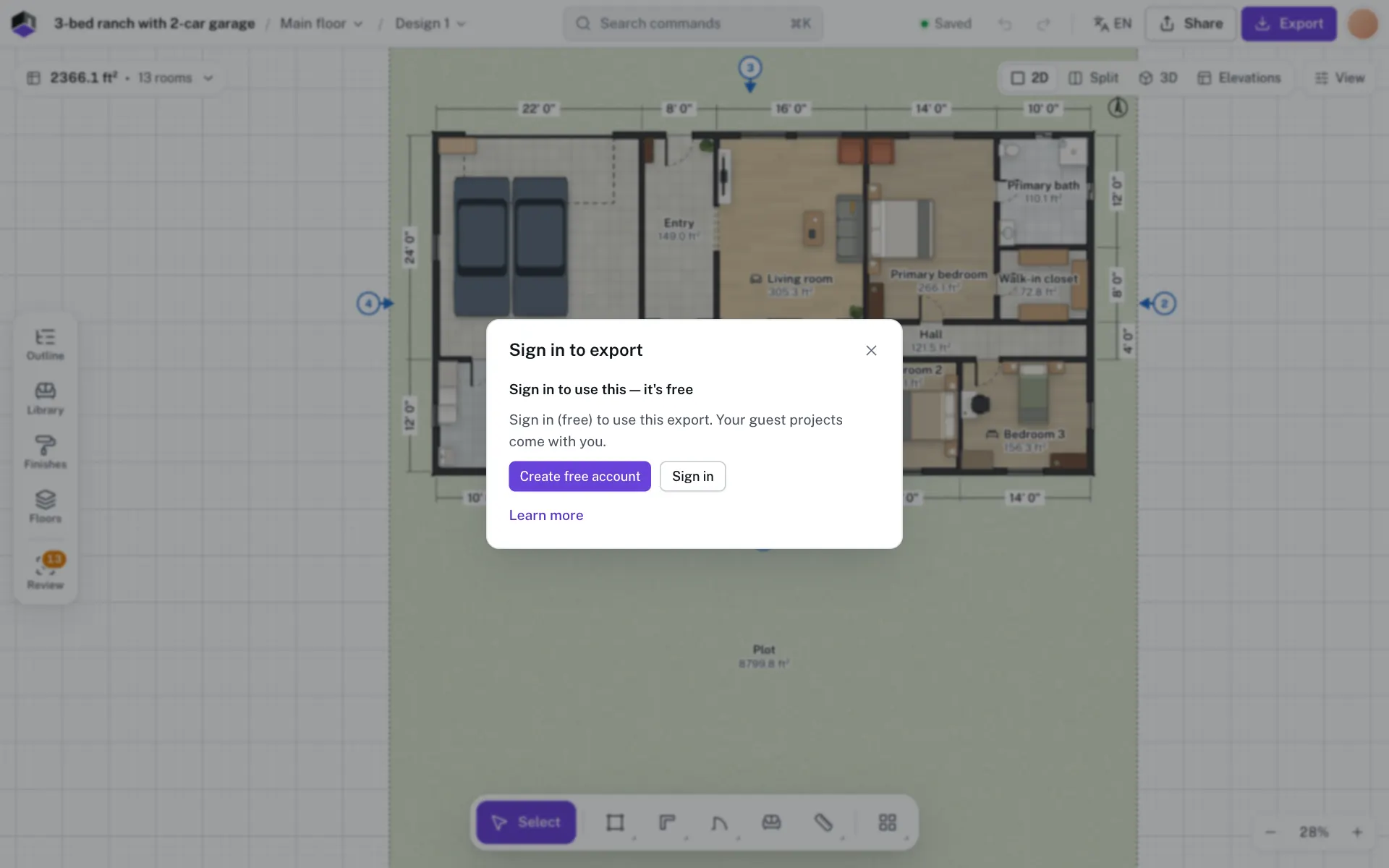
When a guest clicks Export and every export is locked (the default), or starts a locked export from elsewhere, a card opens with the title Sign in to export and the line Sign in (free) to use this export. Your guest projects come with you. Click Create free account or Sign in. Nothing is lost: the projects you made as a guest move to your account, and you can start the export again.
On a plan that leaves the export out, the card reads Exports are not in your plan instead, with a See plans button.
The FloorGen badge
An export can carry a mark: by default a small dark badge reading “Made with floorgen.app”, or a tiled “FloorGen · floorgen.app” if the site uses that style. An admin sets this per plan and per kind of output, and it is off by default. When it is on, the Export dialog says so under the options. Outputs such as glTF, the project file, the schedules CSV and the backup never carry it.
Questions
Can a guest export anything?
By default, only Copy as CSV in Schedules and budget. A guest can also preview a walkthrough video and view a section.
Do I lose my guest projects when I sign in?
No. They come with you to the new account.
Does importing a project file need an account?
No. Opening a project file does not need one, but a guest has a cap on how many projects they can keep. See What works without an account.
Why does my export have a badge?
An admin can add it to the outputs of a plan. See which plans leave it out in Plans and limits.