Buy seats for your institution
Updated 3 min readNeeds a free account
A school, college or company buys FloorGen seats for a year from the institutions page: size the order by class, then pay on the checkout page. The institution and its portal are ready a moment after the payment clears.
Seat types, prices, volume discounts and the smallest order are set by FloorGen, and the page reads today’s. Where buying online isn’t open, the page offers Contact us instead and we set the institution up with you.
Size the order
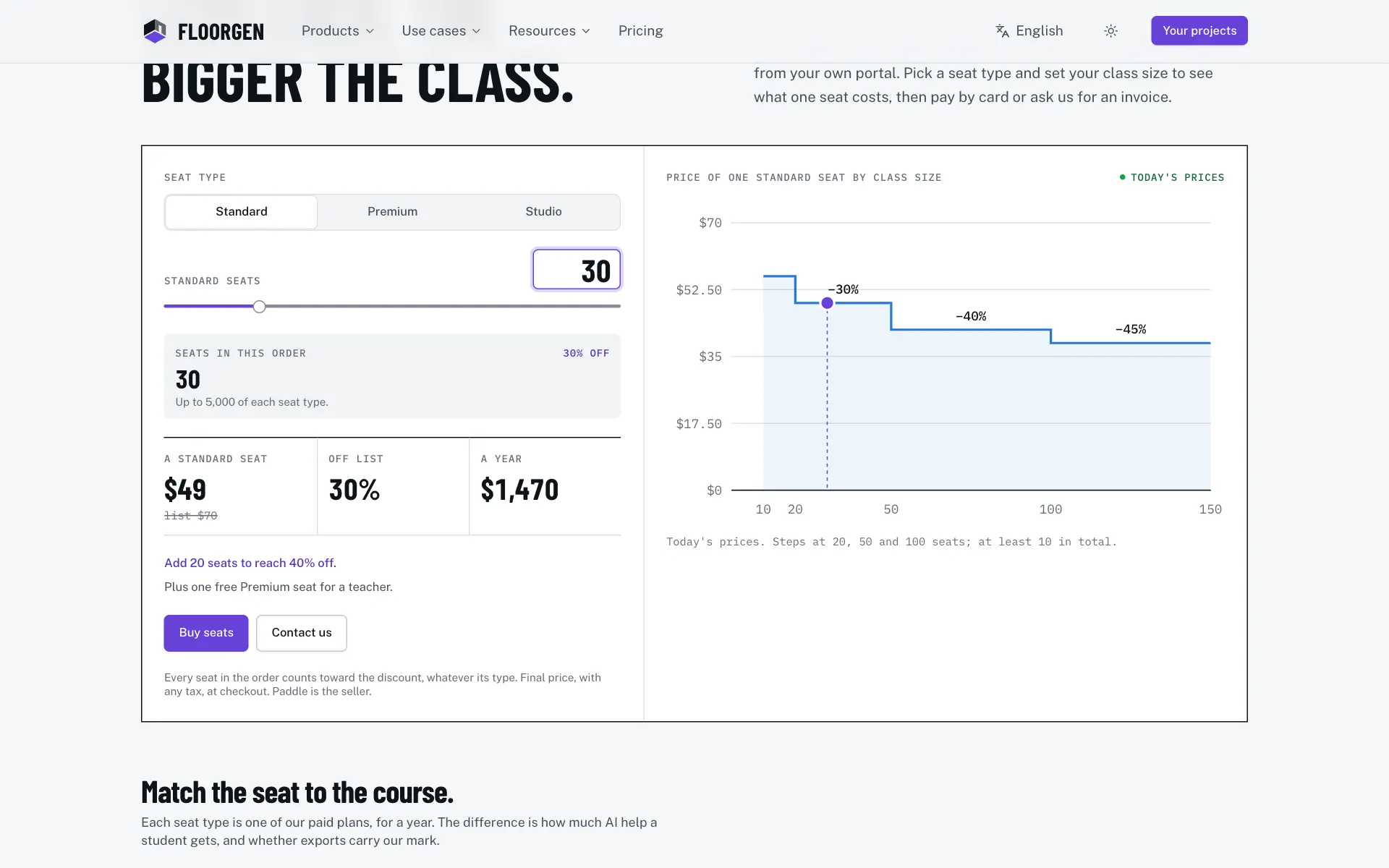
- Step 1: Open the institutions page
Go to floorgen.app/for/institutes and scroll to the price by class size.
- Step 2: Pick a seat type
Each seat type is one of the paid plans, for a year. Pick one to set its seats; the others keep their counts, so one order can mix types.
- Step 3: Set the class size
Type the number of seats or drag the slider. Seats in this order adds up every type, since every seat counts toward the volume discount.
- Step 4: Read the price
The strip shows one seat’s price, the discount off the list price and the total for a year. The line under it says how many more seats reach the next discount, and the chart beside it shows the price by class size.
- Step 5: Go to checkout
Click Buy seats. Signed out, the button says Sign in to buy seats; once you sign in, the checkout opens with the seats you chose.
Pay at checkout
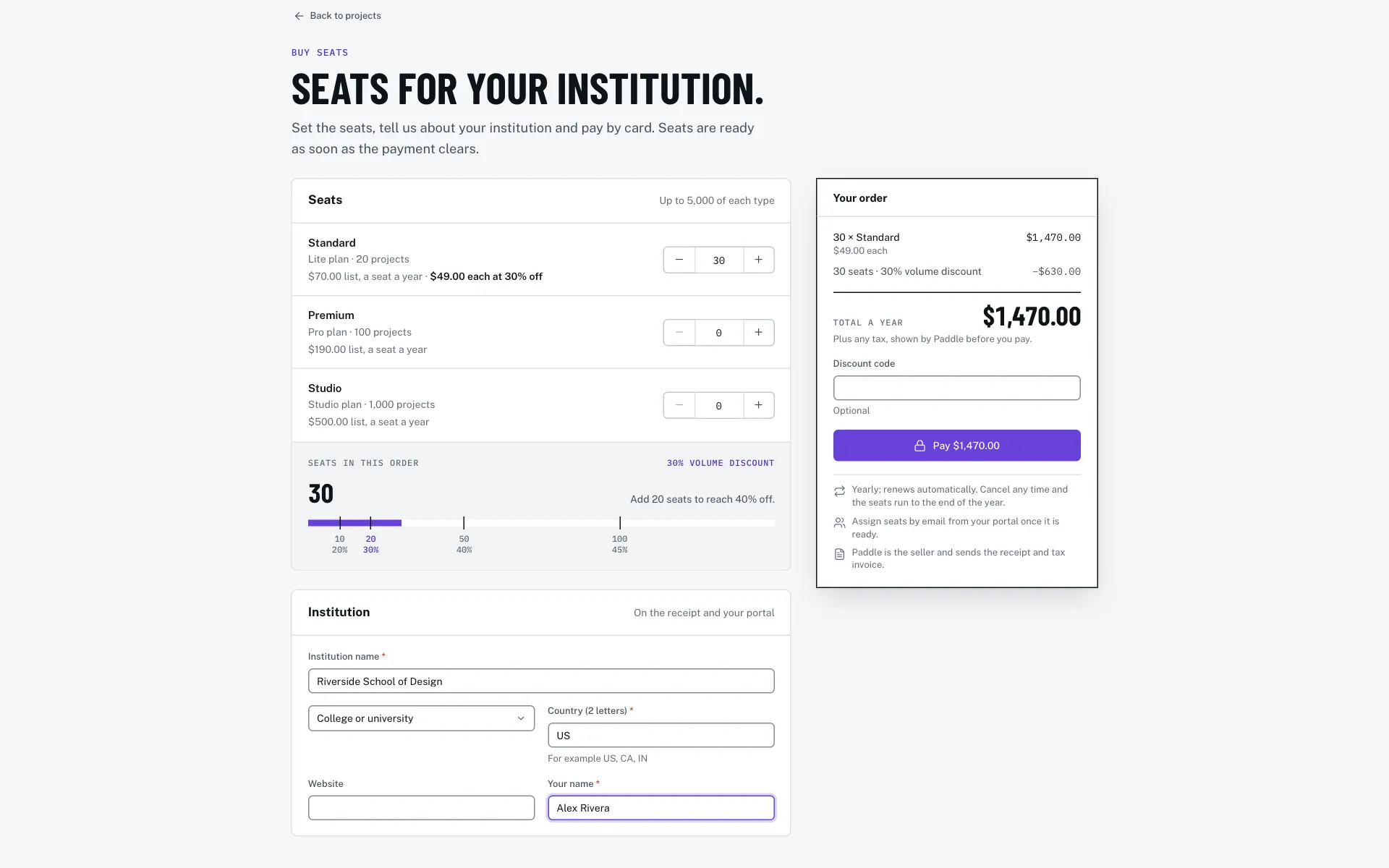
- Step 6: Check the seats
The checkout page lists each seat type with a counter, its list price and its price at your discount. Change the counts here if you need to; the bar below marks the discount steps and the smallest order.
- Step 7: Fill in the institution
Type the Institution name, pick the Kind, and enter the Country (2 letters) and Your name. The Website is optional. The name shows on the receipt and in your portal.
- Step 8: Read the order
Your order updates as you change things: each line, the volume discount, any code’s saving and the Total a year. Paddle adds any tax before you pay.
- Step 9: Add a code
If you have a discount code, type it in Discount code. Its saving shows as its own line, or the field says why it doesn’t apply.
- Step 10: Pay
Click Pay with the amount and pay in Paddle’s window. The button waits until the order has a price and the required fields are filled.
After you pay
- The page says Payment received. Setting up your institution… and opens your institution’s portal by itself when it is ready. If that takes a few minutes, click Open the institution portal later.
- You are the institution’s owner. Open it any time from Institution at the foot of the projects page sidebar.
- Assign seats by email from the portal. Seats go only to addresses in your institution’s email domains, which FloorGen sets with you; until then the portal asks you to contact us. See Manage your institution’s seats.
- Seats last a year and renew on their own. Cancel the renewal any time, and the seats run to the end of the year. Paddle is the seller and sends the receipt and tax invoice.
- Closed the payment window without paying? Nothing was charged. Click Pay again when you are ready. If a checkout from earlier is still open, the page asks what to do: Start a new checkout, I already paid or Keep the old one.
Questions
Do I need an account to buy seats?
Yes. The institution belongs to the account that buys it, so sign in first. Projects in that browser stay where they are.
Can I mix seat types in one order?
Yes. Every seat counts toward the volume discount, whatever its type.
Can I add seats later?
Yes. The owner adds seats from Billing in the portal; they run to the end of the current term. See Manage your institution’s seats.