Plumbing and ventilation points
Updated 3 min readNeeds a free account
Service points mark where water comes in, where waste goes out and where air is extracted, as small lettered symbols on the plan. FloorGen AI or a connected agent adds them and checks that each wet room has what it needs. You can’t add or move them in the editor yet.
Add service points
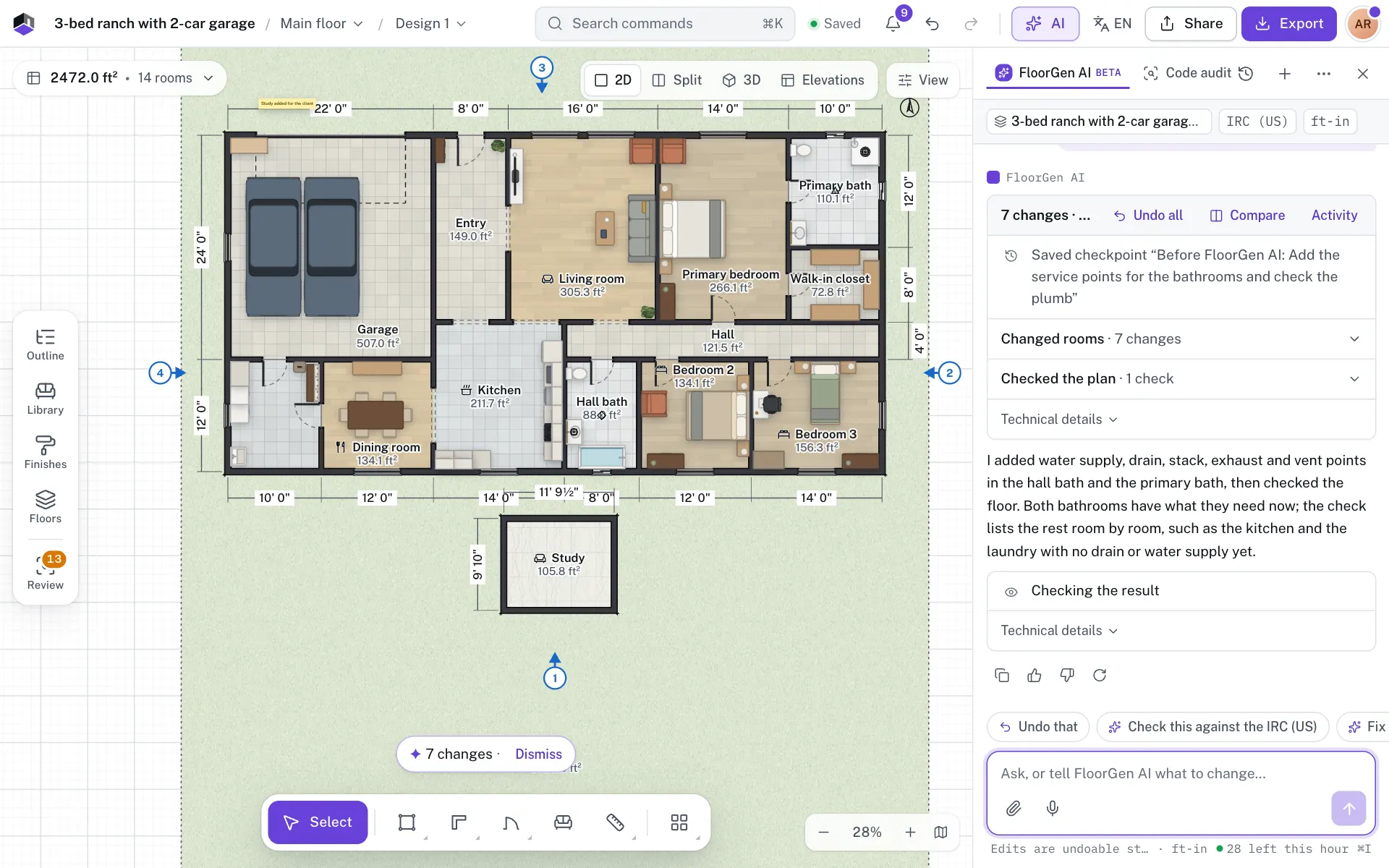
- Step 1: Open FloorGen AI
Click AI in the top bar, or press ⌘I.
- Step 2: Ask for the points
Say what you need, such as “add the water supply, drains and a waste stack for the bathrooms and the kitchen”. A supply, drain or stack named by room goes on the room’s wet fixture (toilet, shower, sink and the like) nearest its centre, or inside the room when it has none; an exhaust or vent goes inside the room. Give exact coordinates and the point goes there.
- Step 3: Find them on the plan
Each point shows as a small symbol with a letter, in the colour of the dimensions. The table below says what each one means.
- Step 4: Ask for a check
Ask “check the plumbing and ventilation”. The reply lists what is missing, room by room.
| Letter | Point | Symbol |
|---|---|---|
| W | Water supply: where water comes in | Small circle |
| D | Drain: where waste leaves a fixture | Square |
| S | Waste stack: the upright pipe the drains run to | Large circle |
| X | Exhaust: where an extract fan takes air out | Diamond |
| V | Vent | Triangle |
- The symbols can’t be clicked, selected or moved on the plan. To move one, ask FloorGen AI to remove it and add it again where you want it. A removed point goes to the trash.
- A point can carry a short label, such as “Shower drain”. The check repeats it when that drain is too far from a stack.
- They show on the 2D plan and in exports of it, not in 3D.
What the check reports
| Finding | When it shows |
|---|---|
| Wet room with no drain | A room typed Bathroom, WC or Kitchen, or any room with a toilet, shower, bath, basin, sink, washer or dishwasher in it, has no drain or stack. |
| Wet room with no water supply | The same rooms, with no water supply point. |
| No window and no exhaust fan | A Bathroom or WC, or a room with a toilet, shower or bath, has no window, no exhaust point and no extract fan, vent or hood from the Library inside it. |
| Drain too far from a stack | A drain is more than 3 m (about 9 ft 10 in) from the nearest stack on the floor, or the floor has no stack. |
The check covers the floor you are on. It is a hint for planning, not a plumbing design or an approval. It is not in the Review panel: only FloorGen AI and agents run it, so a clean Review list says nothing about service points.
With a connected agent
An agent connected over MCP adds or removes a point with add_service_point and runs the check with check_services. Both are in the more toolset. See MCP tools and toolsets.
Questions
Can I draw a service point myself?
Not yet. Ask FloorGen AI or a connected agent to add it.
Does FloorGen design the plumbing?
No. Service points mark where pipes and fans meet the rooms, and the check catches gaps. A plumber or engineer designs the pipe runs.
Why does the check ask for an exhaust in a bathroom with a fan?
It looks for an extract fan, vent or hood from the Library inside the room, or an exhaust point. Place the fan inside the bathroom’s walls, or ask for an exhaust point.