Run a code audit
Updated 5 min readNeeds a free account
A code audit checks every room of your plan against a building code, such as the IRC, in about 30 seconds. Open the Code audit tab beside FloorGen AI, pick the rulebook and what to check, and click Run audit. The report lists what to fix and what to review, each with the measured size, the required size and the rule behind it.
Pick the rulebook
- Step 1: Open the audit
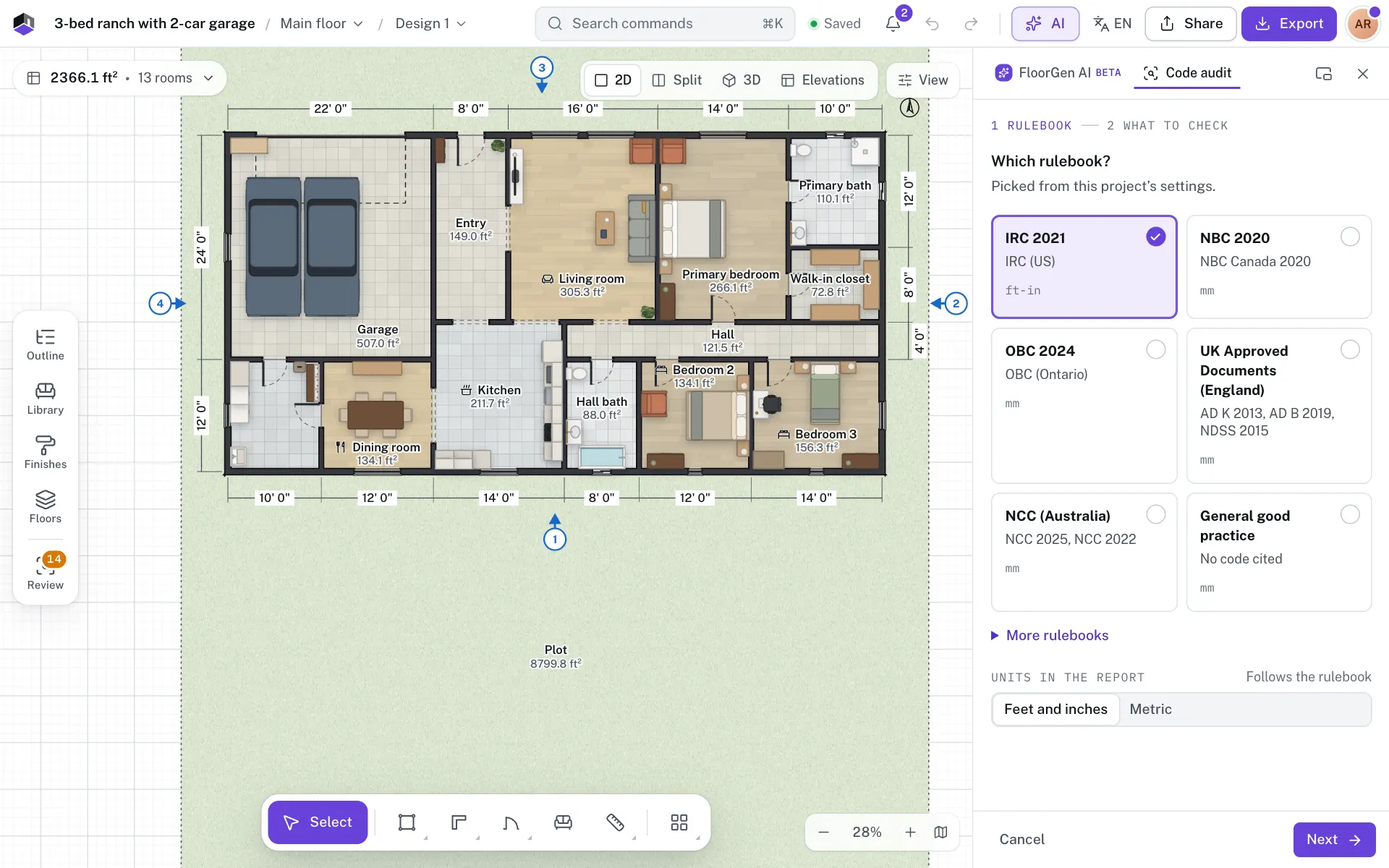
Open FloorGen AI and click the Code audit tab at the top of the panel. You can also click Code audit on the card at the top of the Review panel.
- Step 2: Pick a rulebook
One rulebook is already picked, from your location or the project’s settings, and the line under the title says which. The one for where you are is marked Yours. Click another card to check against it, or open More rulebooks for the rest. General good practice cites no code.
- Step 3: Pick the units
Under Units in the report, pick Feet and inches or Metric. They follow the rulebook until you change them.
- Step 4: Go on
Click Next.
Choose what to check and run it
- Step 5: Pick the scope
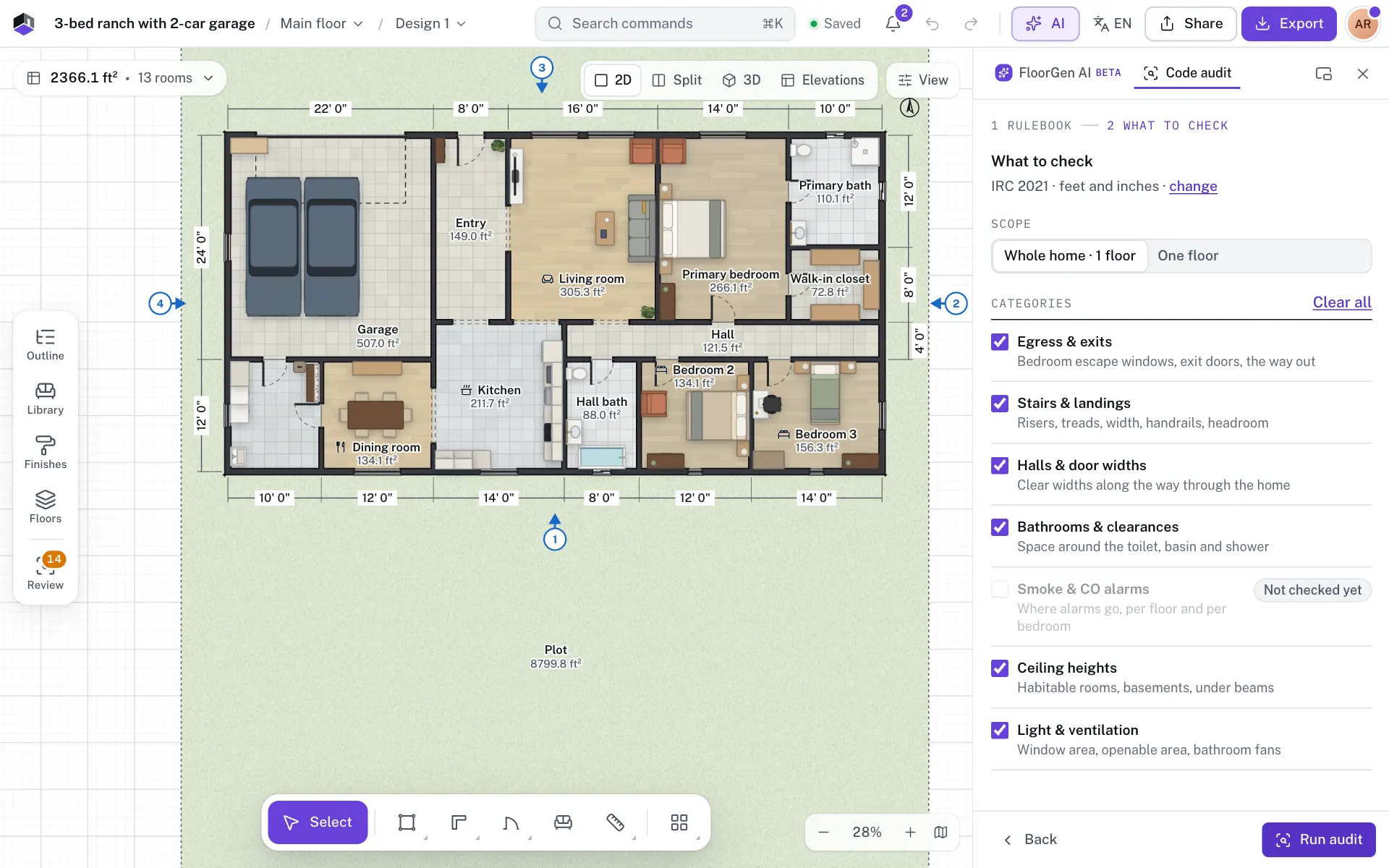
Under Scope, pick the whole home or One floor, then the floor.
- Step 6: Pick the categories
Tick the groups to check, such as Egress & exits, Stairs & landings and Halls & door widths, or click Select all. Smoke & CO alarms reads Not checked yet.
- Step 7: Check the cost and run
The panel shows the cost, your balance and what is left after the audit. Click Run audit.
- Step 8: Watch it check
The categories fill in one by one. You can keep drawing: the audit checks the plan as it was when you started.
Click Cancel audit before it finishes and nothing is charged. If the audit stops partway, nothing is charged either, and Try again keeps your choices.
Read the report and fix things
- Step 9: Read the totals
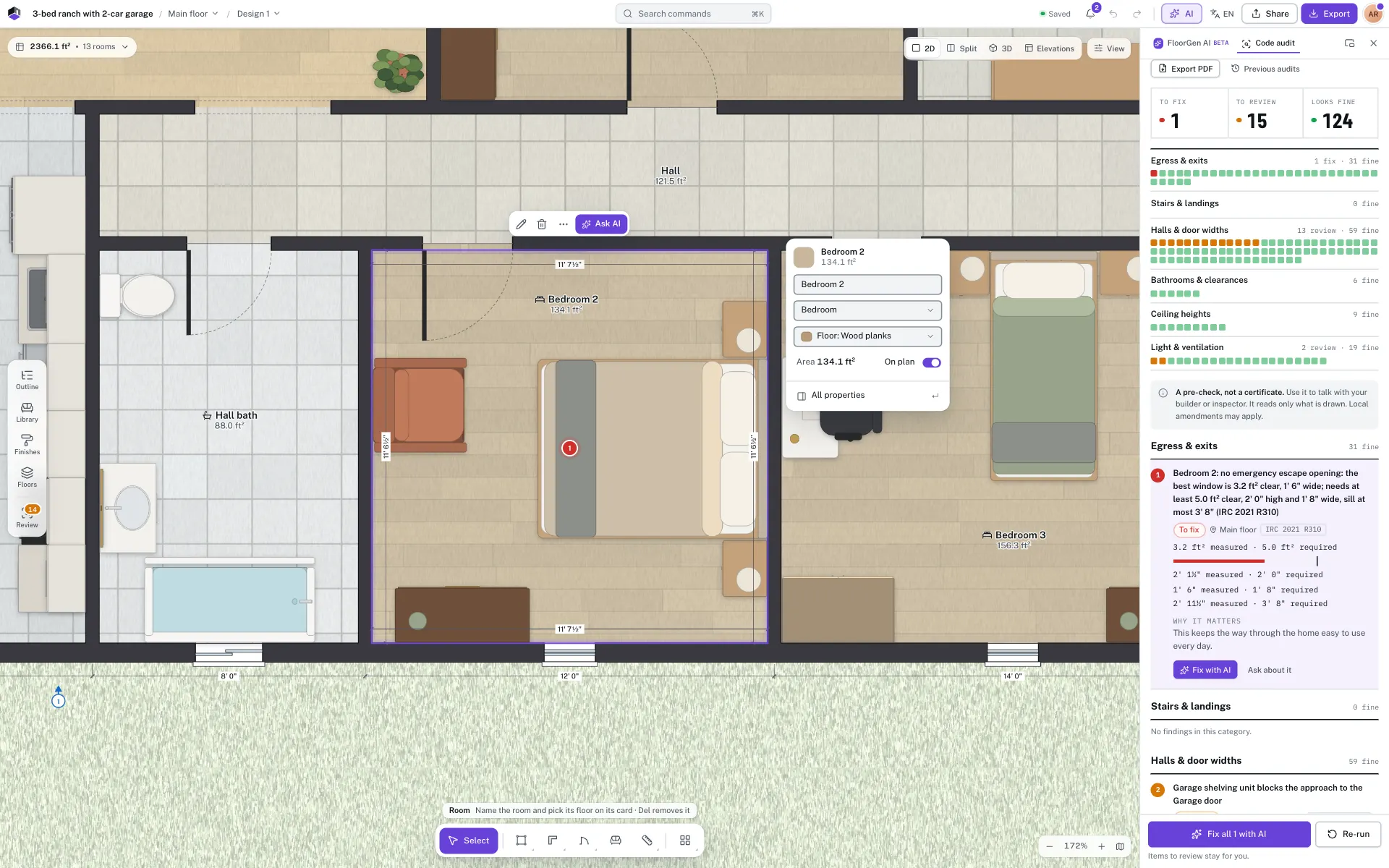
The top line says how many items are To fix (the plan differs from the rule) and To review (the drawing alone can’t tell). The categories below list their findings.
- Step 10: Open a finding
Click a finding to show it on the plan and read Why it matters. Each one names the room, the rule and the measured and required values.
- Step 11: Fix one with AI
Click Fix with AI on the finding. FloorGen AI changes the plan in one chat message, and each change is a step you can undo. On an item to review, Mark as checked sets it aside; Ask about it asks FloorGen AI what it means.
- Step 12: Or fix them all
Click Fix all 4 with AI at the bottom, then confirm. It sends up to 10 items in one message; with more, the button reads, for example, Fix 10 of 14 with AI. Items to review stay for you.
- Step 13: Save it as a PDF
Click Export PDF to print the report, with every finding and its rule, or save it as a PDF for your builder.
Run it again
- If you change the plan after an audit, the report says The plan changed since this audit. Click Re-run to check the plan as it is now.
- A re-run with the same rulebook, scope and categories shows what changed since the last one: fixed, new and unchanged findings. Items you marked as checked stay marked.
- Previous audits lists the audits of this plan, newest first. Click one to open it.
- The card in the Review panel shows the newest audit’s counts, with Open report and Re-run.
Who can run it and what it costs
- The code audit needs an account and a plan that includes it. A guest sees Sign in to run a code audit; on a plan without it, the tab names the plans that include it and offers an upgrade.
- An audit costs credits, and the panel shows how many before you run it. Fix with AI and the “Fix all” button are ordinary chat messages, priced as one. See AI credits.
- You can also start an audit from the chip that offers to check the plan against your code profile, such as “Check this plan against the IRC 2021”, in an empty chat, the chip under a reply that changed the plan, or a message that asks to check the plan against a code.
- A floor with no rooms, doors, windows or stairs has nothing to audit. Draw a room, pick a template or ask FloorGen AI first.
Questions
Is the audit the same as the Review panel?
No. The Review panel checks the plan as you draw, for free. The audit checks the whole home or a floor against one rulebook you pick, gives the rule behind each finding and keeps a report you can re-run and print. See Building code profiles.
Does a clean report mean my plan complies?
No. Looks fine means the audit found nothing in the groups it checked. It is a pre-check of the drawing, not an approval.