Get a PDF drawing set from the chat
Updated 3 min readNeeds a free account
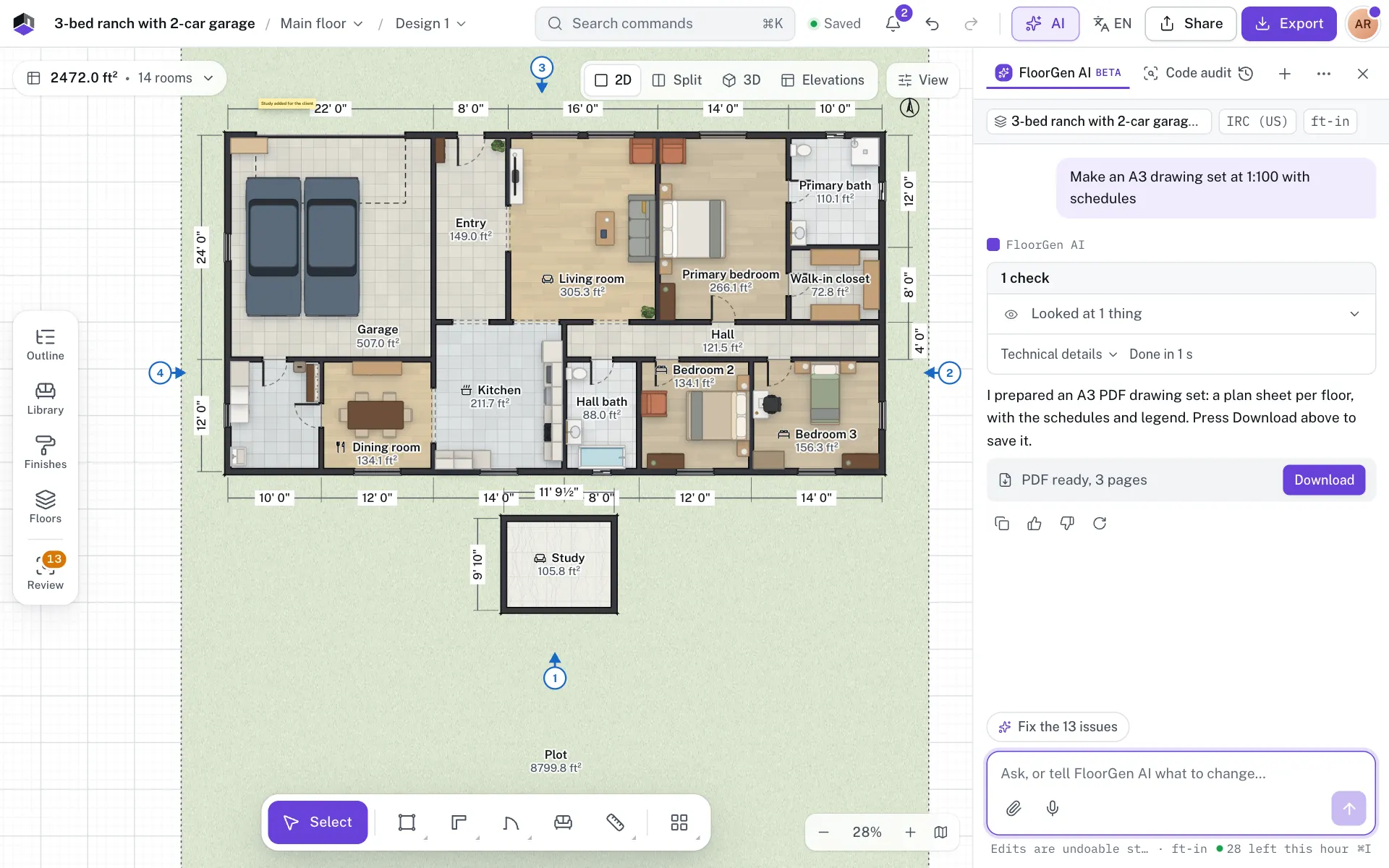
Ask FloorGen AI for a drawing set and your browser builds the same PDF print set as Export: a sheet per floor at a real scale with a title block, plus any extra pages you ask for. When the file is ready, the reply shows PDF ready, 3 pages with a Download button.
Ask for the drawing set
- Step 1: Ask for it
Open the chat with ⌘I and say what you need, such as “Make an A3 drawing set at 1:100 with schedules”. Name the paper, the scale, the floors and any extra pages. Anything you leave out takes the defaults below.
- Step 2: Wait for the chip
The reply shows a line while your browser prepares the PDF, then PDF ready, 3 pages. If the reply also changed the plan, the PDF waits for those changes so it shows them.
- Step 3: Download it
Click Download. The file name starts with the project name and ends with the paper, such as
-a3-drawing.pdf, and the file is listed in My exports.
What you can ask for
| Option | What to ask | Default |
|---|---|---|
| Paper | A4, A3, A2 or A1 | A4 |
| Scale | A ratio such as 1:100, or 1:96 for 1/8 inch to the foot. Or ask it to fit the paper. | The largest scale that fits. A floor too big for your scale is printed at one that fits, and the chip says so. |
| Floors | Every floor, or only the floor you have open | Every floor |
| Schedules | The schedule and legend pages | Off |
| Summary and elevations | The project details, building summary, sections and elevations | Off |
| 3D view | A page with the current 3D camera angle | Off |
These defaults differ from the Export dialog, where the summary and schedules start on. Ask for them by name. The title block shows the project’s Client, Revision and Address: ask FloorGen AI to fill them in first, such as “Set the client to Ana Ruiz”, or type them on the Print set tab of Export.
Who can use it and what it costs
- Drawing sets need a free account, and your plan must include print sets. By default every account has them. If yours doesn’t, FloorGen AI says so instead of preparing one. If the chip shows Your plan does not include this export. Upgrade to get it., click Export to open the Print set tab.
- With credits on, the message costs 10 credits, like any other message. Building and downloading the PDF costs nothing more.
- Only FloorGen AI in the editor can prepare the PDF, because your browser builds it. An agent connected over MCP can’t; it points you to Export instead.
What it can’t do
- Letter, Tabloid, ARCH C and ARCH D paper are only on the Print set tab of Export. The chat offers A4 to A1.
- Crisp vector lines and the grid are not options. For those, use Export a print set.
- The PDF is kept only once you click Download: it then goes to your device and to My exports. Download it before you leave the chat; otherwise ask again or use Export.
- If you open another project before the PDF is ready, it isn’t built.
- If building fails, the chip reads The PDF could not be prepared. Use Export, then Print set.
Questions
Is it the same PDF as Export › Print set?
Yes. FloorGen AI fills in the same options for you, and your browser builds the file the same way.
Does preparing the PDF change my plan?
No. Only the changes you ask for change the plan. If you ask for both, the PDF is built after the changes land.